Your first conversation
Open Ask, start a new chat, send a message, read the citations, and save the conversation for later.
Prerequisites
- You are signed into Ask. See Sign in & choose your organization.
- Your organization has at least one published agent, or you are happy to use the default chat.
Steps
-
Open Ask. You will land on
/conversations, the Chats home.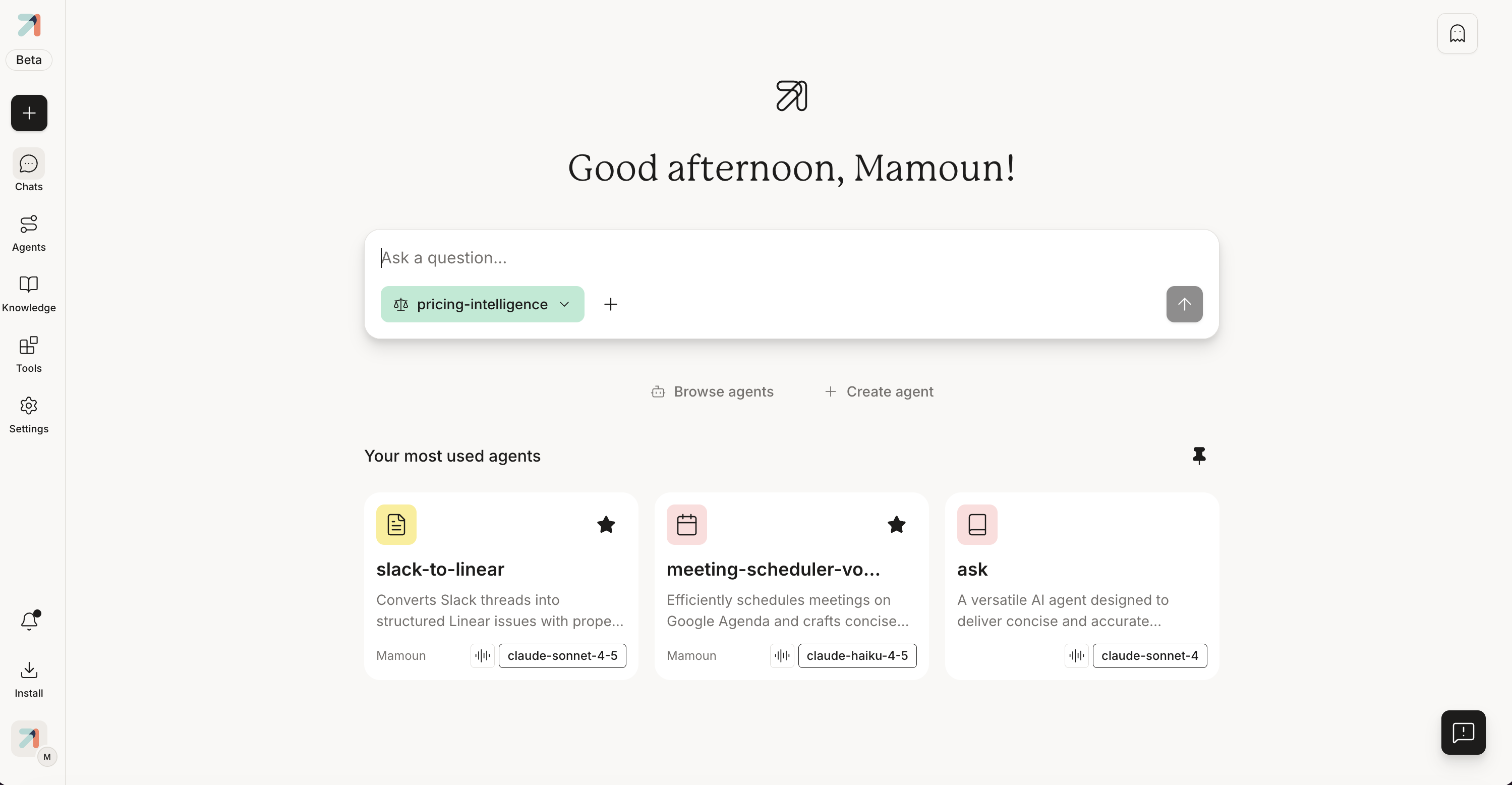
Click New Chat in the top-left of the sidebar. -
Click New Chat (the + button). A fresh conversation opens with the empty "Ask a question..." input, and your last-used agent pre-selected in the composer chip. Click the chip if you want a different agent.
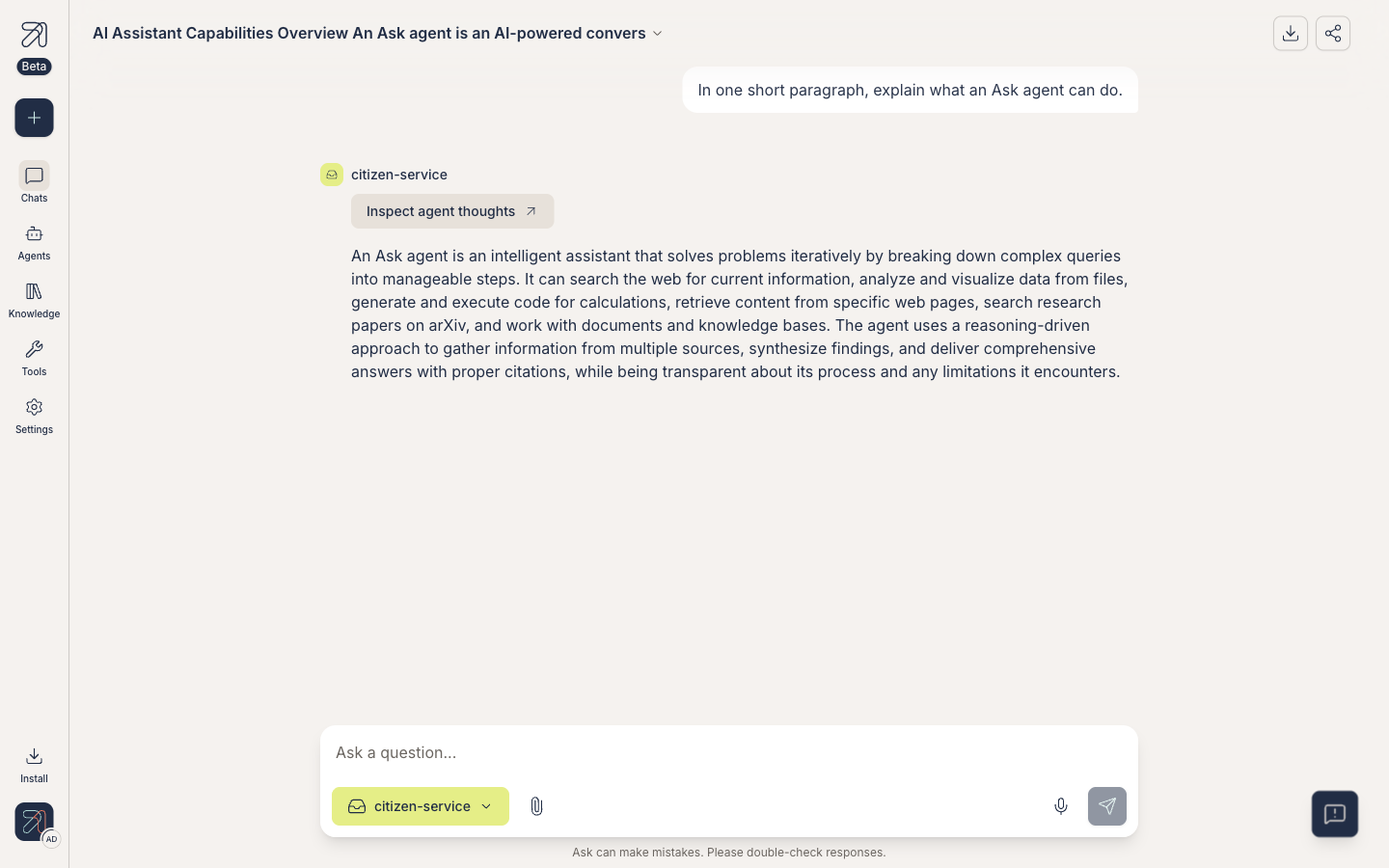
The conversation pane mid-chat. -
Type a question and press Enter. For example: "Summarize last quarter's OKRs in three bullet points."
The agent streams a reply token by token. If it uses any knowledge base, citations appear inline as numbered chips.
-
Hover a citation chip for a quick look at the document, section, and snippet, or click it to open the Sources panel on the right, where Expand shows the highlighted passage in context and Open document opens the full source. More in Citations & sources.
-
Continue the conversation. Ask follow-up questions; the agent keeps context.
-
Your conversation is saved automatically. To find it later, go to Chats in the sidebar, where it will be at the top.
What to try next
- Attach a PDF mid-conversation and ask the agent to summarize it. See Attach files & images.
- Pick a specialized agent instead of the default chat. See Pick the right agent.
- Try voice mode if the agent has it enabled. See Voice mode.
Tips & gotchas
If a reply is slow or going off-track, use the stop control and try again with a clearer prompt. See Stop, edit, branch off.
Citations only appear when the agent has a knowledge base attached. A generic chat without knowledge attached will answer from the model's own training instead.