The conversation pane
Everything you do in Ask happens in a conversation with an agent. This is a quick tour of the conversation pane, covering where each control lives and what it does, so the rest of this section makes sense.
A conversation is a multi-turn exchange with an agent. You ask a question, the agent answers using its instructions, connected knowledge, and tools, and you carry on from there. Along the way you can attach files, watch the agent reason in real time, follow citations back to their source, and return to any past thread where you left off. To follow along, sign in to your organization’s Ask instance.
Start a conversation
Open Ask and click the + (New Chat) button at the top of the left navigation. A new chat opens on the agent you used last, so you can start typing straight away. To use a different one, open the agent library and pick an agent your organization has published, and the next message you send runs on that agent. See Pick the right agent.
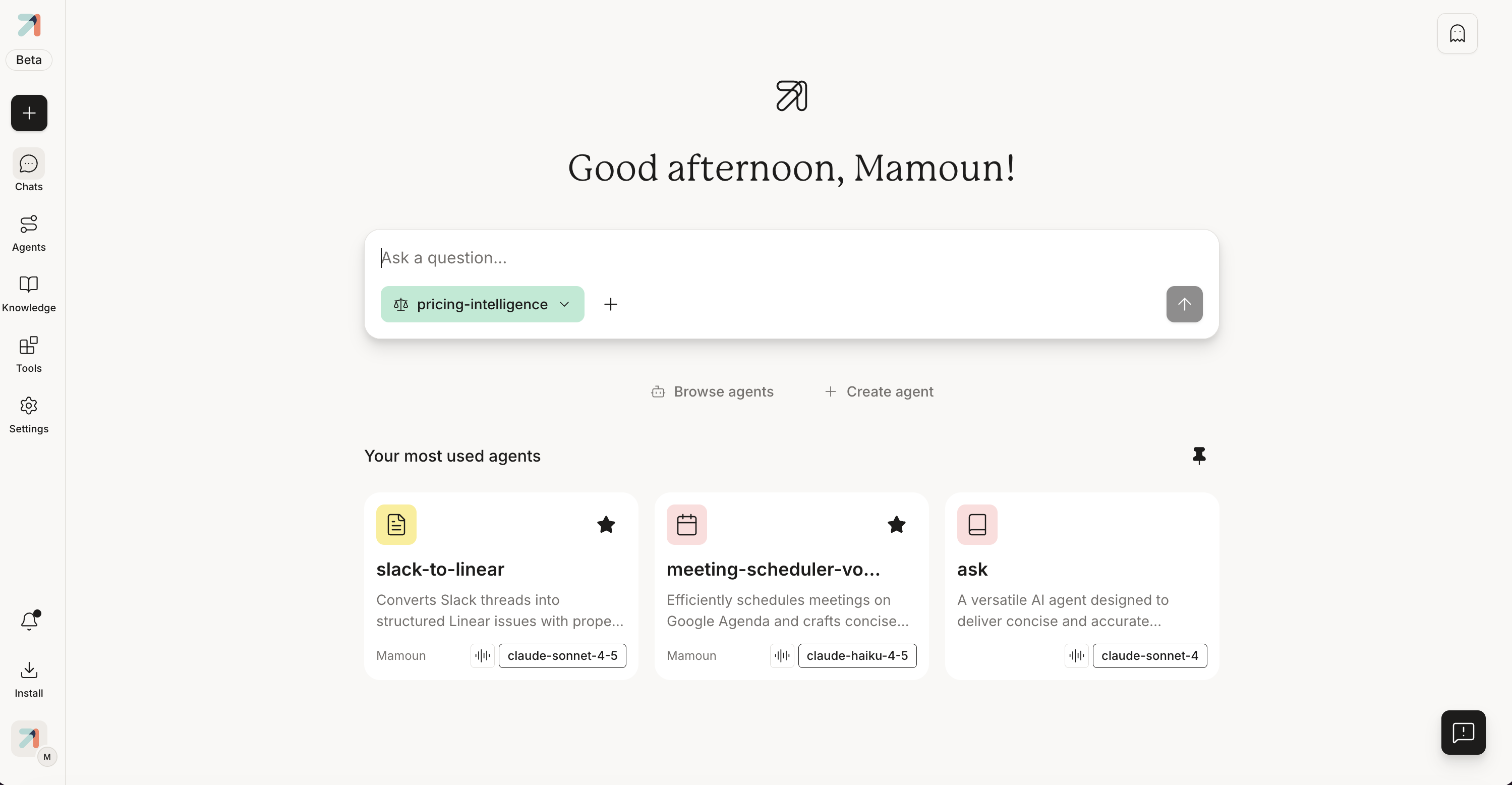
Anatomy of the pane
The pane has three regions: the navigation on the left, the message thread in the centre, and the input area along the bottom.
Left navigation. Start a new chat with the + (New Chat) button at the top, then move between the main areas of Ask:
- Chats: your conversation history, grouped by recency. See History & search.
- Agents: the agent library, where you browse and launch published agents.
- Knowledge: your knowledge bases: the documents agents can search.
- Tools: the tools and connectors available to agents.
- Settings: your account and workspace settings; organization and admin controls appear here if your role includes them.
A Beta badge sits near the top of the navigation, since Ask is evolving quickly, so expect frequent improvements. At the bottom, an Install button opens a short wizard for the mobile apps: App Store and Google Play links plus a QR code for signing in to your organization. (The browser extension is installed from its store listing instead. See Browser extension.)
Incognito Mode
A new chat has an Incognito Mode toggle in the top right. Switched on, the conversation is not saved, so it won't appear in your history, and memory is off, so it won't update what Ask remembers about you. Use it for one-off questions you don't want following you around.
Message thread. Your turns and the agent’s replies stack in the centre. Replies stream in as the agent writes them. Within a reply you’ll find:
- Citations: inline markers that appear when the agent used knowledge to answer, each linking back to the exact source. See Citations & sources.
- The thoughts panel: a live, step-by-step view of how the agent is working: which tools it’s calling and which documents it’s retrieving, before it commits to an answer.
- Message controls: stop a reply while it streams, and other turn-level actions. See Stop, edit, branch off.
Input area. Write and send messages from the bar at the bottom. From here you can also:
- Open the “+” menu (“Add files, tools and more”) to attach a file or image from your device or a knowledge base. When you’re chatting with the default Ask agent, the same menu also lets you switch on extra tools or change the model for the conversation. See Attach files & images and Which agent, and which model, answers.
- Switch to voice: talk to the agent and hear its reply, when the agent has voice mode enabled. See Voice mode.
Which agent, and which model, answers
Each agent comes configured with its own model, instructions, knowledge, and tools, and your messages run on that setup. With a published agent, that setup is fixed: to answer with a different model or capabilities, switch to an agent built that way.
The exception is the default Ask agent, which is general-purpose rather than pre-configured. When you’re chatting with Ask, its + menu adds a Model and a Tools option, so you can choose which model answers and switch tools on for the conversation, and reset back to the defaults whenever you like. See Pick a model.
Tips & gotchas
Start a fresh conversation when you change topics. Long threads carry more context and can slow replies down.
Changing the model or tools mid-conversation is a feature of the default Ask agent, from its + menu. A published agent always answers with the model and tools it was configured with, so to use different ones, switch to an agent set up that way. See Pick a model.
This guide describes the Ask web app. Labels and controls can change between releases, so if something here doesn’t match what you see, trust the live app.