Tour of the app
The Ask web app has one persistent left sidebar. Once you know it, you know where everything lives.
Prerequisites
- You are signed into Ask. See Sign in & choose your organization.
The layout at a glance
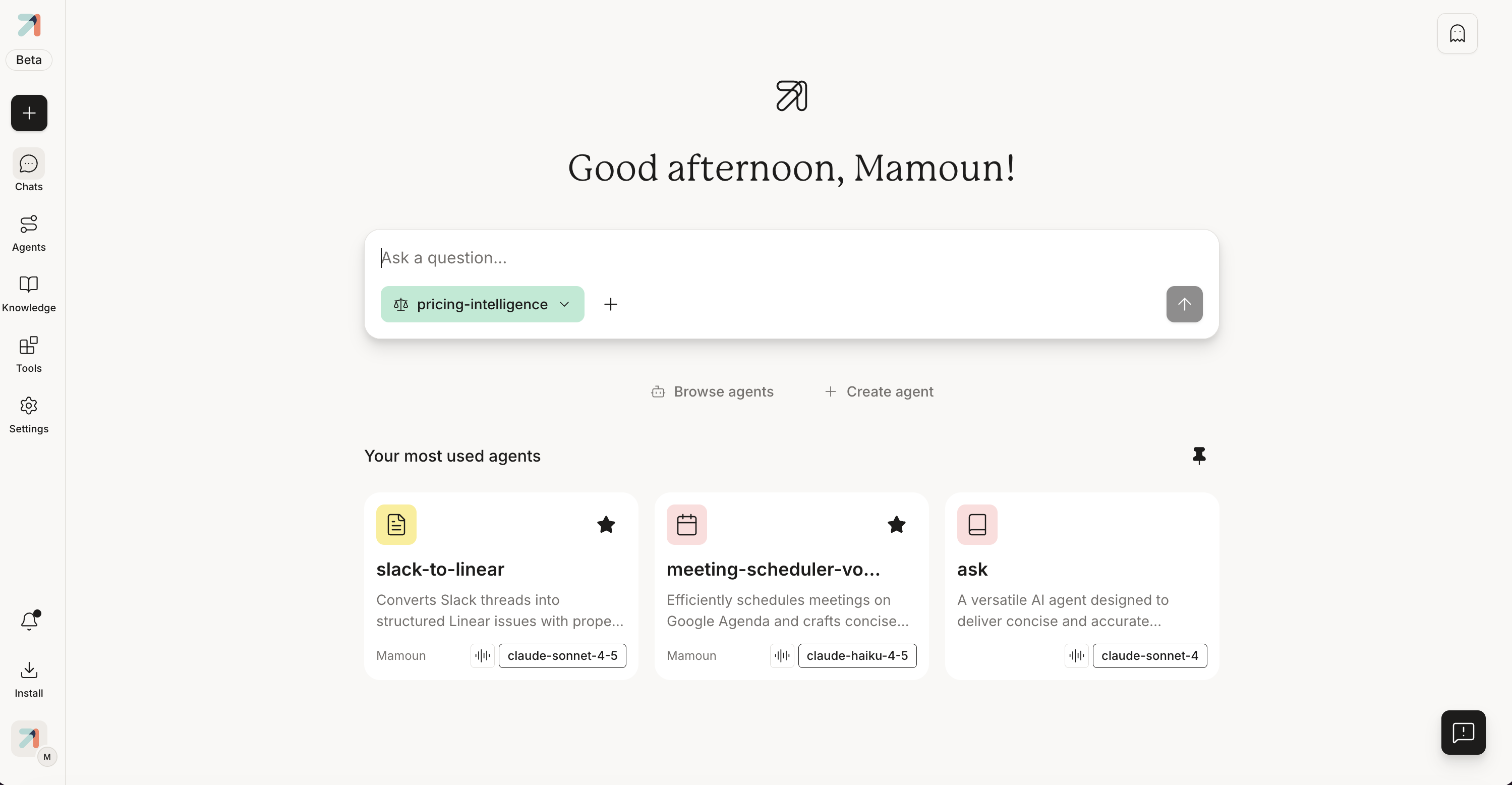
The screen is split into three parts: the left sidebar (navigation), the main pane (whatever you are doing right now), and a few top-right controls.
The left sidebar
The sidebar is always visible. From top to bottom:
-
Ask logo: top-left brand mark with a small Beta tag. Click it to go to
/conversations(your conversation home). -
New Chat: the black + button (its tooltip says New Chat). Opens a fresh conversation with your last-used agent pre-selected in the composer chip; click the chip to switch agents (search, favourites, recently used, or the default ask agent).
-
Chats (
/conversations): all your past conversations, newest first. -
Agents (
/agents): the agent library. Browse, filter by category, search, and create new agents. -
Knowledge (
/knowledge-base): your knowledge bases. Opens the last collection you used. -
Tools (
/connectors): the tool library. Filter, search, connect new tools. -
Settings: organization settings (admins). Personal preferences live behind your profile icon → Personal settings.
The bottom of the sidebar
- Notifications: the bell icon.
- Install: opens the mobile-app install wizard (App Store / Google Play links plus your org's QR code). See Mobile & extension.
- Your avatar: the profile menu: your org's card (with an edit pencil for admins), Switch Organization, your user row, Personal settings, Light Mode, language, Help, and Log Out.
The one control in the top-right of a chat is the Incognito Mode toggle. See The conversation pane.
Other things to notice
- Open feedback form: a small floating button in the bottom-right corner. Use it to send feedback to the Ask team.
- The main pane changes with each section, but the sidebar does not. You can jump from Knowledge to Agents to Settings without losing your place.
Tips & gotchas
Use New Chat from anywhere; it is always one click away. You do not need to navigate back to Chats first.
Some sidebar items behave like router buttons (they take you to a URL) and some like overlays. Install opens a browser PWA prompt; it does not change pages.