Roles & permissions
Ask uses role-based access control: two built-in roles cover the common cases, and admins can define custom roles with per-permission toggles under People & Access → Access → Custom roles.
Built-in roles
- Member: the default. Chat with agents, create personal knowledge collections, use shared agents and tools, and manage their own Personal settings (profile, tool permissions, API keys).
- Organization Administrator: everything a Member can do, plus the organization sections of Settings: People & Access, Data, Capabilities, and Account.
Both built-in roles are locked: you can't edit their permissions.
Custom roles
-
Open Settings → People & Access → Access and click the Custom roles row.
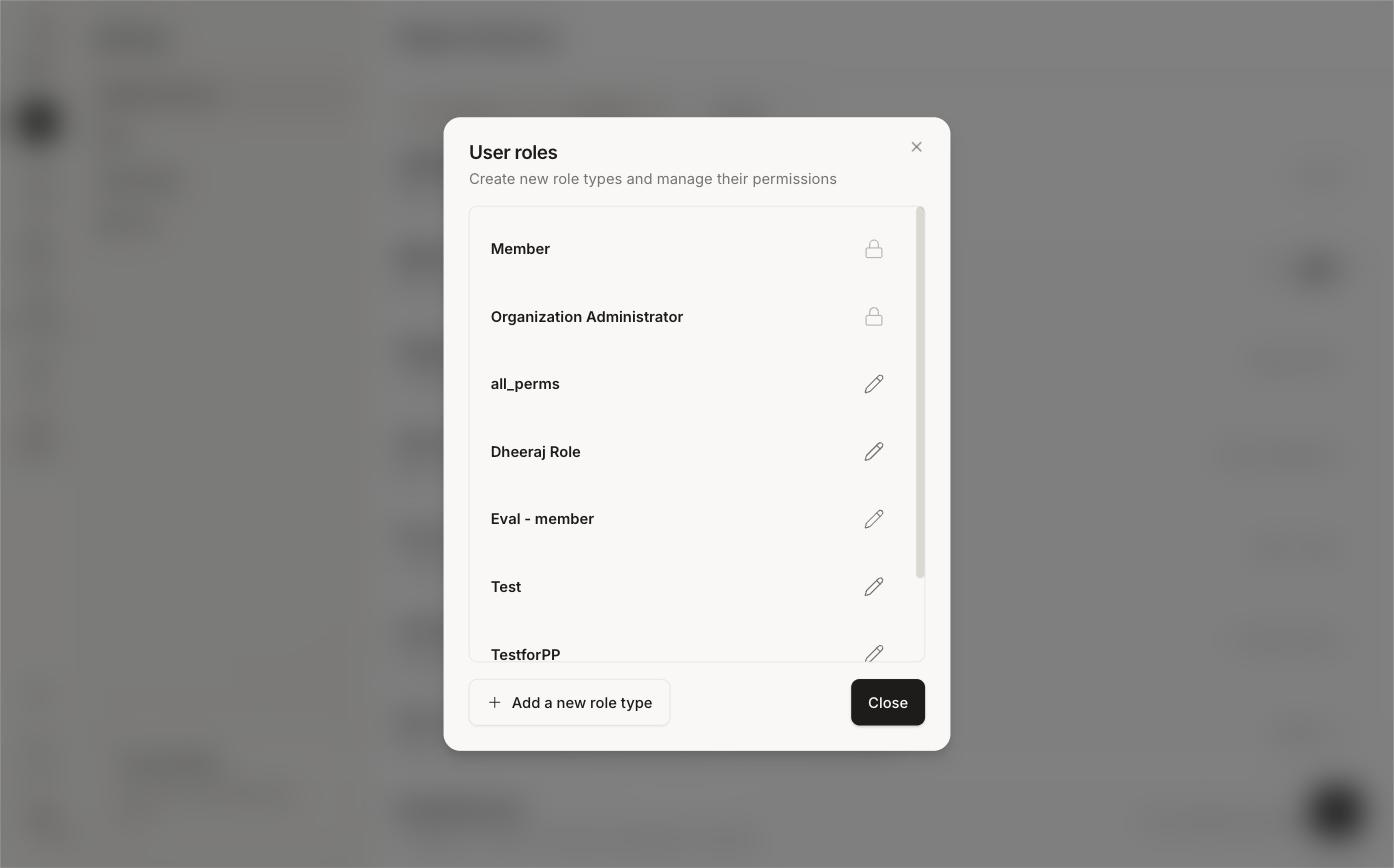
The User roles dialog. Built-in roles show a lock; custom roles are editable. -
Click + Add a new role type (or the pencil next to an existing custom role).
-
Name the role and switch on only the permissions it needs, then Save.
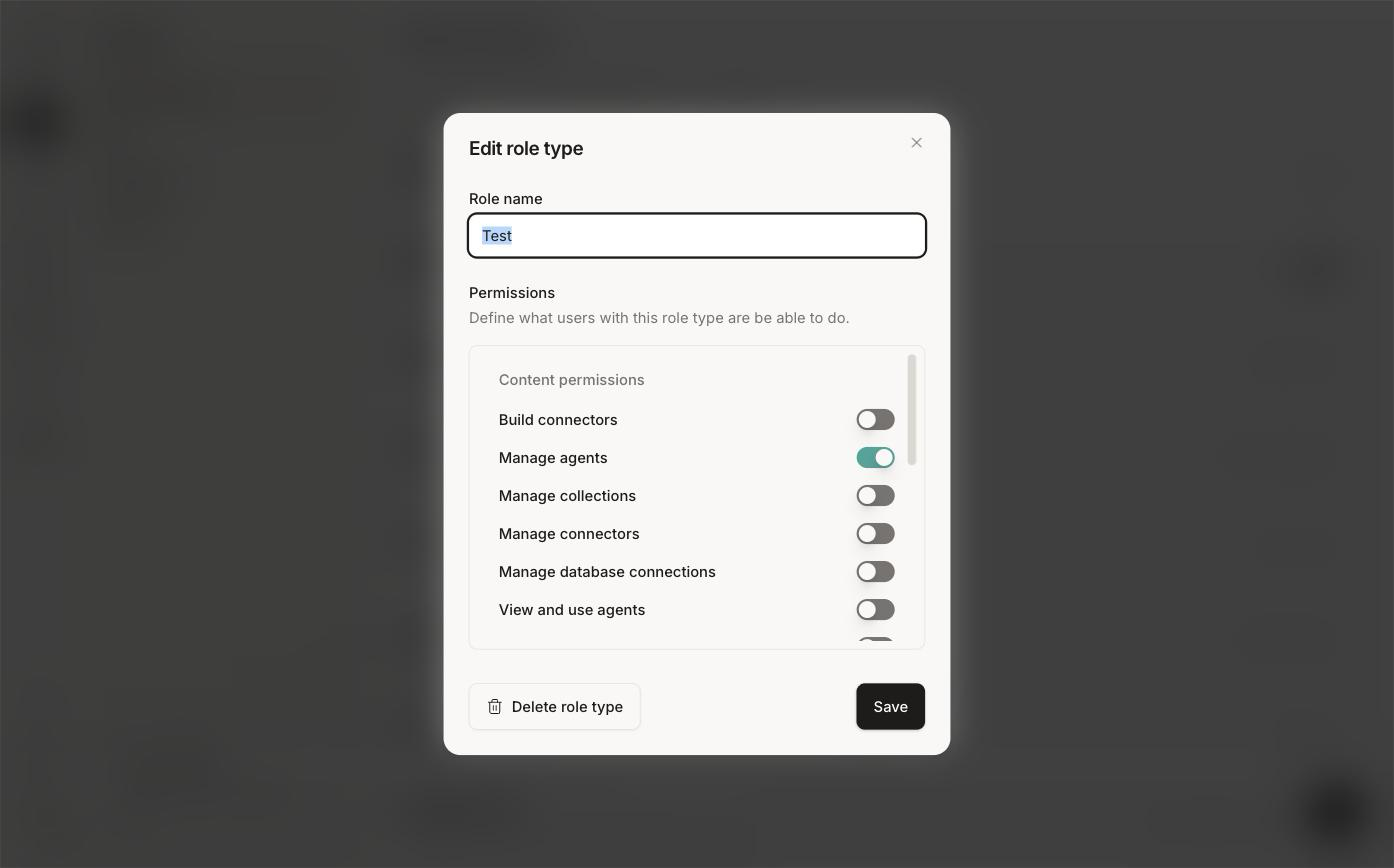
Each role is a set of permission toggles across two groups.
The permission list
| Group | Permissions |
|---|---|
| Content permissions | Build connectors · Manage agents · Manage collections · Manage connectors · Manage database connections · View and use agents · View connectors · View database connections |
| App configuration | Eval admin access · Eval member access · Manage API keys · Manage SMTP config · Manage triggers · Manage user groups · Manage users · View feedback and reporting |
Custom roles let you split admin duties, e.g. a "User manager" with only Manage users and Manage user groups, or a "Builder" with the content permissions but no app configuration. Start from nothing and add.
Assign a role
-
Open People & Access → Users.
-
Use the Role dropdown on the user's row and pick the new role. The change takes effect on the user's next request.
Default role for new users
The Default user role setting on the Access tab controls which role users get when they sign in via SSO for the first time (just-in-time provisioning). It defaults to Member.
Resource-level sharing
Roles set the floor; per-resource sharing fills in the rest. Agents and knowledge collections are shared individually with users or groups. See Share & discover and Organize & manage.