Organize & manage
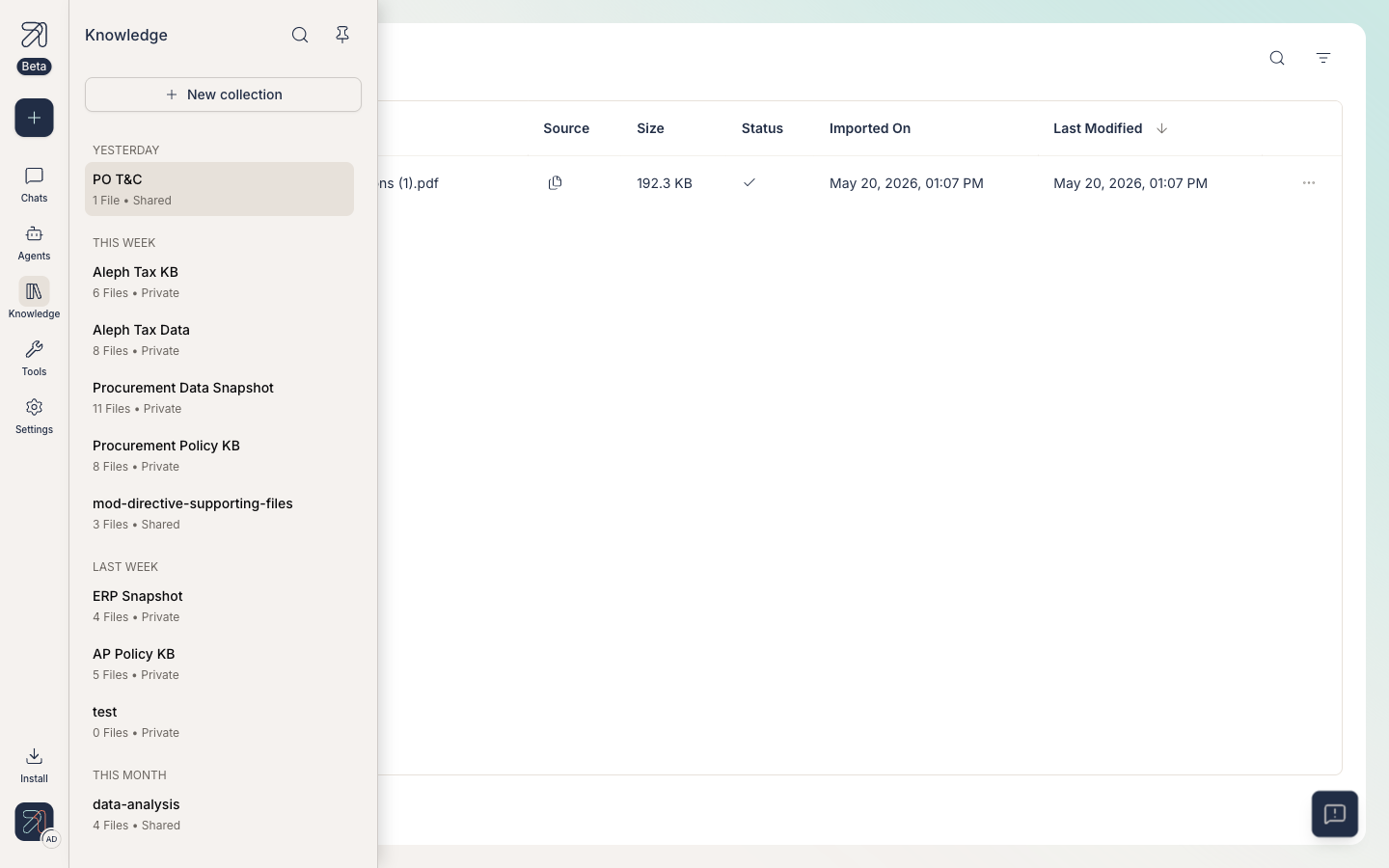
The Knowledge sidebar is where you live when curating collections. Here is what every control does, and a handful of small habits that keep big knowledge bases tidy.
Prerequisites
- An Ask account on your organization's instance.
- At least one collection you can see, either Private (yours) or Shared (with other individuals in your org).
The Knowledge sidebar
Click Knowledge in the left navigation to open the Knowledge surface. A secondary sidebar appears headed Knowledge, with three top-of-sidebar controls and the list of collections below.
New collection
The primary button at the top of the Knowledge sidebar. Use it to start a fresh collection. The New collection modal asks for a Collection title and an optional Description (max 500 characters); there is no visibility field. New collections start out Private; you share them later with the Share button (see below).
Search
The Search button at the top of the sidebar filters the collection list by name as you type. Handy when you have dozens of collections and you remember the title but not the date.
Pin sidebar
The Pin sidebar button keeps the Knowledge sidebar open as you browse, instead of letting it auto-collapse. Pin it when you are deep in curation work; un-pin it when you want more reading room.
Recency groups
Collections are grouped by when they were last modified, rather than alphabetically:
- Yesterday
- This week
- Last week
- This month
- Last month
- This year
That keeps active collections at the top. If you cannot find something old, use Search instead of scrolling.
Visibility labels
Every collection shows a label next to its name, for example 6 Files • Private or 1 File • Shared. Use it as your first sanity check before adding anything sensitive. See Knowledge bases, explained for what each visibility means.
Rename, share, delete
Each action lives on a different control, and the sidebar kebab (three-dot) menu only deletes:
- Delete: the kebab menu on a collection in the sidebar contains a single item, Delete.
- Rename / edit: open the collection, click the chevron next to its title, and pick Edit to change the title or description.
- Share: the Share button on the collection page ("Control who can access this collection and what they're allowed to do"). Grant access to individuals, groups, or everyone in your org.
Two access levels are confirmed today: the collection's Owner (full control: edit, share, delete) and Reader ("Can view only"), the level org-wide sharing is capped at.
Working with files
Inside a collection, files sit in a table with columns File Name, Source, Size, Status, Imported On, and Last Modified. To wrangle it:
- Each file row has a ⋯ menu: Download, Preview, View content, Rename, Share, and Delete file.
- Select several files at once with the row checkboxes for bulk actions.
- Narrow the table with the File Type, Status, and Modified filters, or the in-collection search box.
Tips & gotchas
"Onboarding agent knowledge base" beats "Misc HR". When you see it in an agent's knowledge picker six months from now, you will thank past-you.
If a Shared collection is attached to agents and you delete it, those agents lose that knowledge silently. Check the agents that use it first, or detach before you delete.