Manage users
Invite teammates, set their status and role, and organize them into groups, all from Settings → People & Access, the membership control plane for your Ask organization.
Prerequisites
- Admin role required. Without it, the organization sections of Settings are hidden.
- The email addresses of the people you want to add. For SSO-backed tenants, those addresses must match your IdP.
Invite a user
-
Open Settings from the left rail. You land on People & Access → Users (
/settings/people-and-access/users).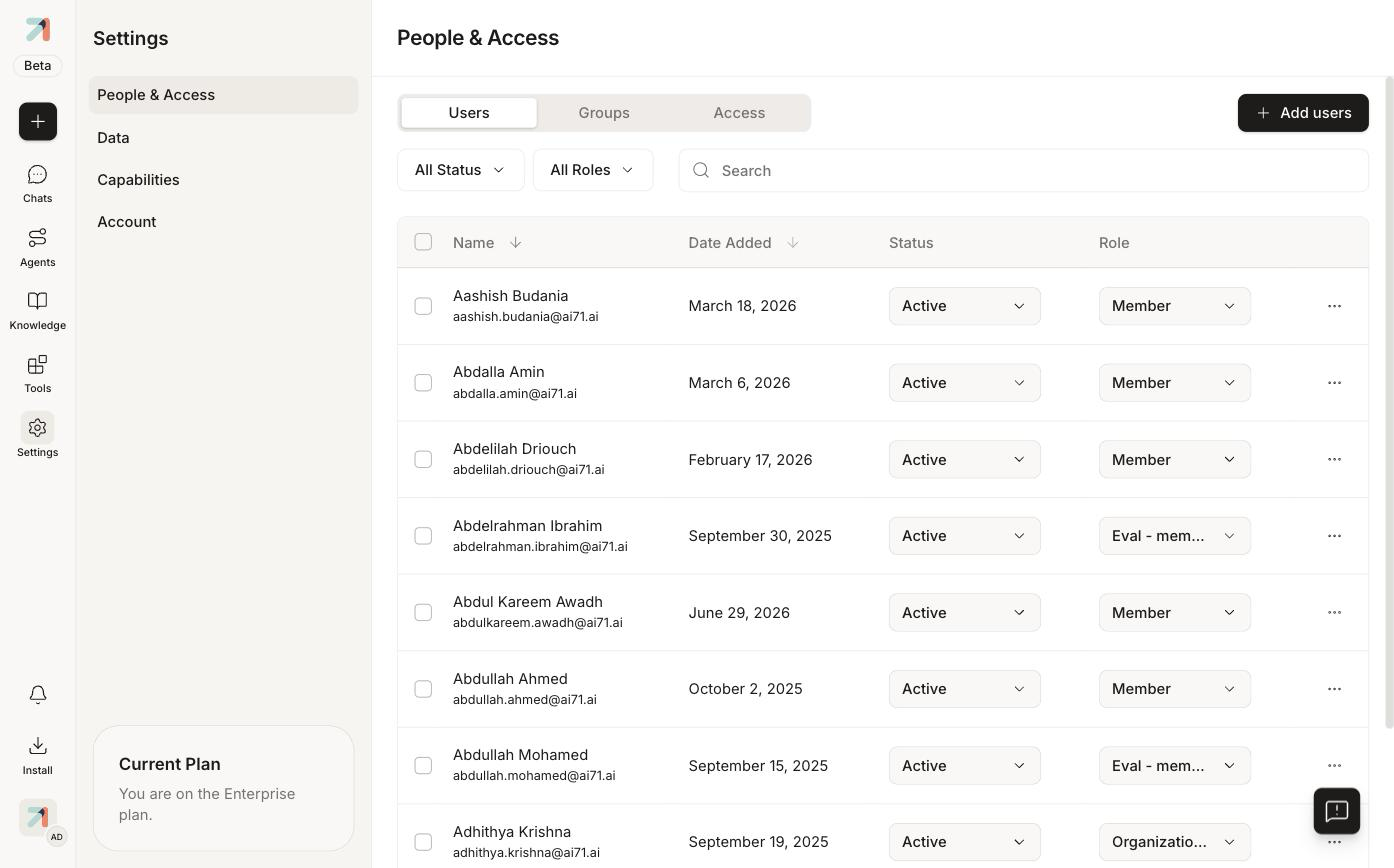
The Users tab: filter by status or role, search, and manage each member inline. -
Click + Add users (top right) and enter the new members' email addresses.
-
Pick a role for each new user. The role determines what they can see and do. See Roles & permissions.
-
Send the invite. The user receives an email with a sign-in link. If an invite goes stale, use the row's … menu → Resend Invite.
If User provisioning on the Access tab is set to Just in time, users signing in through SSO for the first time are created automatically and get the Default user role, no invite needed.
Change status, role, or name
Each row in the Users table has inline controls:
-
Status dropdown: flip an account between Active and inactive. A deactivated user cannot sign in; their conversations and agents are preserved.
-
Role dropdown: assign Member, Organization Administrator, or any custom role. Takes effect on the user's next request.
-
… menu: Rename, Resend Invite, Delete. Prefer deactivating over deleting: Delete removes the account permanently.
Deactivating a user does not revoke the personal API keys they created under Personal settings. Audit and rotate keys separately when someone leaves. See Create & manage API keys.
Groups
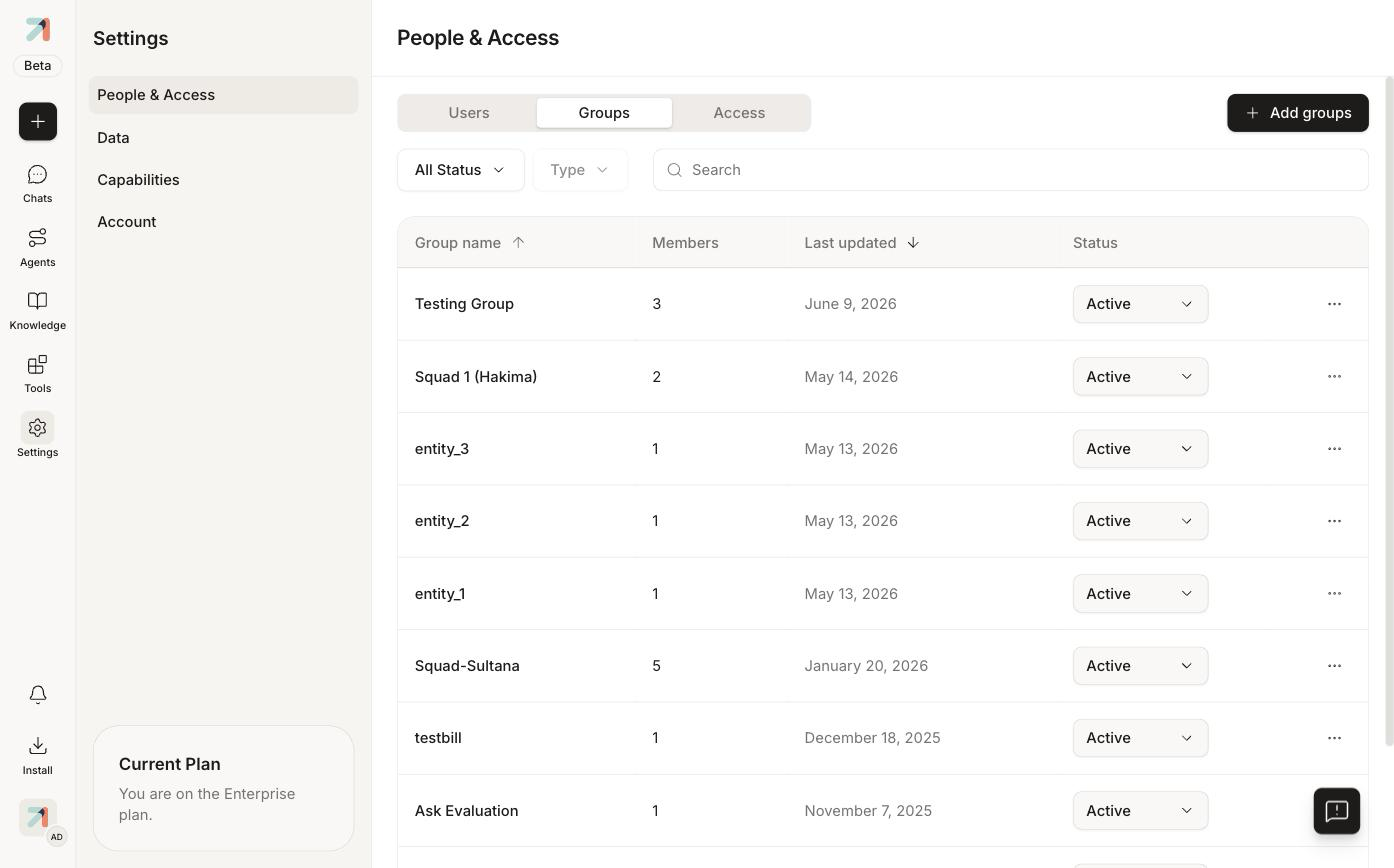
The Groups tab manages named collections of users, useful for sharing agents and knowledge collections with a team in one step.
-
Click + Add groups to create a group.
-
Each group row shows Members, Last updated, and a Status dropdown.
-
Group membership shows up on each user's profile (Personal settings → Profile).