Browser extension
End user Preview
The Ask browser extension brings your agents into a side panel next to whatever you’re working on. Ask about the page you’re reading, hand it a screenshot or the page’s text as context, and, with your say-so, let an agent read your tabs, navigate, and fill forms for you.
It’s the same account and the same agents as the web app, in a panel that opens alongside any site. Conversations you start here appear in your Chats history, and you can jump back to the full web app at any time.
The extension is not surfaced in the web app's Install wizard, and distribution differs per organization. If you don't have it, ask your Ask admin whether it's available for your deployment and how to get it.
Prerequisites
-
Google Chrome, or another Chromium browser such as Microsoft Edge.
-
An Ask account, signed in to your organization.
-
The extension package or store link from your admin.
Install & sign in
-
Add the extension from the link your admin provides, and confirm when your browser prompts you.
-
Pin it to your toolbar. Open the panel any time by clicking the Ask icon, or with the keyboard shortcut Ctrl+Shift+A (⌘+Shift+A on a Mac).
-
The first time, select Sign in. Ask opens the web app in a new tab so you can log in; once you do, the panel picks up your session and you’re ready to go.
The panel at a glance
The extension opens as a panel down the right-hand side of the browser, so the page you’re on stays in view. On the landing view you’ll find a prompt box, your Recent agents for one-click selection, and a header with your profile menu and a Recent messages button that lists your recent chats. Inside a conversation, an Open in Ask button hands the thread off to the full web app.
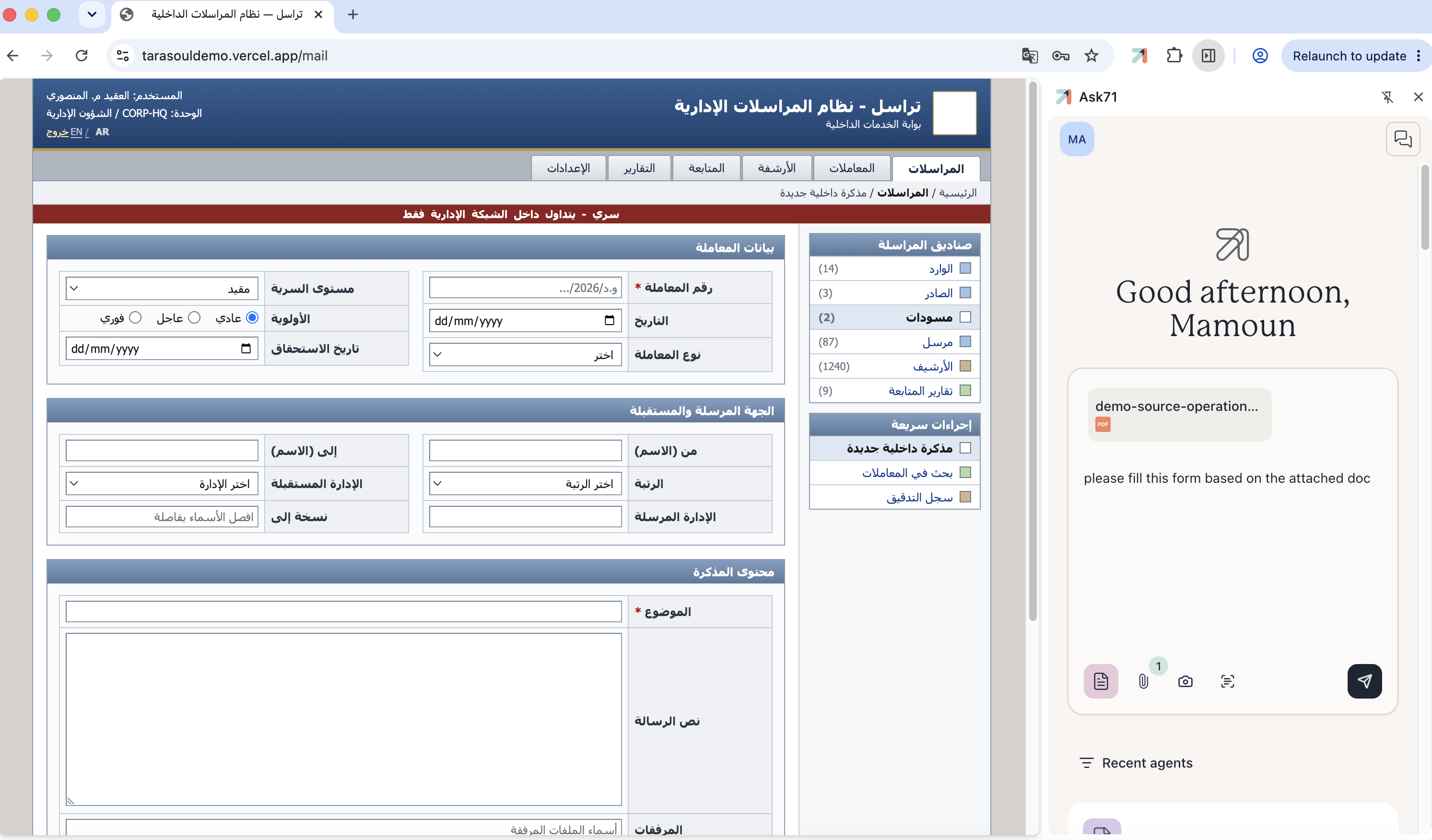
In the browser, the toolbar button and panel are labelled Ask. It’s the same Ask you use everywhere else.
Give an agent the page as context
The extension can pass what’s on screen to the agent, so you don’t have to copy and paste. From the toolbar in the prompt box you can:
-
Capture screenshot: attach an image of the visible page (the camera button). Handy for charts, layouts, or anything that isn’t plain text.
-
Attach page text: pull the page’s text in as context. This one is a small menu with two modes:
- This page only: attaches the current page and clears when you switch tabs.
- Follow my tabs: an auto-attach mode: every message you send includes the text of whichever tab you’re viewing, so the agent always has your current page in context.
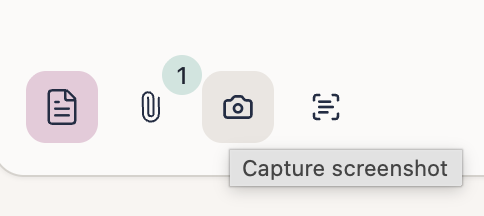
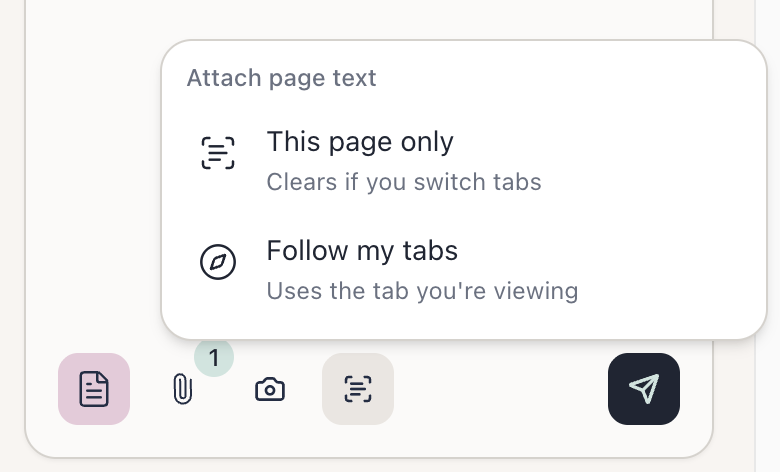
Whatever you attach shows as a removable chip above the prompt, so you can always see, and drop, what the agent is being given.
Right-click shortcuts
You don’t even need the panel open. Right-click a page (or a selection) and the Ask menu offers:
- Ask to summarize this page: attaches the page and asks for a summary in one step.
- Ask: Add page text to conversation and Ask: Add page screenshot to conversation drop the page’s text or a screenshot straight into the panel.
- Ask: Add selection to conversation: appears when you’ve highlighted text; sends just that portion.
- Ask: Fill with AI: appears on an editable field; generates a value and types it into the field on the spot.
Let an agent act on the page
Beyond reading the page, an agent in the extension can operate the browser for you. Working in your own tabs, it can:
- Read and inspect: read the current page or a specific tab, list your open tabs, and inspect a page to see its links and form fields.
- Move around: open a new tab, navigate a tab to a URL, or switch to another tab.
- Interact: click elements, type, fill in form fields, and submit. This is the agentic way to complete a form.
Form-filling is the headline use: ask the agent to fill a form and it inspects the page to find the fields, works out the right values (from a document you attached, a knowledge base, or a connected system), then fills and submits them for you. Because these actions run in your own browser session, the agent works with pages exactly as you see them, including internal tools and apps behind your login.
Approvals & privacy
The extension only ever reads a page when you ask it to, by attaching context, using a right-click action, or approving a tool. Nothing is captured in the background.
Actions that change something, such as opening or navigating a tab or interacting with a page, pause for your approval first. A Permission request banner appears under the reply, naming the agent and what it wants to do (for example, “wants to use Interact With Page”), with a short summary of the values it will enter or the page it will open. You can:
- Allow: run this one action.
- Always allow: stop being asked for this kind of action from this agent.
- Deny: skip it. The request also auto-denies on its own countdown if you don’t answer.
Read-only steps (reading the page, listing tabs, inspecting fields) don’t interrupt you; only actions that touch the page do.
Agents, files & conversations
Pick an agent from the panel’s agent picker: your Favourites, Recently used, and every other published agent are all there, just like the web app. You can also attach files from your computer or from a knowledge base with the Attachments (paperclip) button. Replies stream in with the agent’s thoughts, and you can stop one mid-stream. Everything you do syncs to your account, so Open in Ask picks the conversation up in the full web app whenever you want the extra room.
A few ways to use it
- Fill a form from a document or system. Attach a PDF (or point the agent at a connected CRM/ATS) and have it complete a web form: invoices into a finance portal, candidate details into an applicant tracker, a case into a help-desk system.
- Summarize and triage. Summarize a long article, contract, or ticket without leaving the page, or pull out a specific detail like a date or amount.
- Draft in context. Draft a reply, a follow-up, or a summary that’s grounded in the page you’re looking at and your organization’s knowledge.
- Work across tabs. Ask an agent to gather details from an open profile or record and carry them into another tab.
Tips & gotchas
Reach for Follow my tabs when you’re moving between pages and want the agent to keep up with whatever you’re looking at. Switch back to This page only, or drop the context chip, when you want to pin one page down.
Browsers don’t let extensions read their own internal pages, such as chrome:// and edge:// settings or the extensions gallery. On those pages the capture buttons and right-click actions are unavailable; open a normal web page and try again.
The panel is a focused version of the full app. A few web-app touches (per-reply copy and thumbs-up/down, and an in-panel settings screen) aren’t here yet; use Open in Ask when you need the full experience.