History & search
Every conversation is saved automatically. The Chats list keeps them organised so you can pick up an earlier thread in a click.
Before you start
- At least one past conversation.
- Open Chats from the left navigation.
The Chats list
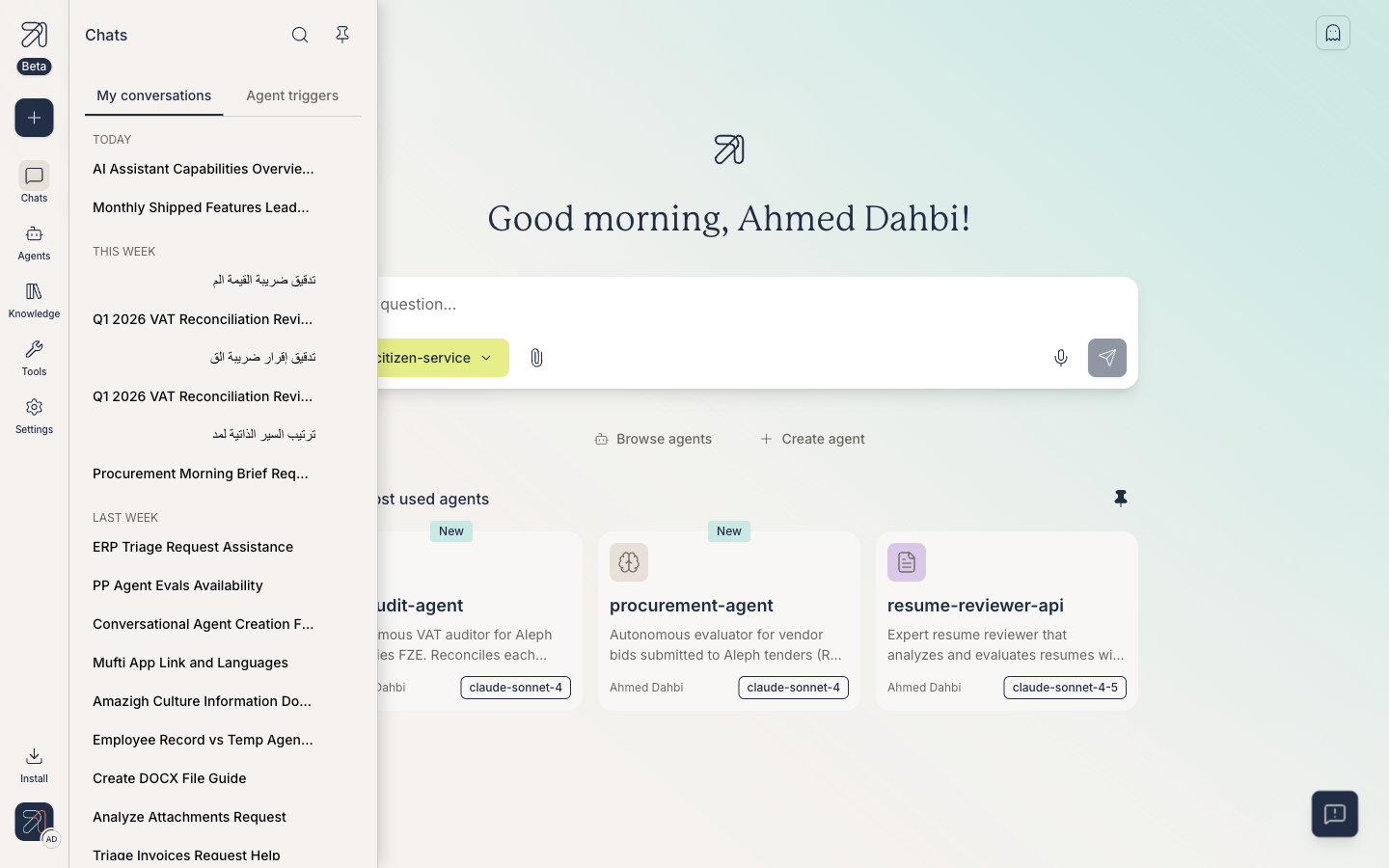
Chats in the left navigation opens your conversation history, grouped by how recently you used each one (Today, Yesterday, This week, Last week, This month, and on back through the year) so the threads you’re actively working on stay near the top. Any conversations you’ve bookmarked are gathered in a Bookmarked group above the rest.
Find a past conversation
-
Open Chats from the left navigation.
-
Scan the recency groups and select a conversation’s title to reopen it.
-
Or use Search at the top of the list and start typing. The list narrows to matching conversations as you go.
-
The full thread loads in the conversation pane, and you can carry on from where you left off.
Organise & manage conversations
Beyond reopening them, you can keep your history tidy and hand threads to colleagues:
- Bookmark a conversation to keep an important thread easy to find.
- Rename a conversation so the title still means something to you later (the automatic one is taken from your first message).
- Delete a conversation you no longer need.
Tips & gotchas
Rename threads you’ll return to. A title generated from your first message is rarely descriptive enough a week later.
Bookmarks keep a long history manageable, so bookmark the handful of threads you reference often.