Agent triggers
Set an agent to run on its own, on a schedule or in response to an event from a connected tool. No one has to type a prompt first.
Prerequisites
- Edit access to the agent you want to automate.
- A clear instruction for the agent to run when the trigger fires.
- For event-based triggers only: a matching source an org admin has already connected (see Connect a source). Scheduled triggers need no setup.
How triggers work
Every trigger follows one loop: condition met → agent runs → agent uses its tools to act. There are two kinds:
- Scheduled (time-based): runs on a recurring clock, e.g. every weekday at 09:00. Always available.
- Event-based (webhook): runs the moment an event is detected in a connected tool, e.g. a new GitLab merge request or Linear issue. Needs an admin-connected source first.
A source is the org-level connection to an external system (GitLab, Linear, a custom webhook), set up once by an admin. A trigger is an agent-level rule that attaches to a source, or to the built-in schedule, and says when to fire and what to tell the agent. Many agents can build triggers on the same source.
Scheduled triggers
Use these when the agent should run on a clock: a morning digest, a weekly sweep, a month-end summary.
-
Open the agent's Triggers area. From the library, use the agent card/drawer ⋮ → Triggers (the agent's Agent triggers log history page, with a Setup trigger now button; note it drops you on step 1 of the editor, so open the Tools & Knowledge tab yourself). In the creator, use the Agent triggers section of the Tools & Knowledge tab → + Add trigger.
-
Click Add trigger → Set Schedule.
-
Fill in the form and Save.
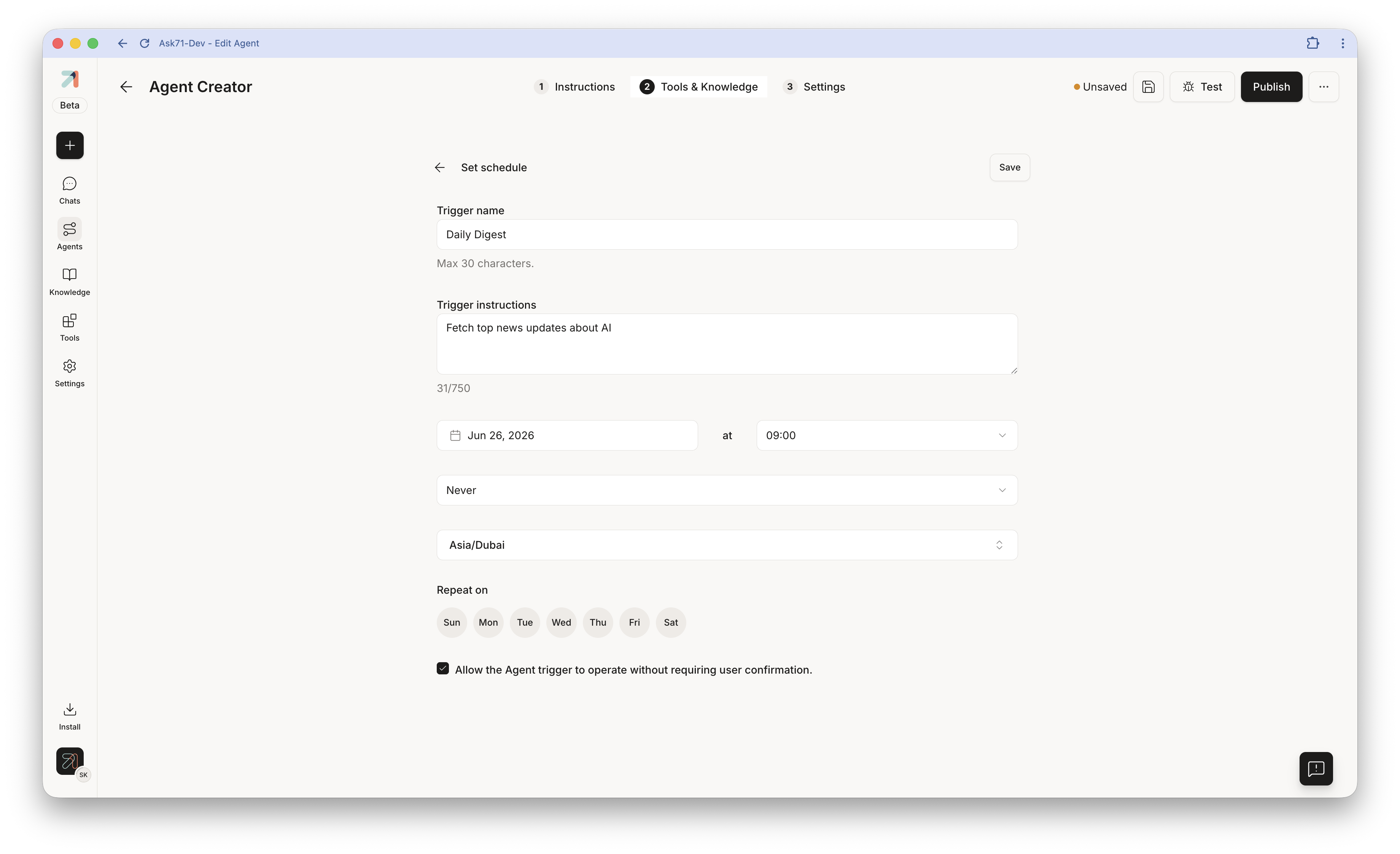
The Set schedule form: name, instructions, start date & time, end condition, timezone, Repeat-on days (Sun–Sat), and the run-without-confirmation checkbox.
| Field | What to enter |
|---|---|
| Trigger name | Short label (max 30 chars), recognizable in the run history. |
| Trigger instructions | The prompt sent to the agent each run (up to 750 chars), e.g. "Summarise the top 5 news stories about our market today and post them." |
| Start date & time | When runs begin, and the time of day each fires (e.g. 09:00). |
| Timezone | IANA timezone (e.g. Asia/Dubai). Daylight-saving is handled for you. |
| Repeat on | The weekdays (Sun–Sat) to run on. |
| Ends on | Never, On date, or After occurrences (a set number of runs). |
Event-based triggers
Use these when the agent should react the instant something happens in a tool: a merge request opened, an issue filed, a comment posted.
-
In the Add trigger picker, choose the event source for your tool (e.g. Gitlab). Only sources your org has connected appear.
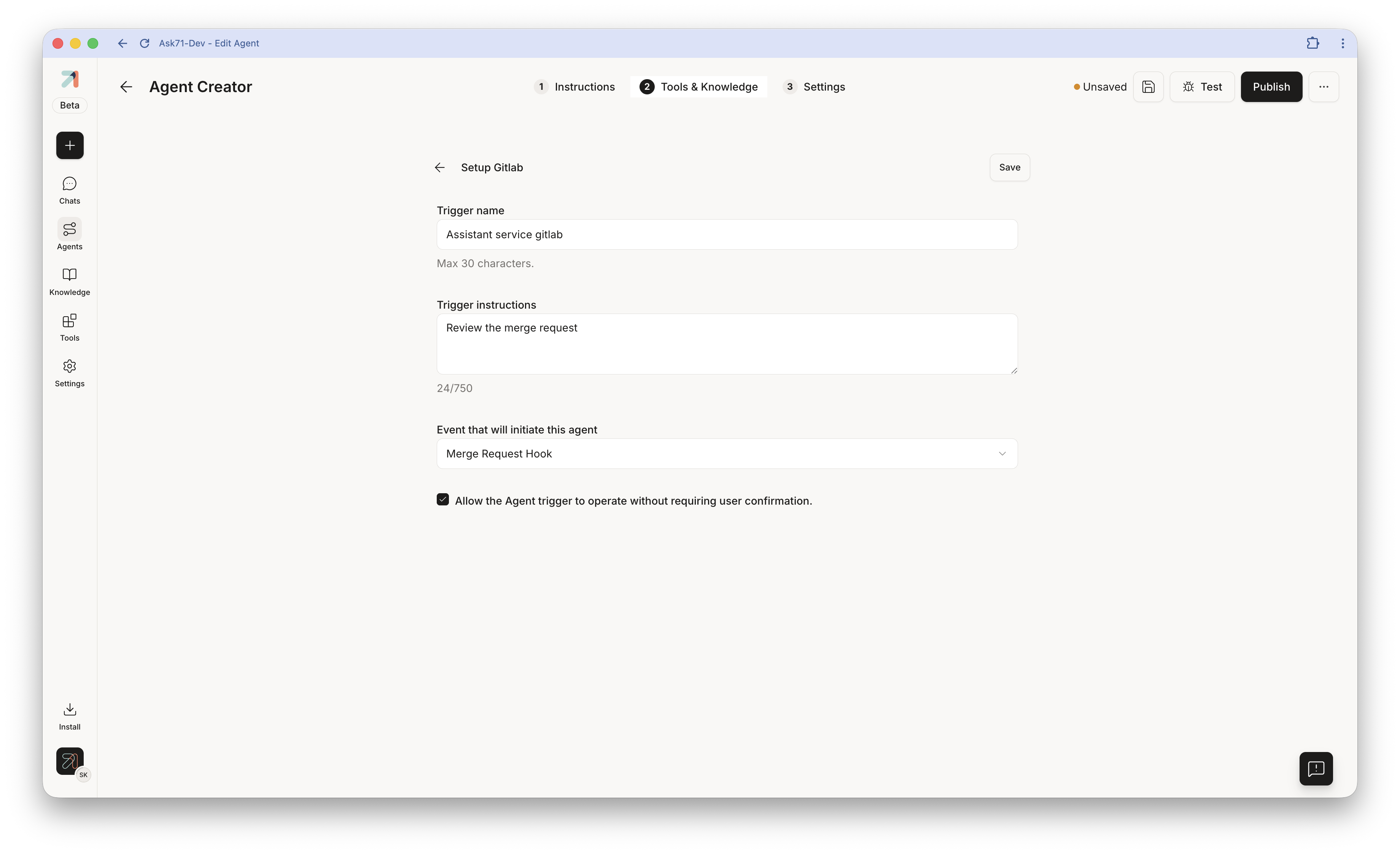
The Setup Gitlab form: trigger name, instructions, the event that starts the agent, and the run-without-confirmation checkbox. -
Choose the Event that will initiate this agent. For Gitlab: Merge Request Hook, Push Hook, Pipeline Hook, or Note Hook.
-
Write the trigger instructions and Save. By default the event's data is added to the prompt so the agent can act on the specifics.
Examples: a code-review agent on a merge request; an issue-triage agent on a new Linear issue; a legal-intake agent on an inbound email webhook.
Event sources must be connected by an org admin first. If your tool isn't in the picker, ask an admin to add it (see Connect a source).
Run without confirmation
Every trigger has an Allow the Agent trigger to operate without requiring user confirmation checkbox. Left unchecked (the default), the agent prepares actions but pauses for approval before running tools that change things. Checked, it runs every available action automatically.
Turn on auto-execution only when you trust the agent's instructions and tools. For triggers that send messages, create tickets, or change external systems unattended, scope the agent's tools and prompt tightly first. See Approving tool calls.
Connect a source (admin)
Before anyone can build an event-based trigger, an admin connects the underlying source once for the whole org. Go to Settings → Capabilities → Agent Triggers → Create a trigger (/settings/capabilities/agent-triggers), then pick a connector.
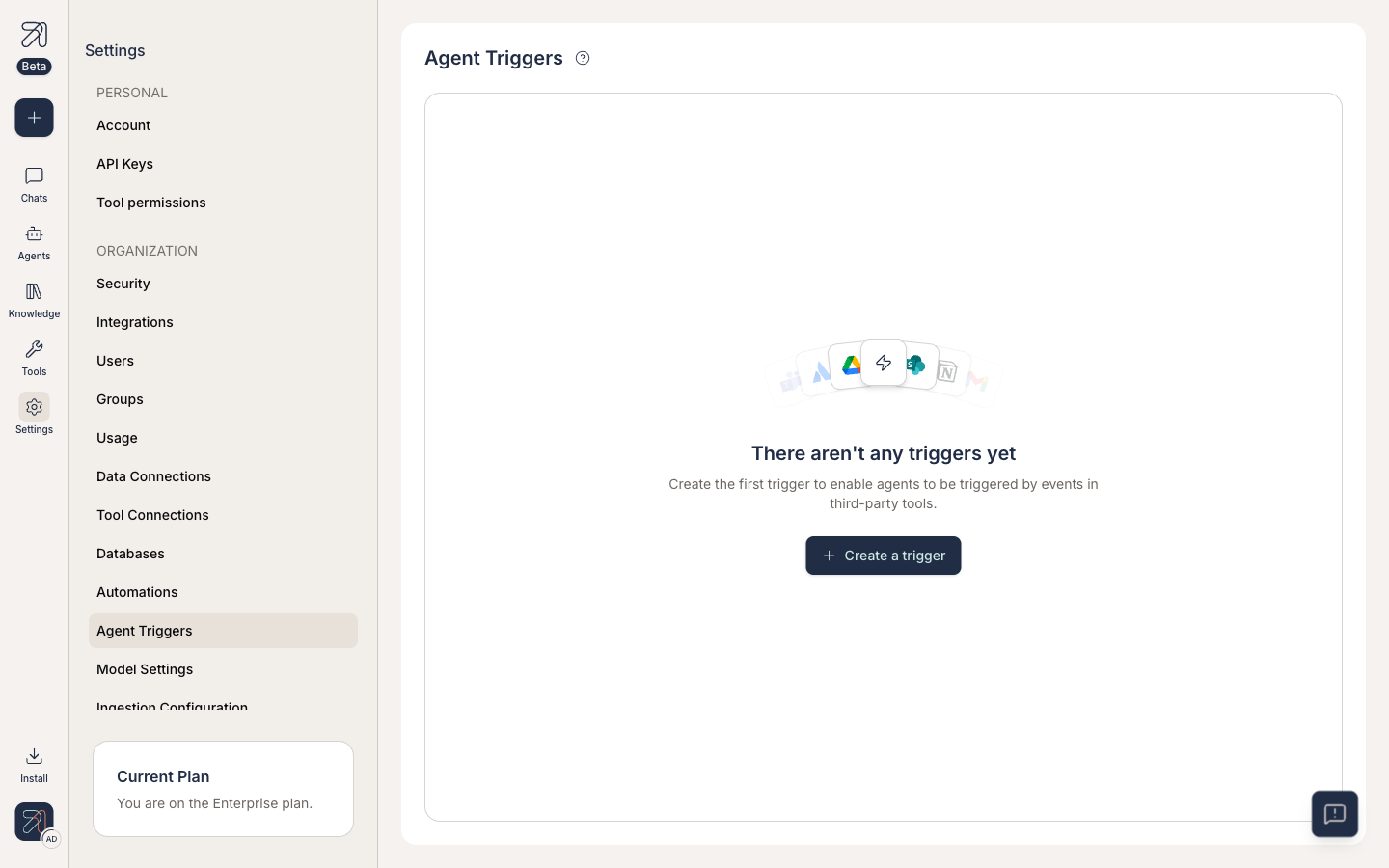
- Pre-built provider (Linear, GitLab, …): where available on your org, authorize with OAuth and pick a scope, and Ask provisions the webhook for you. On instances without provider connectors, the picker offers Custom Webhook only.
- Custom Webhook: for any system that can send a webhook. Give it a Name and optional Description, and optionally a Signature header (e.g.
X-Hub-Signature-256) with a Signature algorithm (None,sha1,sha256, orsha512;sha256recommended).
After Save, the dialog expands with the Webhook URL and Secret (masked, with an eye toggle) and a Copy button for each: "Copy the webhook URL and secret below." This is the only time they're shown: reopening the source via Edit never displays them again, so losing them means recreating the source. If you set a signature header and algorithm, requests are verified against them; with no signature configured, unsigned requests are accepted.
Manage & monitor
- Triggers take effect on Save. Saving a trigger in the creator activates it immediately, with no re-publish of the agent needed (the toolbar's Unsaved badge is about the agent draft, not the trigger).
- Where runs show up. Each fire creates a new conversation: the run's message is your trigger instructions plus "Webhook payload:" and the event JSON, and the agent's reply follows. Runs are listed under the Agent triggers tab of the Chats sidebar (next to My chats), and each agent's Agent triggers log history page shows one row per run (id, time, and a Completed/status badge) that opens the conversation.
- Enable / disable / delete. The trigger row's ⋮ menu offers Edit / Disable / Delete (Disable flips to Enable and the row shows a Disabled badge, instantly). While disabled, the webhook endpoint still answers
200 OKbut no run is created. Deleting asks for confirmation, and cannot be undone. - Deleting a source (admin). The admin-side delete warns "Agents that use this trigger may not continue to work as intended" and offers a Skip provider cleanup checkbox for when the provider-side hook is already gone. After deletion the webhook URL returns 404.
There are no per-trigger run caps or condition/filter rules. The only scoping control is the Event that will initiate this agent dropdown (for Custom Webhook sources it reads "This source has no subscribed events" and every delivery fires the trigger). Point noisy systems at Ask selectively, and remember runs count against your usage.