Mobile apps
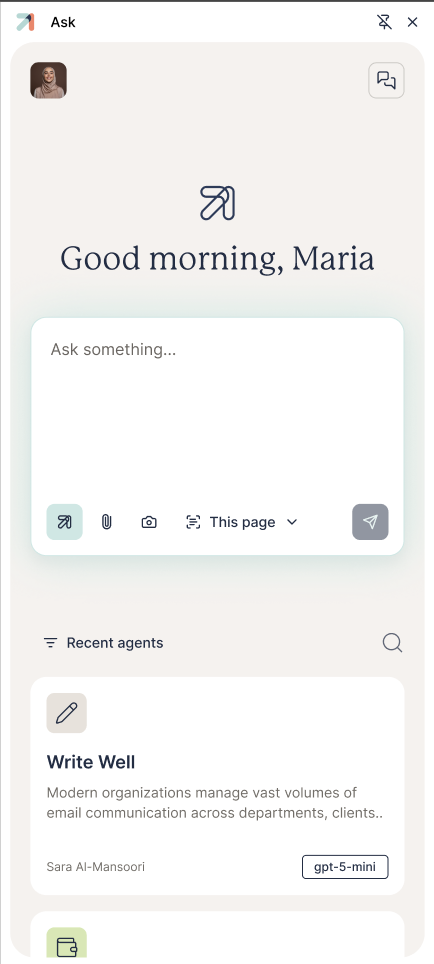
Take Ask with you. The iPhone and Android apps sign in to the same organization as the web, with the same agents, knowledge, and conversation history, and add things a phone is good at: a real voice conversation, asking about a photo you just took, and a home-screen shortcut for one-tap access.
The mobile app is a companion to the web app, not a cut-down copy. Everything you start on your phone shows up in your Chats on the web and vice versa, because both talk to the same Ask account. A few things stay on the web. See What you’ll do on the web.
Get the app
Download Ask from your device’s store:
- iPhone: Ask on the App Store (iOS 18.2 or later).
- Android: Ask on Google Play.
You can also reach both from the web app: open Install in the left navigation, and the "Get Ask for your mobile" wizard starts with Download the app and then shows your organization's QR code for connecting the app to your deployment.
Sign in
Open the app and sign in with the same account you use on the web. The app takes you through your organization’s normal login, including single sign-on where your org uses it. Once you’re in, your agents, knowledge bases, and past conversations are all there. See Sign in & choose your organization.
If your organization runs Ask on its own or sovereign servers, the app may need your deployment’s connection details on first launch. Your admin can point you to the right setup.

Chat with your agents
The heart of the app works like the web conversation pane. You can:
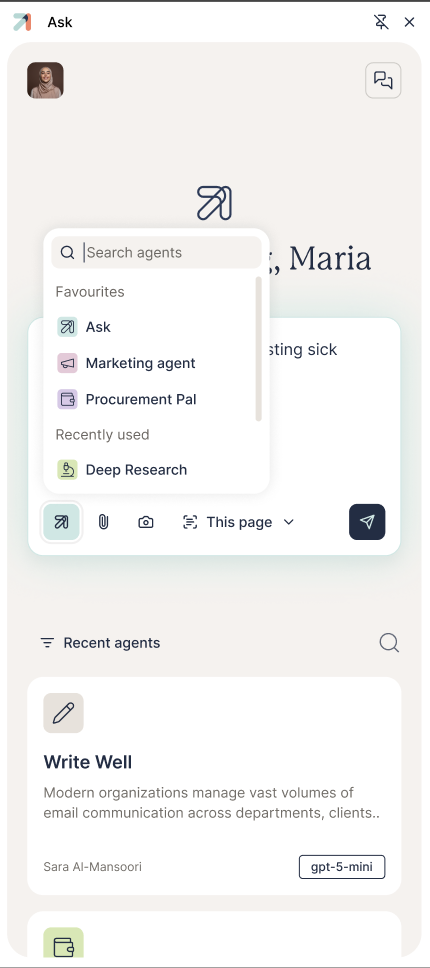
- Pick and switch agents: from your Favourites, recently used, and everything published to you; with the default Ask agent you can also change the model and switch tools on for the conversation.
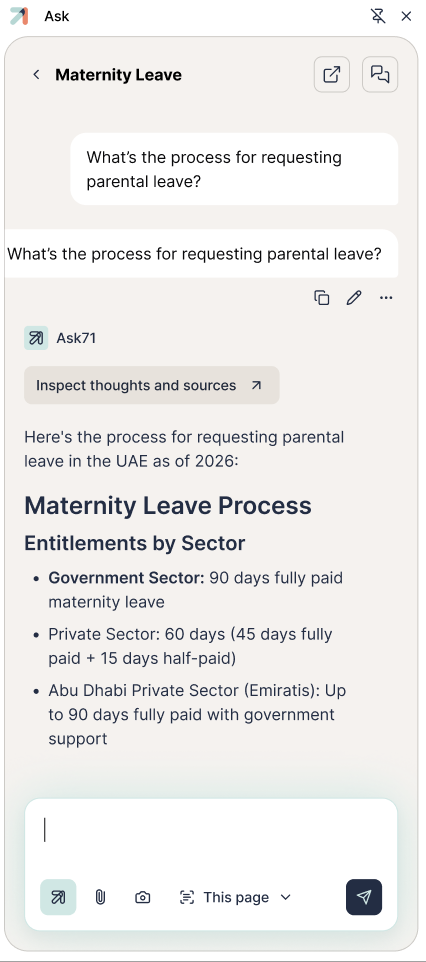
- Follow the answer: replies stream in, and you can open the agent’s thoughts and sources to see how it worked and what it cited.
- Stay in control: stop a reply mid-stream, copy it, give a thumbs up or down, and select text to share.
- Manage history: search your past chats, rename or delete them, start a new chat, or go incognito for a conversation you don’t want kept.
Talk to it: voice mode
Tap into voice mode to have a spoken, back-and-forth conversation: speak your question and hear the reply, with controls to mute the mic or the speaker. It’s built for hands-busy moments such as walking, driving, or cooking. When you’d rather just save typing, use dictation to speak a message and send it as text. (Voice mode is available where the agent has it enabled. See Voice mode.)
Ask about a photo or a file
From the input bar you can take a photo, add one from your library, or attach a file, then ask about it: read a document, pull figures out of a spreadsheet, or explain what’s in an image. Supported types include PDF, Word, PowerPoint, Excel and CSV, text and Markdown, and images (PNG/JPEG). You can attach up to five files to a message (twenty across a conversation), with images under 5 MB.
Your knowledge bases
Your knowledge bases come along too. Browse and manage them from the app, upload files, paste in text, or import a web page, and attach one to a question so the agent answers from it, exactly as it would on the web.
Home-screen widget
On iPhone, add the Ask home-screen widget for one-tap access. It drops you straight into a new chat, voice mode, the camera, your photos, or dictation, without opening the app first. Add it the usual way: long-press the home screen, tap +, search for Ask, and pick a size.
Language & appearance
The app follows a light, dark, or system theme, and ships in English and Arabic with full right-to-left layout. Choose your language and theme in Settings.
What you’ll do on the web
A few things live on the web app, where there’s more room:
- Building and editing agents: the Agent Builder is web-only; some tools can only be turned on there too.
- The admin console: managing users, roles, billing, and org settings.
- Chart previews: a generated chart shows a note to open the conversation on the web to view it.
Tips & gotchas
Started something on your phone that needs the full interface? It’s already in your Chats on the web, so open the web app and pick it up where you left off.
You can browse your recent conversations offline, but sending a message and streaming a reply needs an internet connection.