Microsoft Teams bot
Bring your Ask agents into Microsoft Teams. Mention the bot in a channel or group chat and it reads the conversation for context, message it directly for a quick answer, and pick which agent responds with +agent-name. These are the same agents, knowledge, and tools you use on the web, in the place your team already talks.
Talk to the bot in Teams
There are three ways to reach it:
- In a channel or group chat: mention the bot with
@Ask Devand type your question. A mention is required here, and the reply is visible to everyone in the chat. - In a direct (1:1) message: just type your question; no mention needed.
- Choosing an agent: put
+agent-namebefore your question to send it to a specific agent, e.g.@Ask Dev+market-analyst why are we losing deals in KSA?You can call different agents within the same thread.
When you mention it inside a channel or group thread, the bot reads the recent messages first, including who said what and any files shared, and uses them as context, so you can ask about “this thread” and it follows along.
These examples use @Ask Dev, the handle this deployment publishes. The exact name depends on how the app was installed for your organization, so a test install may differ.
Which agent answers
Add +agent-name to send your question to any published agent. Leave it off and the bot uses your organization’s default agent (set by an admin; see Set it up); if none is set, it falls back to the standard Ask agent. If you name an agent that doesn’t exist, check the spelling against /agents.
The reply
The bot answers in the thread as a card, labelled Answered by {agent}, and streams its response as it’s written. It draws on the agent’s knowledge and tools just like the web app. Because a Teams message can only hold so much, longer answers are trimmed with a link to see the rest.
Every reply carries links to Go to full conversation, which opens the thread in the Ask web app where the full answer, citations, and the rest of the interface live, and to Browse agents.
Commands
/agents: list the agents you can use (type a term after it to search)./clear: start a fresh conversation, clearing the current context./help: show what the bot can do and how to call it.
Files & limits
Attach a file to your message and the bot brings it in. PDF, Word and PowerPoint, spreadsheets, text, and images are all supported. It uploads and indexes the file before answering, so the agent can read it and use it in its reply.
A couple of Teams surfaces aren’t covered: the bot works in channels, group chats, and DMs, but not in meetings, and it’s text only, with no voice or video calls.
Set it up
Getting Teams working takes an admin to connect Ask to your Microsoft tenant and publish the app, after which each person adds it and links their account.
Admins: connect Ask to your tenant
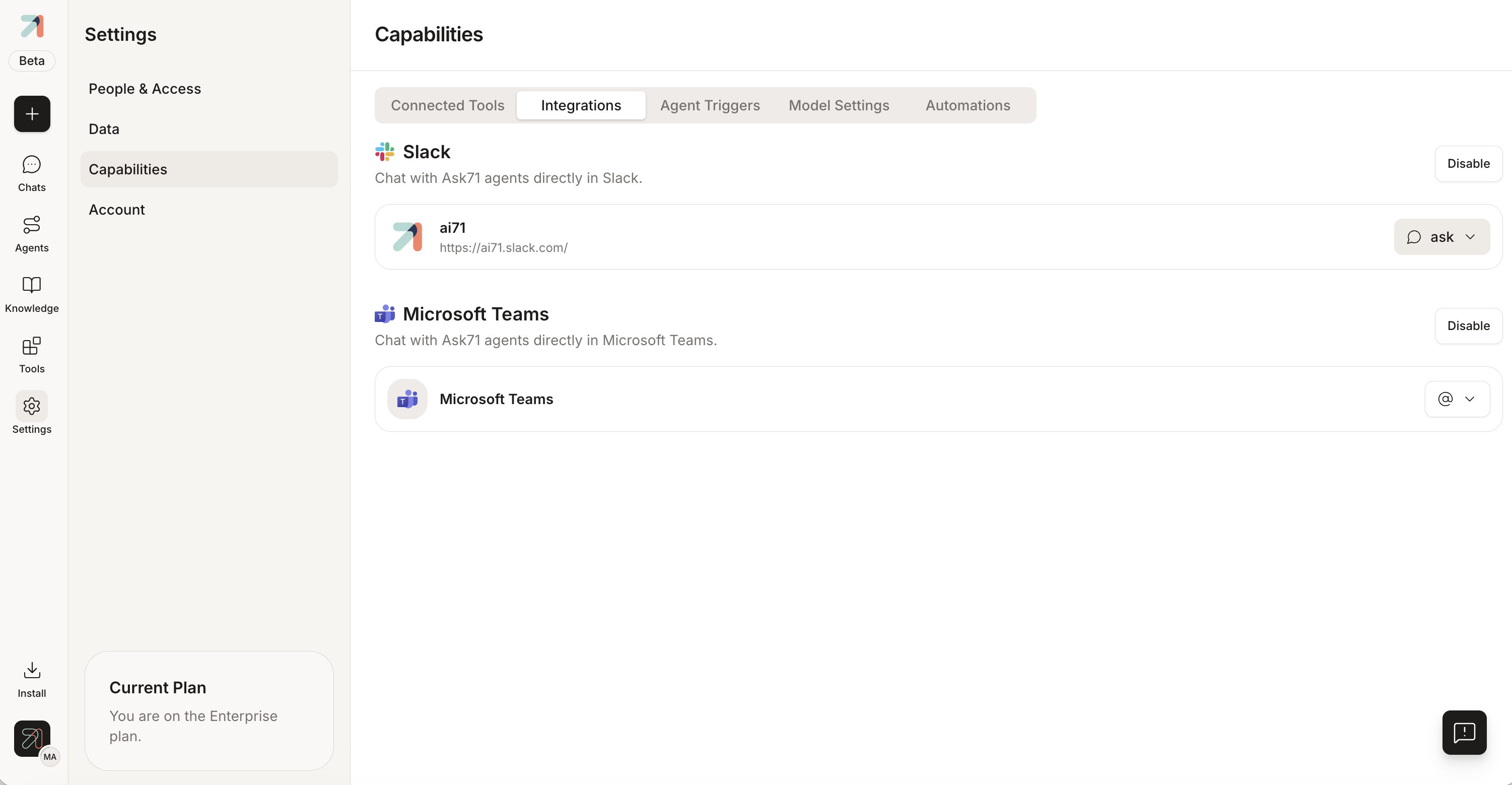
In the Ask app, open Settings → Capabilities → Integrations and find Microsoft Teams.
-
On the Microsoft Teams row, choose Enable. A dialog explains the handoff; select Connect.
-
You’re redirected to Microsoft’s admin consent page, where you authorize Ask for your organization. Review and approve the requested permissions; Microsoft then returns you to Ask, which confirms “Microsoft Teams Enabled!”
-
Set your organization’s default agent under Select your default agent, the one the bot uses when nobody adds
+agent-name. You can enable or disable the integration from the same place.
Admins: publish the app in Teams
Ask connects to your tenant above; the bot itself is a Teams app you publish through the Teams Admin Center. You’ll need admin permissions, and your organization must allow custom apps.
-
Download the Ask Teams app package (a
.zip) from the setup materials. -
In the Teams Admin Center, go to Teams apps → Manage apps, choose Upload new app, select the
.zip, review the permissions, and Add it. -
If custom apps are blocked, allow them under Teams apps → Permission policies or Org-wide app settings first. Policy changes can take a little while to take effect.
Everyone: add it and link your account
-
In Teams, open Apps, search for Ask, and choose Add.
-
Send the bot a first message. It replies with an Authenticate with Ask card; open it, authorize while signed in to Ask in your browser, and you’ll get “Authentication successful.” Anything you asked before linking is answered once you’re connected.
After that the bot acts as you, with your agents, knowledge, and permissions.
Tips & gotchas
In a busy channel, always @mention the bot, since it only responds to messages that mention it there. In a 1:1 chat you can skip the mention entirely.
A reply in a channel or group chat is visible to everyone in it. For anything you’d rather keep to yourself, message the bot in a 1:1 chat instead.
The Teams integration is enabled per organization and depends on your deployment. If you don’t see it under Settings → Capabilities → Integrations, check with your admin.