Slack bot
Bring your Ask agents into the conversations you’re already having. Mention the bot in a Slack channel or thread and it reads what’s been said, answers with the agent you choose, cites its sources, and keeps a private copy of the exchange on the web. There is no need to switch to the app and re-explain the context.
Mention the bot where the conversation is
The point of the Slack bot is that it works in the thread. When you @mention it inside a discussion, it reads the whole thread first and uses it as context, so you can ask a question that refers to “this conversation” and it knows what you mean. Outside a thread, mentioning it in a channel pulls in the recent messages for context instead.
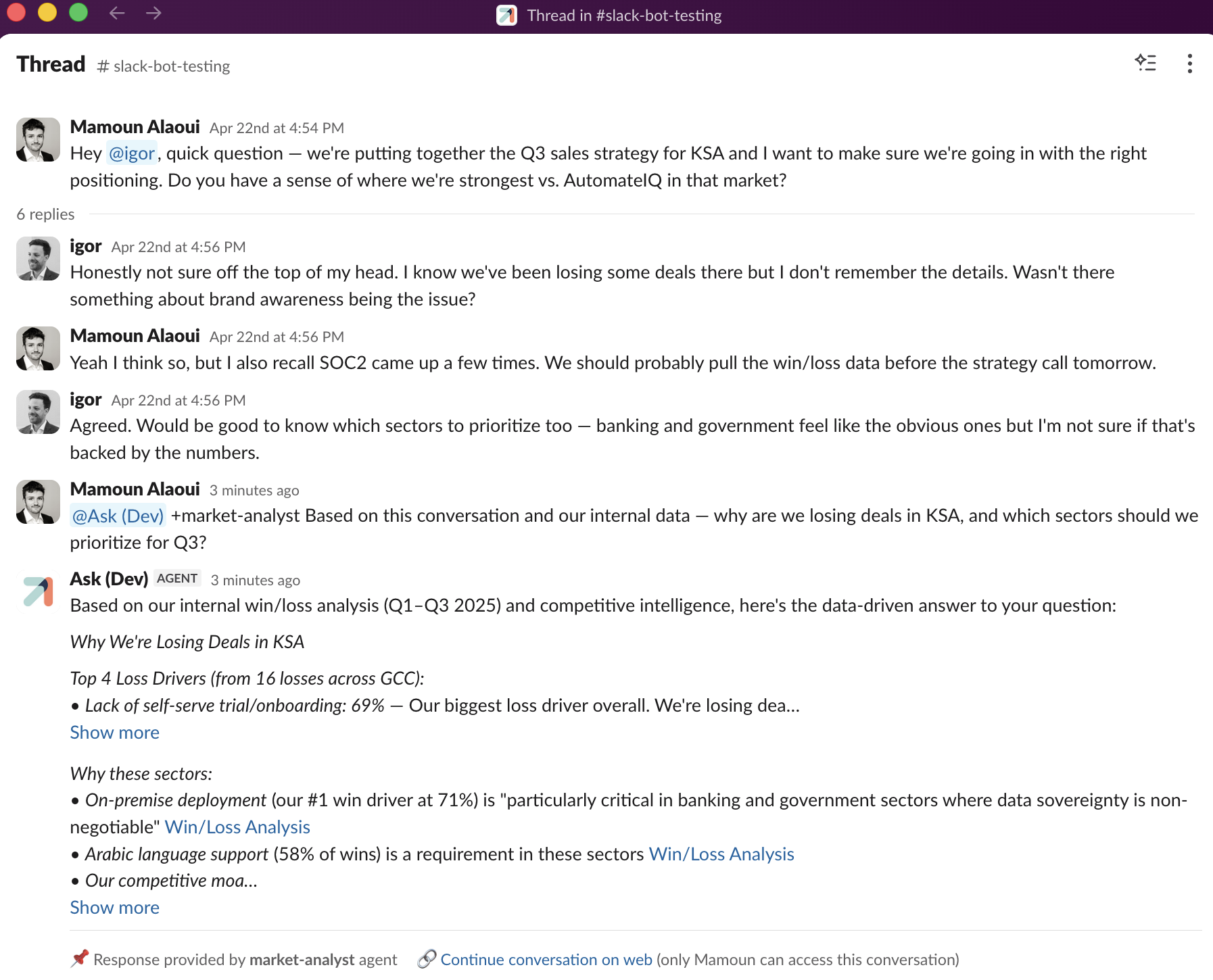
There are three ways to reach it:
- In a channel or thread: mention the bot with
@Ask and type your question. The bot must be a member of the channel; invite it first if it isn’t. - In a direct message: just message the bot; no mention needed.
- Choosing an agent: put
+agent-namebefore your question to send it to a specific agent, e.g.@Ask+market-analyst why are we losing deals in KSA?
These examples use @Ask. The exact handle depends on how the bot was installed in your workspace, so a test install may appear as Ask (Dev), as in the screenshot above. Slash commands follow the same name (e.g. /ask).
Which agent answers
Add +agent-name to send your question to any published agent your organization has. Leave it off and the bot uses a default:
- the channel’s default agent, if one is set;
- otherwise your organization’s default agent;
- failing both, the first agent available to you.
A channel owner can set the channel default with /ask set default +agent-name, and an org admin sets the organization-wide default in the Ask app (see Set it up). If you name an agent that doesn’t exist, the bot says so and points you to /ask list agents.
The reply
The bot answers in the same thread, labelled as an agent. Its replies work like the web app: it draws on the agent’s knowledge and tools, and renders citations as links you can click through to the source. Long answers are split across follow-up messages so nothing is cut off.
Every reply carries a short footer:
- Response provided by {agent} agent: which agent answered.
- Continue conversation on web: a link that opens the same conversation in the Ask web app, where you can keep going with the full interface. The exchange is private to you: the footer spells out that only the person who asked can open it.
Files & what the bot can do
Attach a file to your Slack message and the bot brings it into the conversation. PDFs, Word and PowerPoint, spreadsheets, text, and images are all supported. It uploads and indexes the file before answering, which can take a moment for larger documents. From there the agent can read it, search your knowledge bases, use its tools, and cite what it used, exactly as it would on the web.
A couple of things stay web-only: voice mode, and the interactive panels (like the citation side-panel or the thoughts view). Use Continue conversation on web when you want those.
Slash commands
Manage the bot without leaving Slack. Using your workspace’s bot name (shown here as /ask):
/ask list agents: see the agents you can use./ask set default +agent-name: set the default agent for the current channel (channel owners)./ask show default//ask remove default: view or clear the channel default./ask help: show the full list of commands and examples.
Set it up
Setting up the bot is a two-part job: an admin connects the Slack workspace once, then each person links their own Slack account before they use it.
Admins: connect the workspace
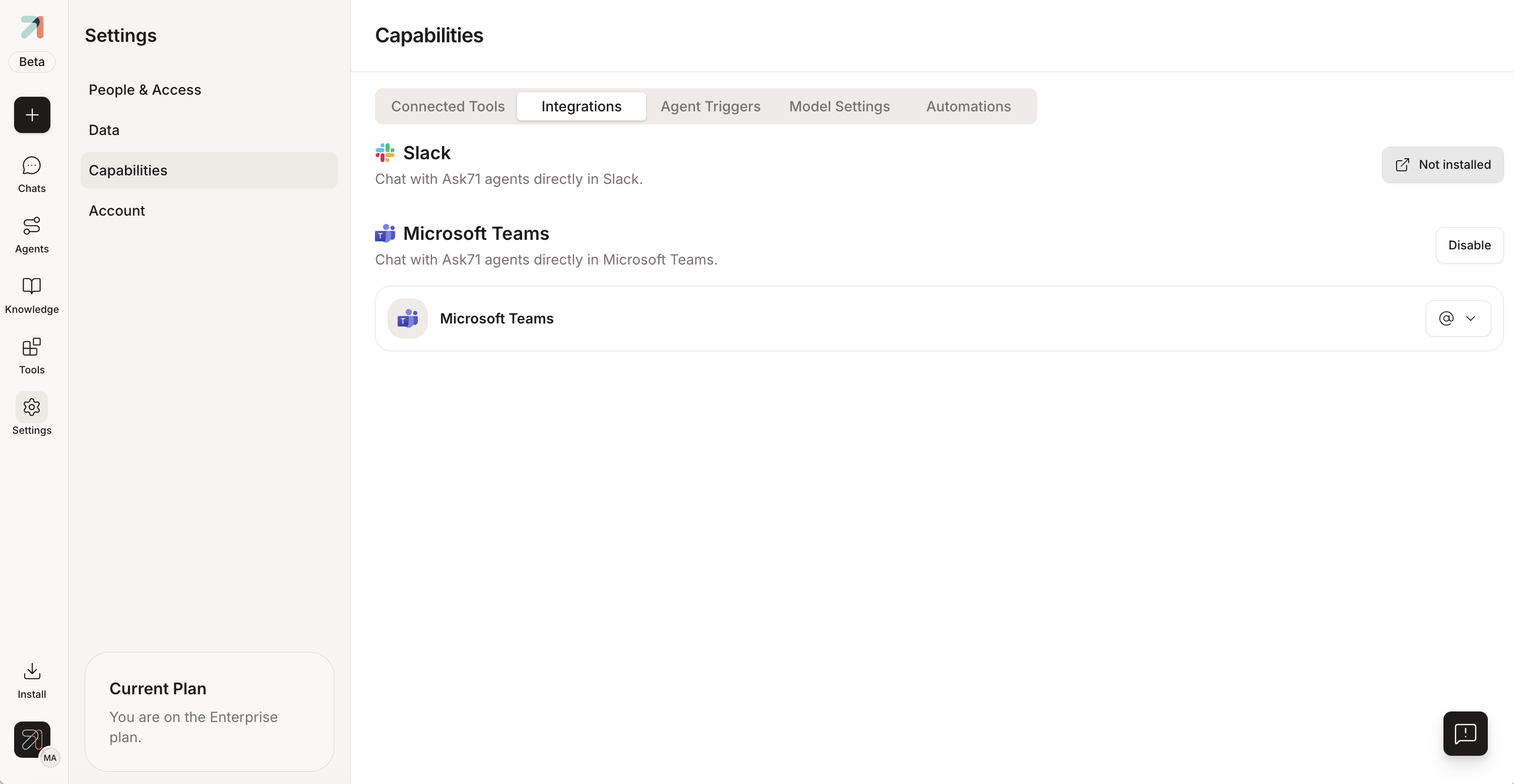
In the Ask app, open Settings → Capabilities → Integrations. You’ll see Slack in the list, alongside Microsoft Teams.
-
On the Slack row, select the connect button (it reads Not installed until the workspace is connected). A New slack connection dialog explains what’s about to happen, then choose Connect.
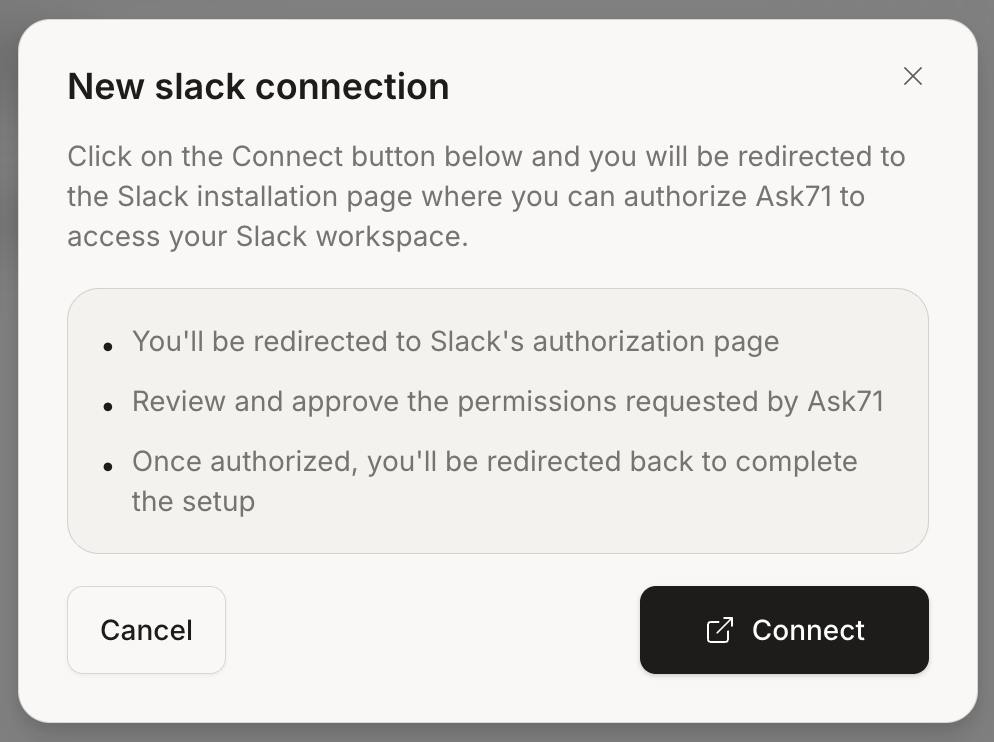
Connect starts the authorization handoff to Slack. -
You’re taken to Slack’s authorization page. Review and approve the permissions Ask requests: reading messages in channels it’s added to, posting replies, and reading members’ email so accounts can be matched. Slack then redirects you back to Ask to finish setup.
-
Pick your organization’s default agent, the one the bot uses when nobody adds
+agent-name. Search for it under Select your default agent and star it.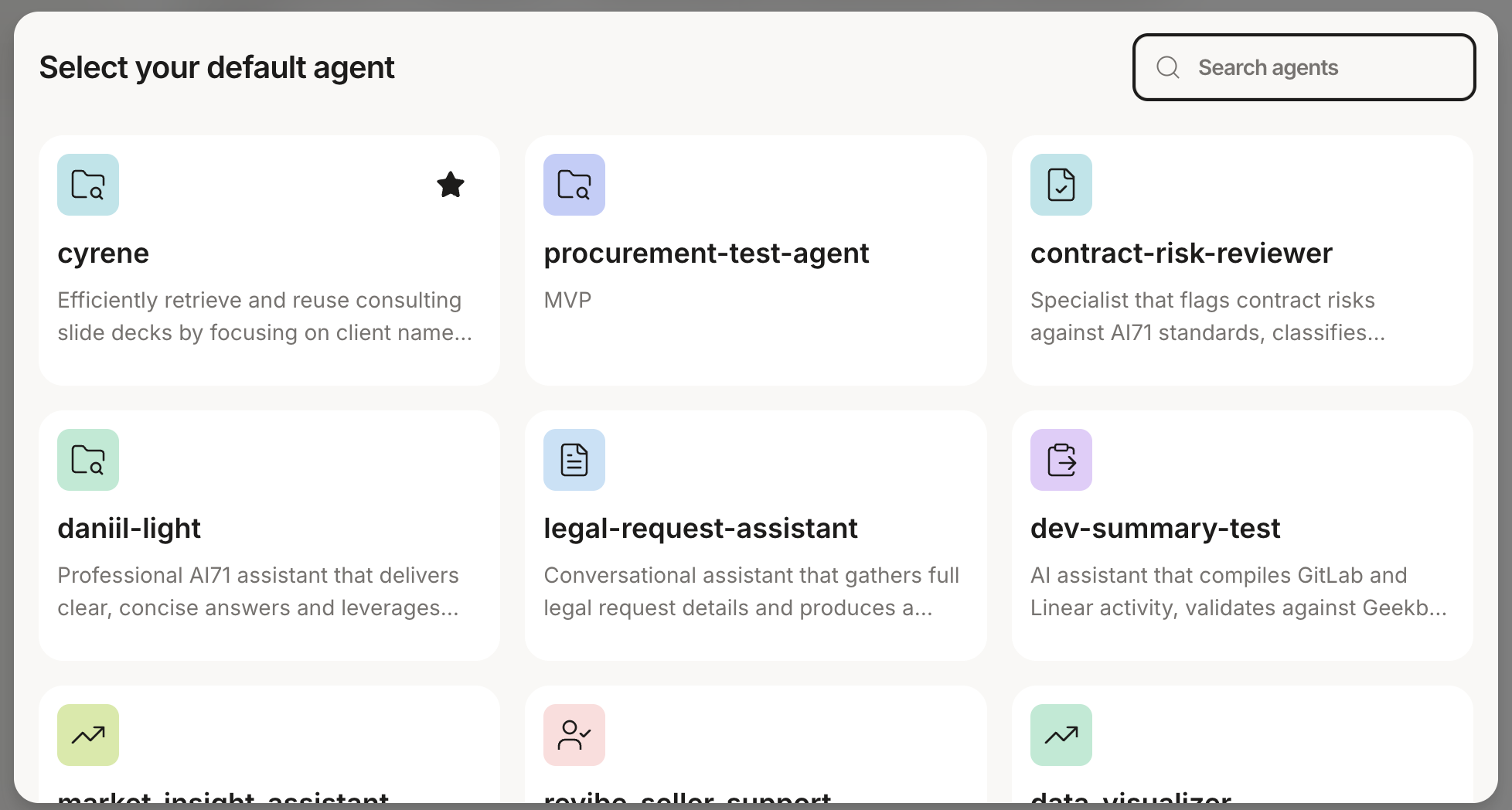
Star an agent to make it the organization-wide default for Slack. -
Slack now shows as connected, listing your workspace and the bot’s handle. You can turn it off any time with Disable.
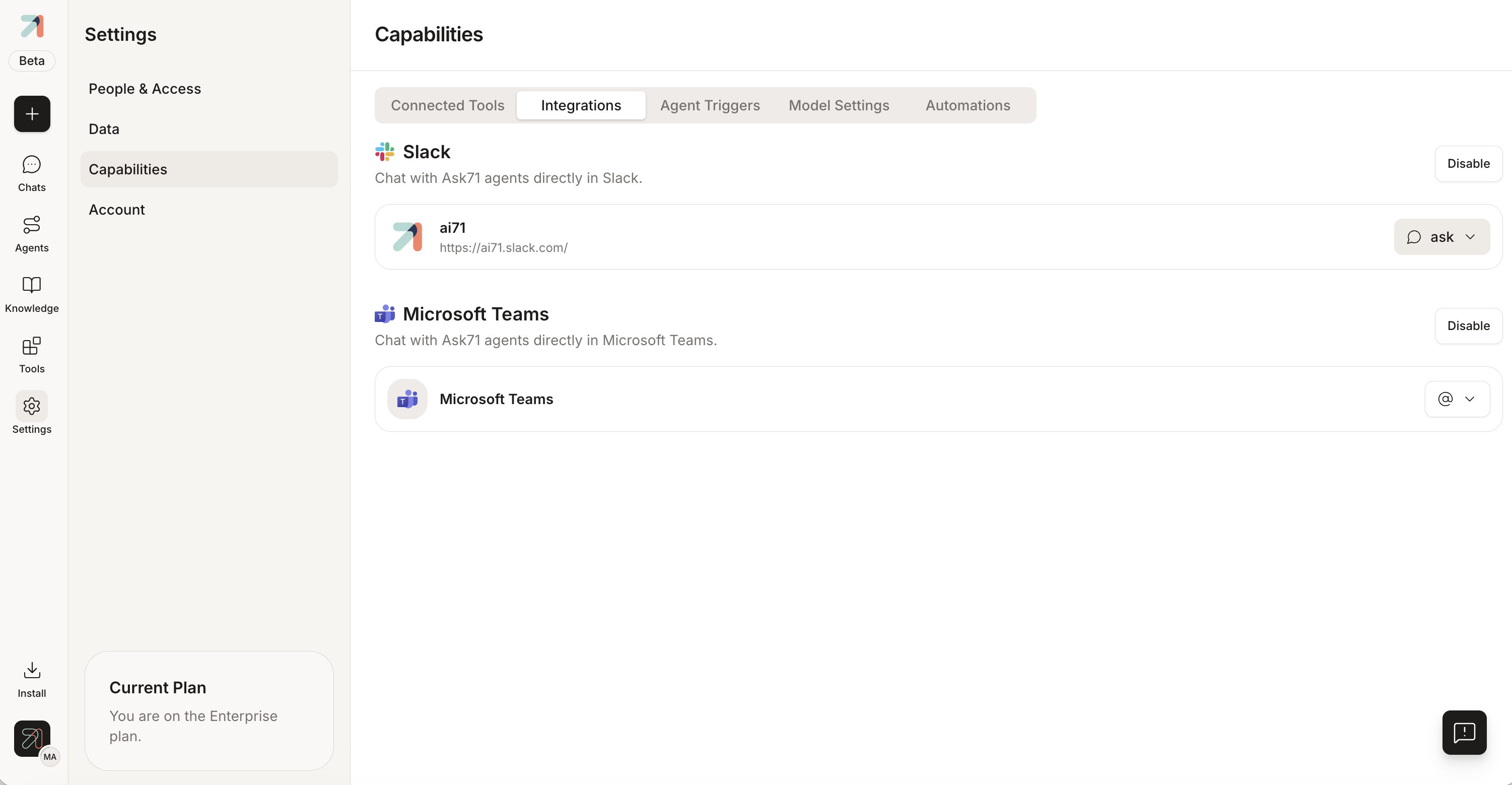
Once connected, the workspace is listed and the integration can be disabled here.
Everyone: link your account once
Before you can talk to the bot, connect your Slack identity to your Ask account. The one catch: your Slack email and your Ask email must match, since that’s how Ask knows which account is yours. Follow the connect prompt, authorize the link (the link is time-limited for security, so do it promptly), and you’ll get a confirmation that you’re ready to mention the bot in any channel.
Once linked, the bot acts as you, with your agents, your knowledge, and your permissions, so every answer respects what you’re allowed to see.
Invite the bot to a channel before you count on it there, since it can only read a thread for context in channels it has joined. For a rollout, add it to one pilot channel, set a sensible channel default agent, and widen from there.
If your organization has strict data-residency requirements, confirm with your admin that the Slack bot is enabled on your deployment. Sovereign and on-prem setups may keep it turned off.