SAML SSO Configuration
This guide walks you through configuring a SAML identity provider (IdP) for single sign-on (SSO) in Ask. Use this for Okta, OneLogin, or any IdP that supports SAML 2.0.
Prerequisites
- Organization Admin access to Ask
- An Enterprise plan
- Administrative access to your SAML IdP
- Your IdP's SAML metadata URL or metadata XML document
Provider names in Ask are stored with a (SAML) suffix (for example, Corporate SSO (SAML)). You do not need to type the suffix manually.
Step 1: Gather SAML metadata from your IdP
In your IdP admin console, create a new SAML application for Ask (or open an existing one).
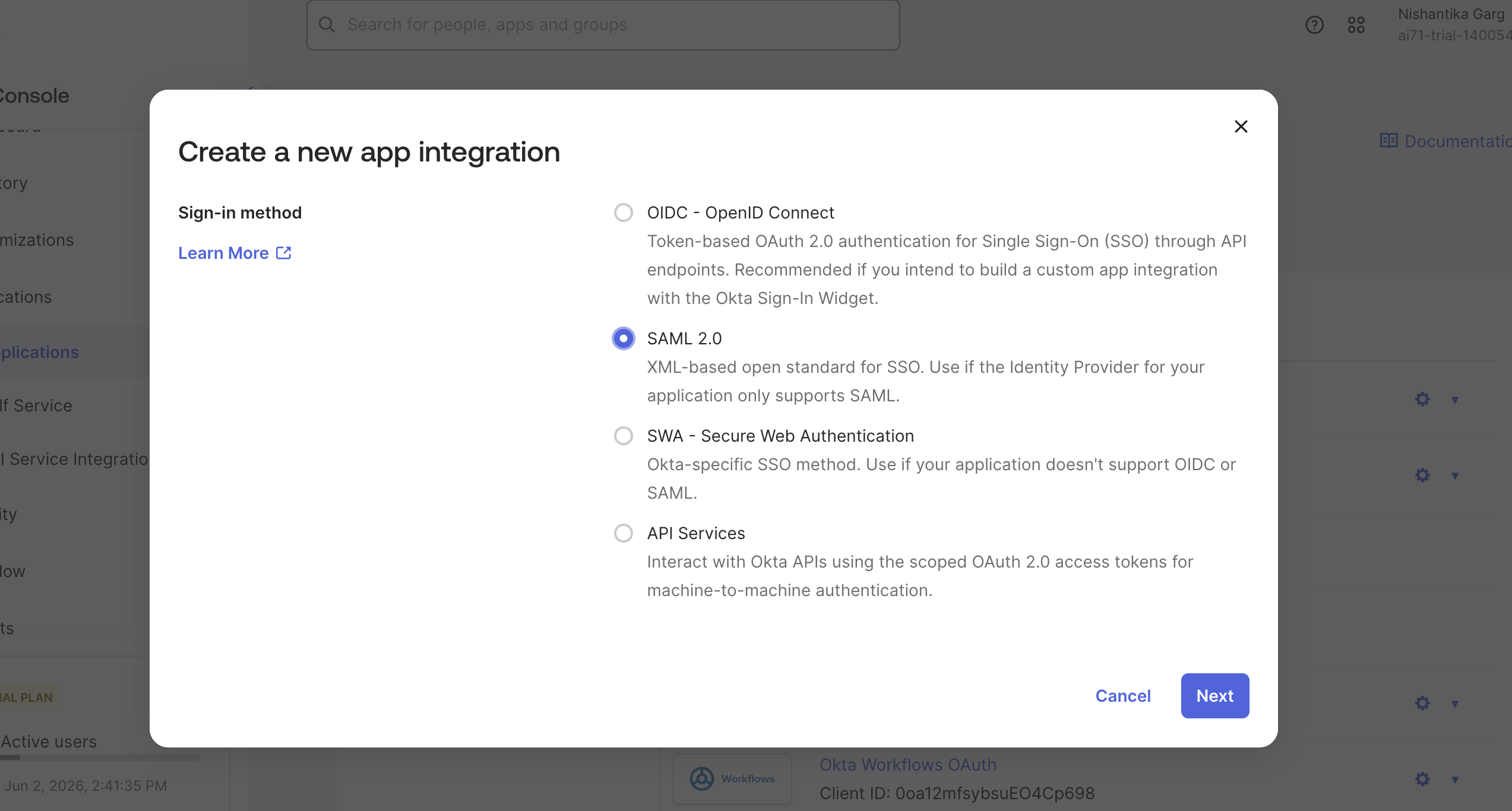
If the console requires you to input any of the following
- Single sign-on URL
- Recipient URL
- Destination URL
- Audience Restriction URL Skip these for now, or add dummy values. These values will need to be updated with real URLs laterin the setup process.
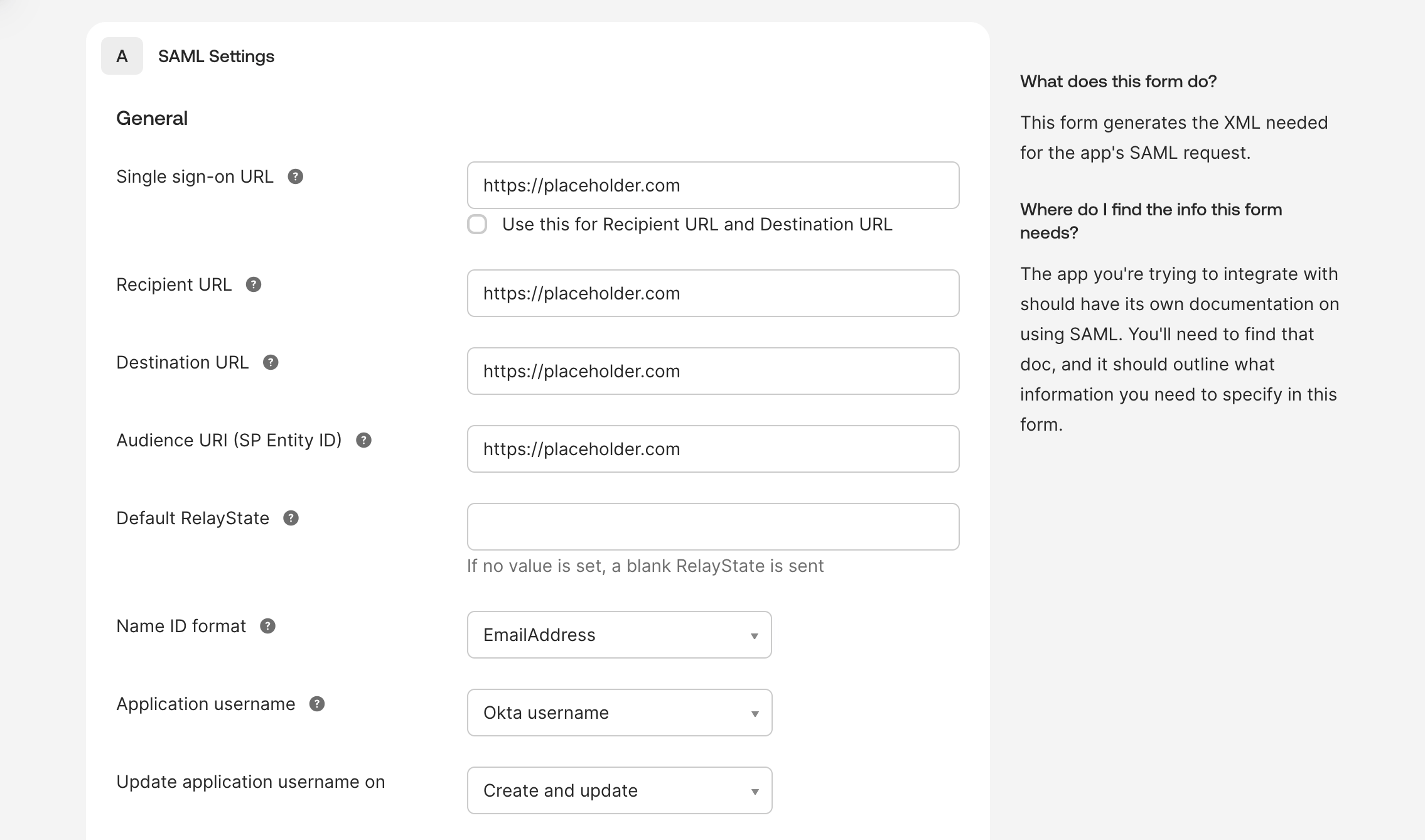
Once your SAML Application is created. You will need one of the following:
- Metadata URL: A public HTTPS URL that returns your IdP's SAML metadata XML
- Metadata XML: The raw SAML metadata document (paste into Ask)
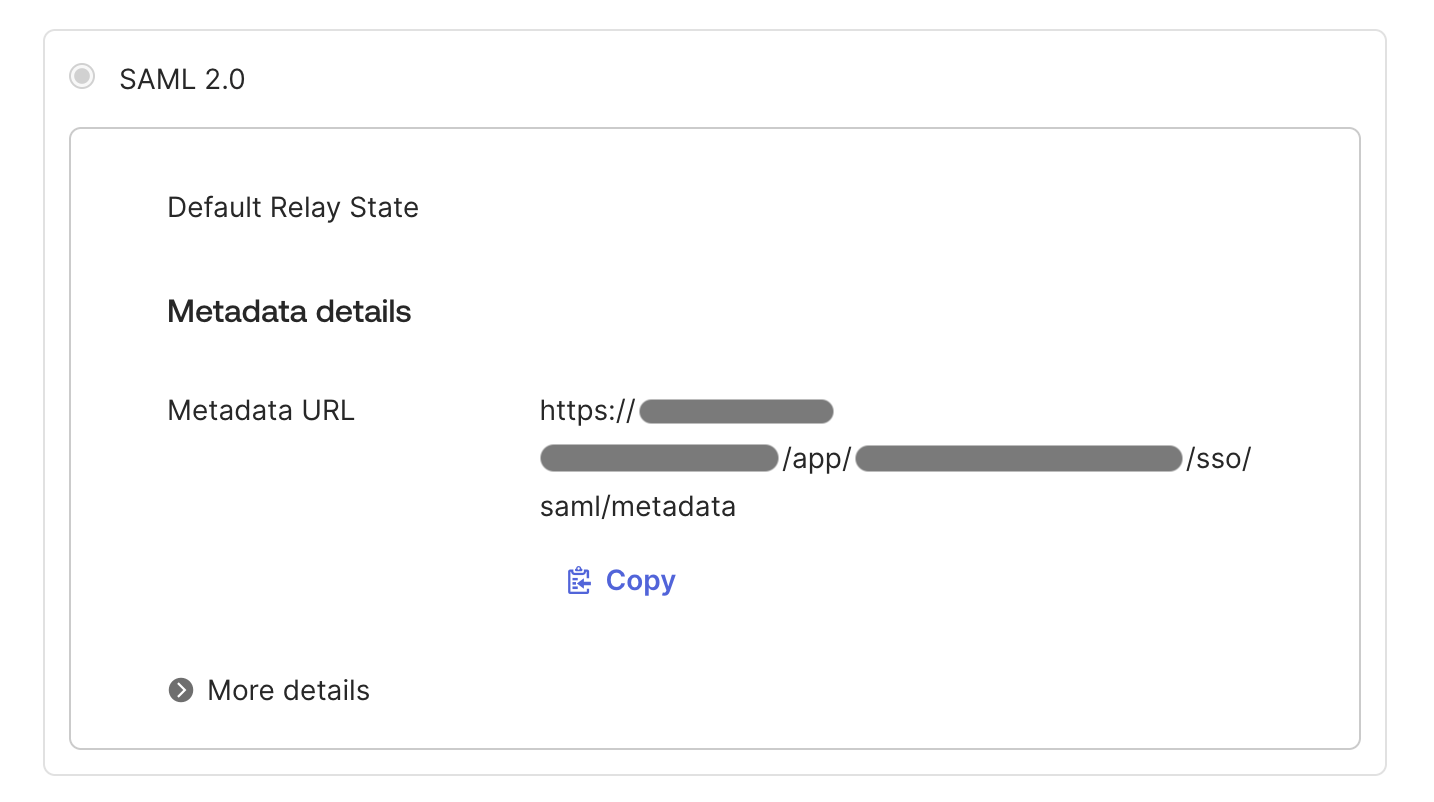
Also note the attribute names your IdP sends for, Configure these if absent:
- Email (required)
- First name (optional)
- Last name (optional)
Common example:
| IdP | Email attribute | First name | Last name |
|---|---|---|---|
| Okta | email | firstName | lastName |
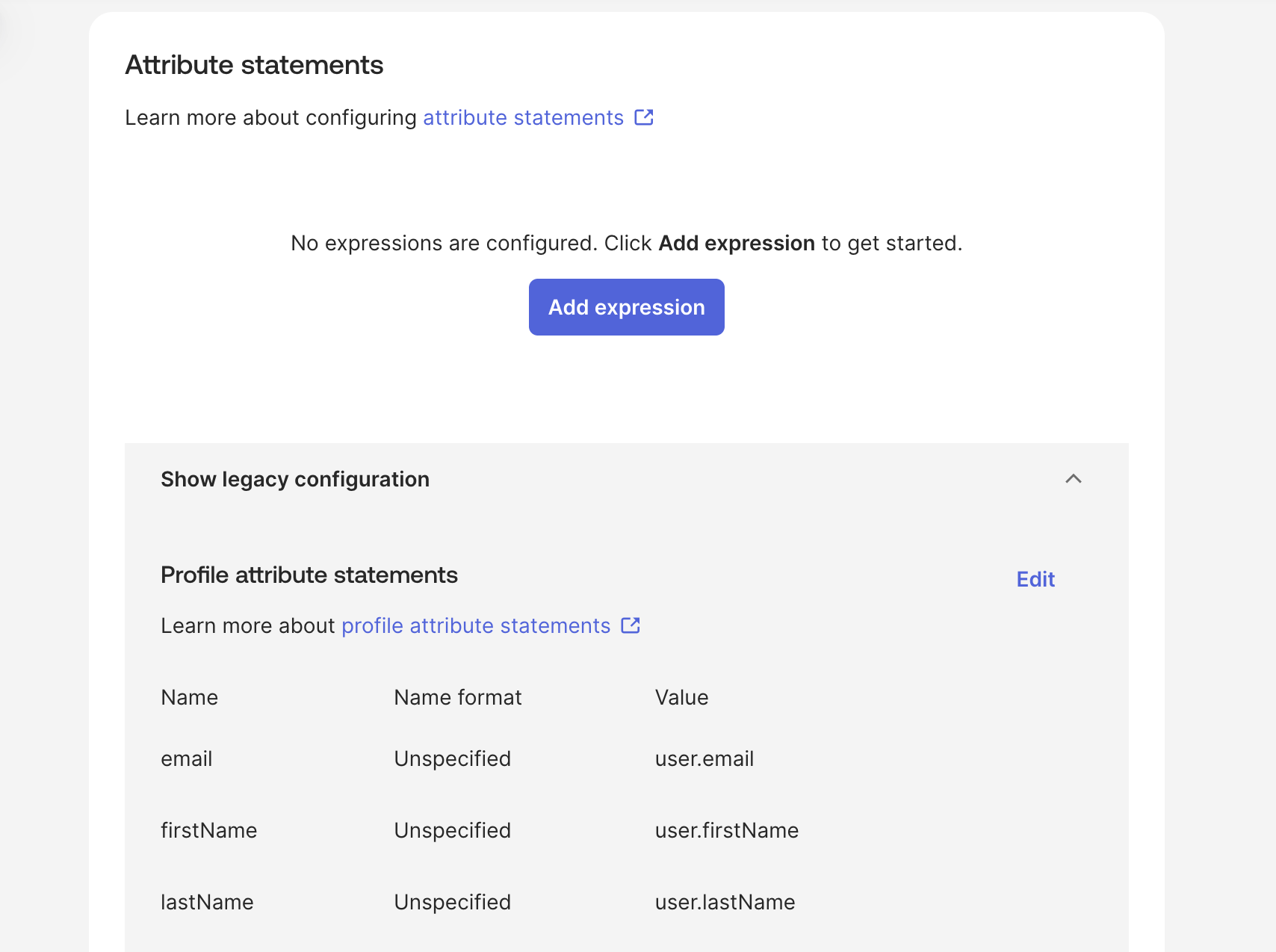
References:
Step 2: Configure SAML SSO in Ask
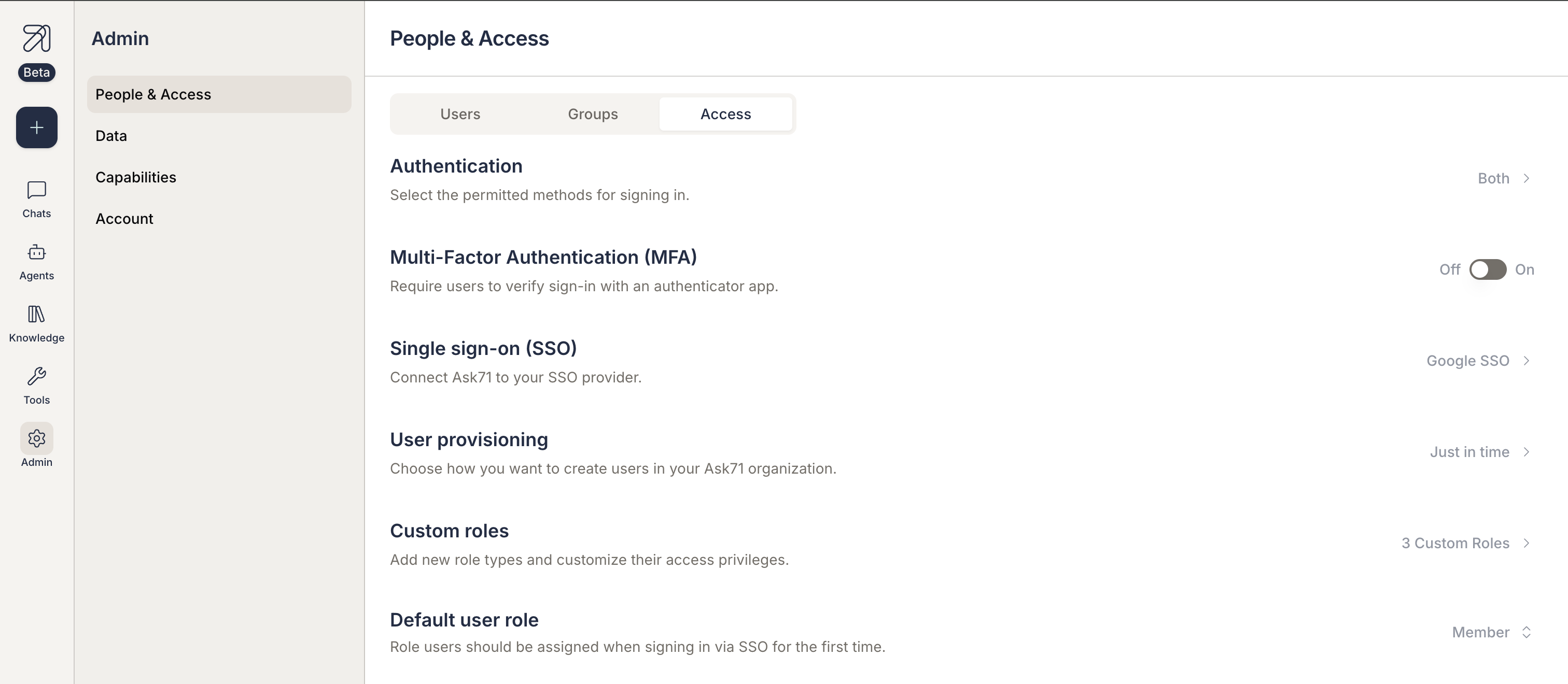
2.1 Navigate to the Access tab
- Log in to Ask as an Organization Admin.
- Navigate to Admin > People & Access.
- Select the Access tab.
2.2 Select SAML as Identity Provider
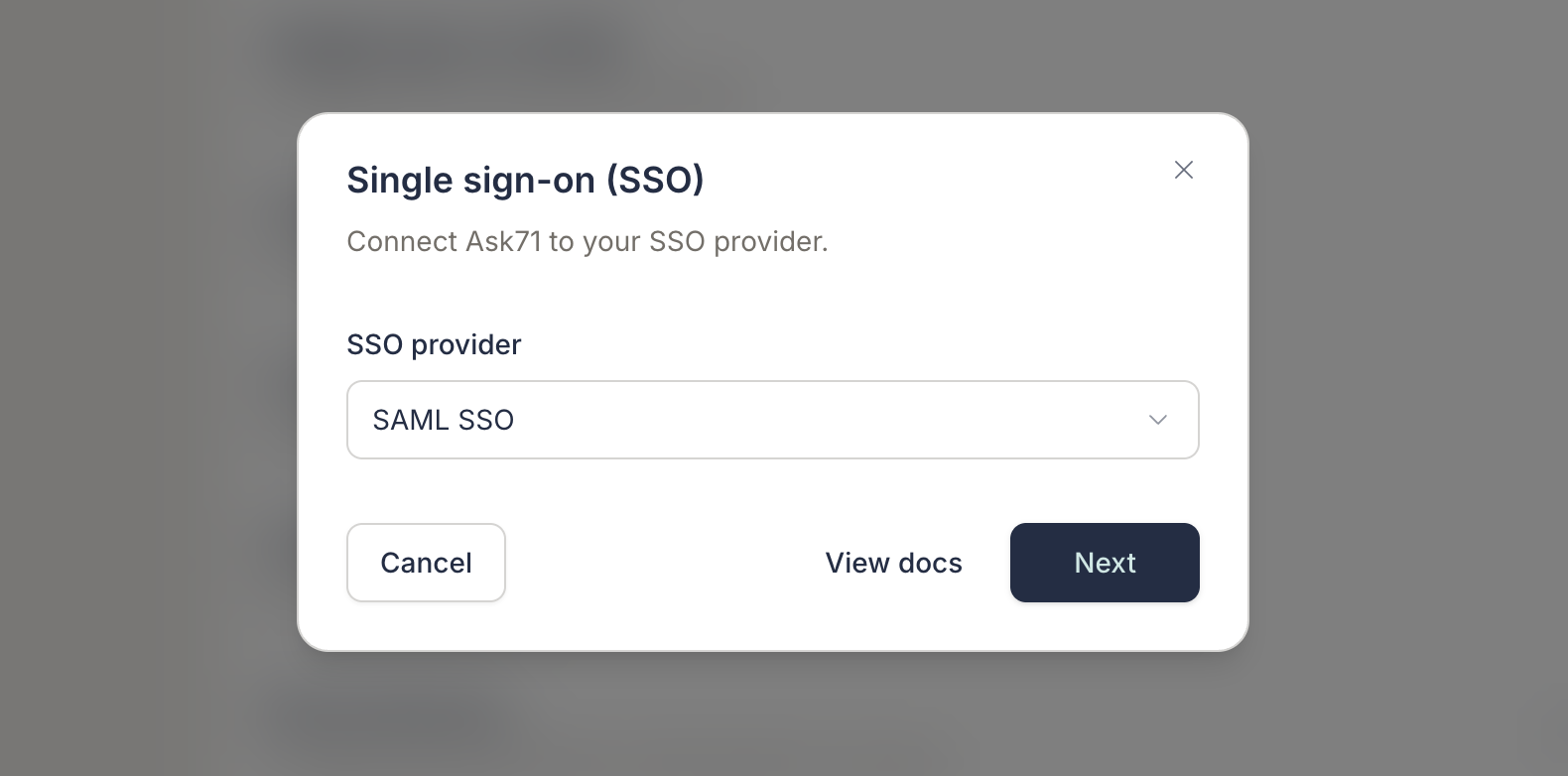
- In the Access tab, locate the Single sign-on section.
- Select SAML from the available identity provider options.
2.3 Enter connection details
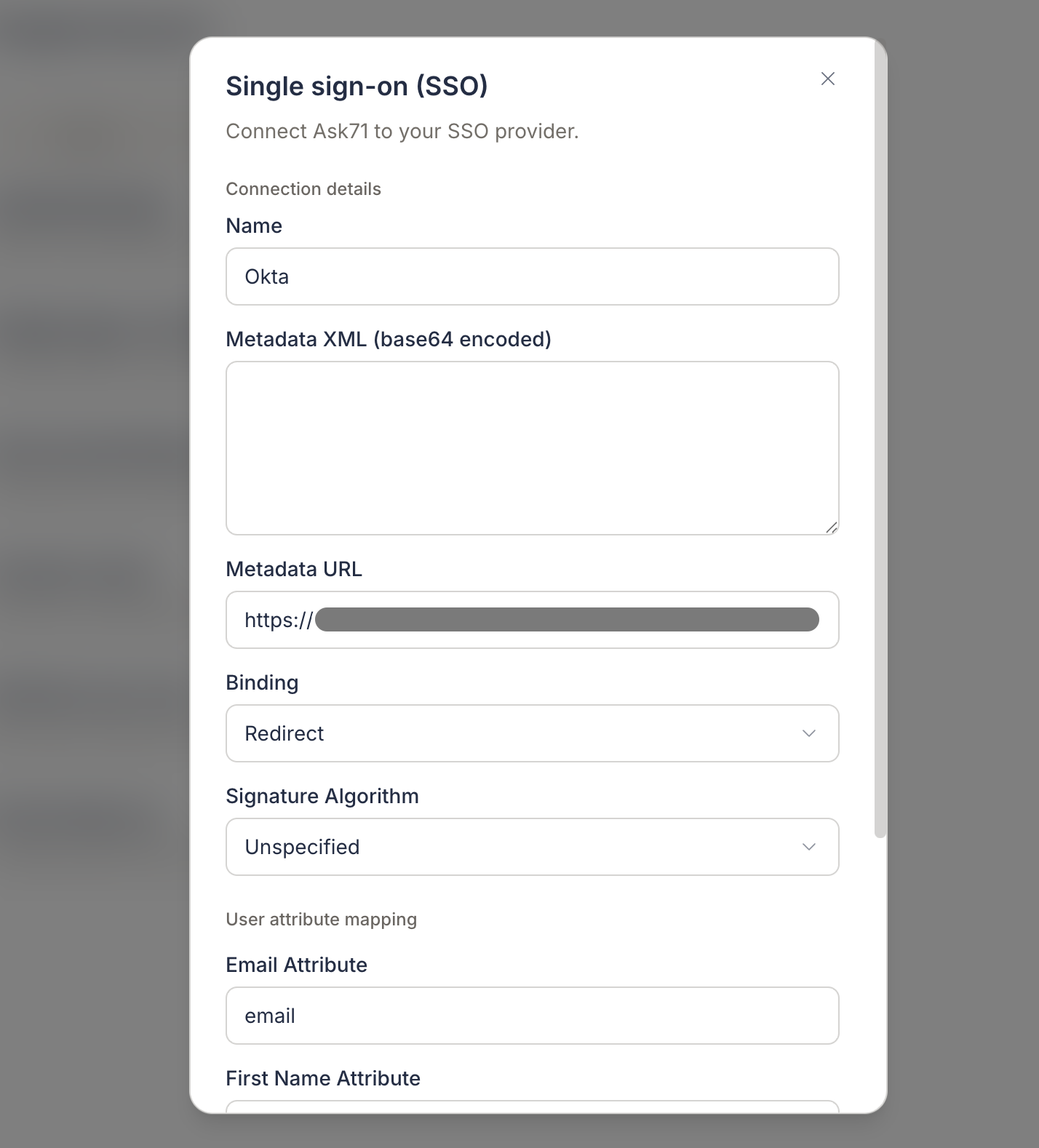
Complete the fields in the SAML configuration form:
| Field | Description | Example |
|---|---|---|
| Name | Display name for this provider | Corporate SSO |
| Metadata XML | Paste IdP metadata XML (use this or Metadata URL, not both) | (XML document) |
| Metadata URL | HTTPS URL to IdP metadata (use this or Metadata XML, not both) | https://idp.example.com/metadata |
| Binding | How SAML auth requests are sent | Redirect or POST |
| Signature algorithm | Algorithm for signing requests | RSA-SHA256 (recommended) |
| Signed request | Whether Ask signs authentication requests | Enabled (recommended) |
2.4 Map user attributes
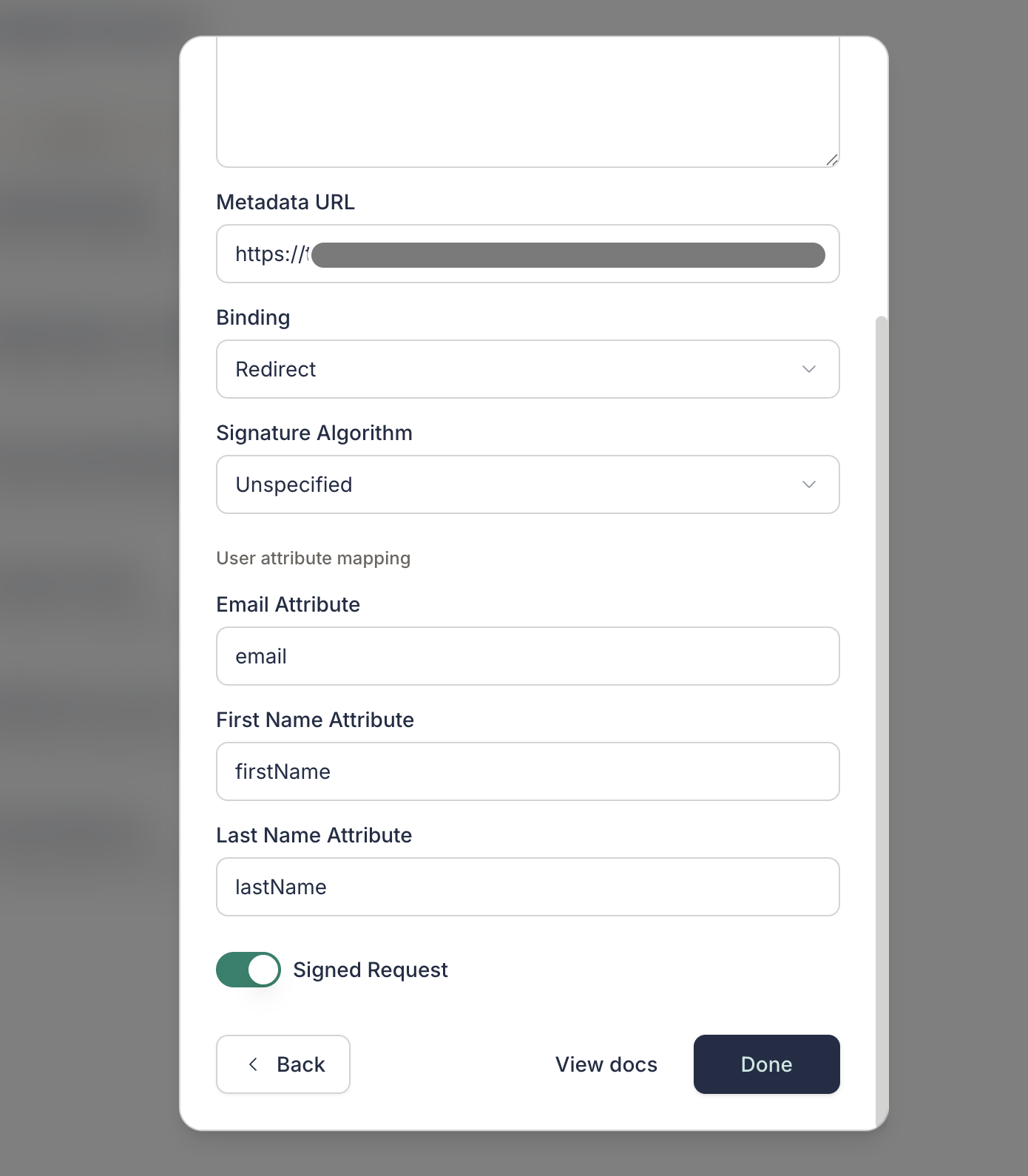
Under User attribute mapping, map SAML assertion attributes to Ask user fields:
| Field | Required | Description | Example |
|---|---|---|---|
| Email attribute | Yes | SAML attribute containing the user's email | email |
| First name attribute | No | SAML attribute for given name | firstName |
| Last name attribute | No | SAML attribute for family name | lastName |
Click Done to save the configuration.
2.5 Copy Ask service provider URLs
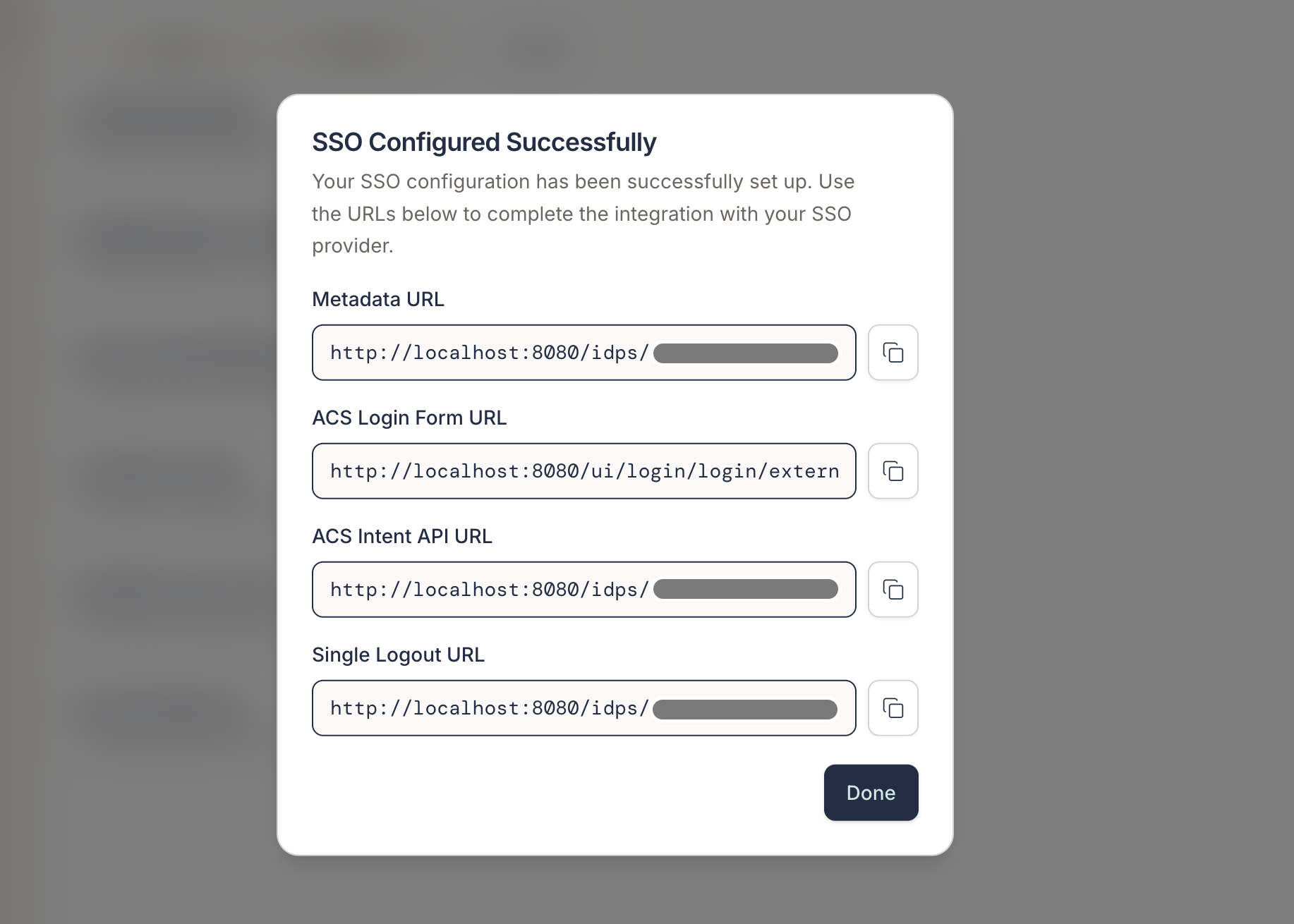
After saving, Ask displays URLs your IdP needs:
- Metadata URL: SP metadata for your IdP
- ACS login form URL: Assertion Consumer Service endpoint
- ACS intent API URL: ACS endpoint for API-initiated flows
- Single logout URL: SLO endpoint (if supported)
2.6 Enable SSO authentication
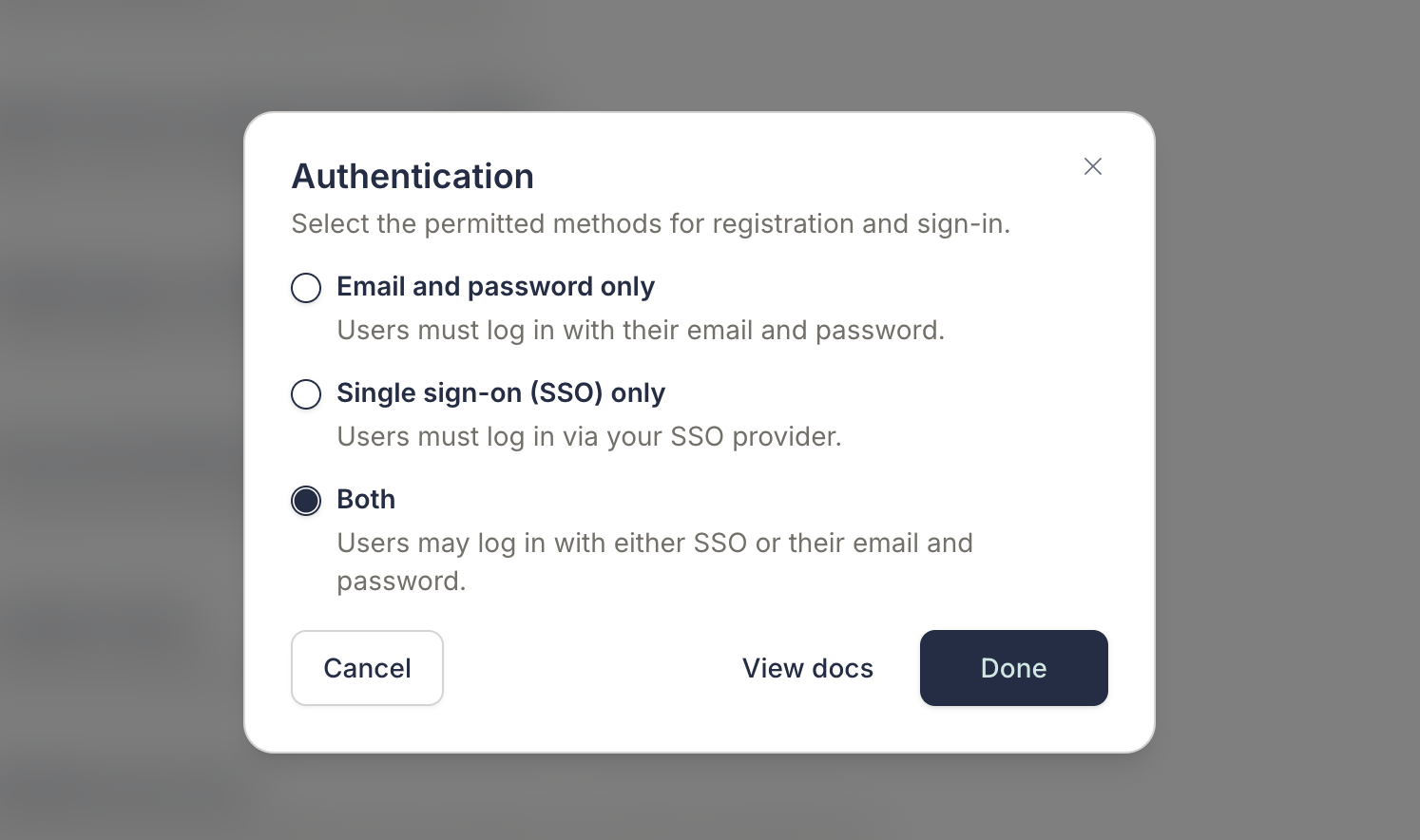
After configuring the SAML identity provider, you must enable SSO for your organization:
- Navigate to Admin > People & Access.
- Select the Access tab.
- Select the appropriate authentication option to enable SAML SSO.
Step 3: Configure the SAML application in your IdP
- Edit the SAML application in your IdP.
- Set the Assertion Consumer Service (ACS) URL and Entity ID / Audience using the values Ask provides after you save the initial configuration (see Step 2.5).
- Download or copy the IdP metadata URL or metadata XML if you have not already done so in Step 1.
For Okta specifically, map the Ask URLs to the SAML settings as follows:
| Okta field | Ask value |
|---|---|
| Single sign-on URL | ACS login form URL |
| Recipient URL | ACS login form URL |
| Destination URL | ACS login form URL |
| Audience URI (SP Entity ID) | Metadata URL |
If your IdP supports uploading a service provider (SP) metadata file, use the metadata URL from Ask once the provider is created.
Step 4: Verify the configuration
- Open an incognito or private browsing window to avoid cached authentication.
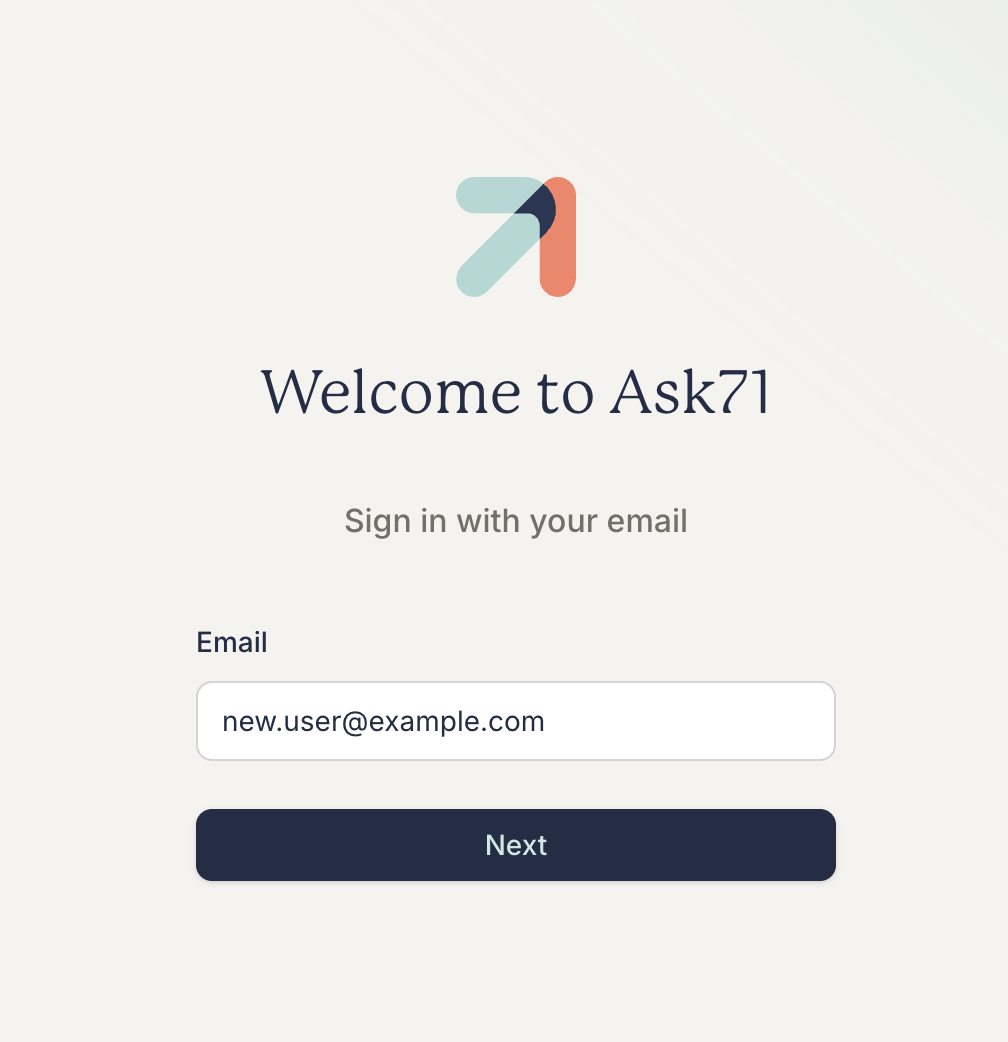
- Navigate to your Ask login page and enter email.
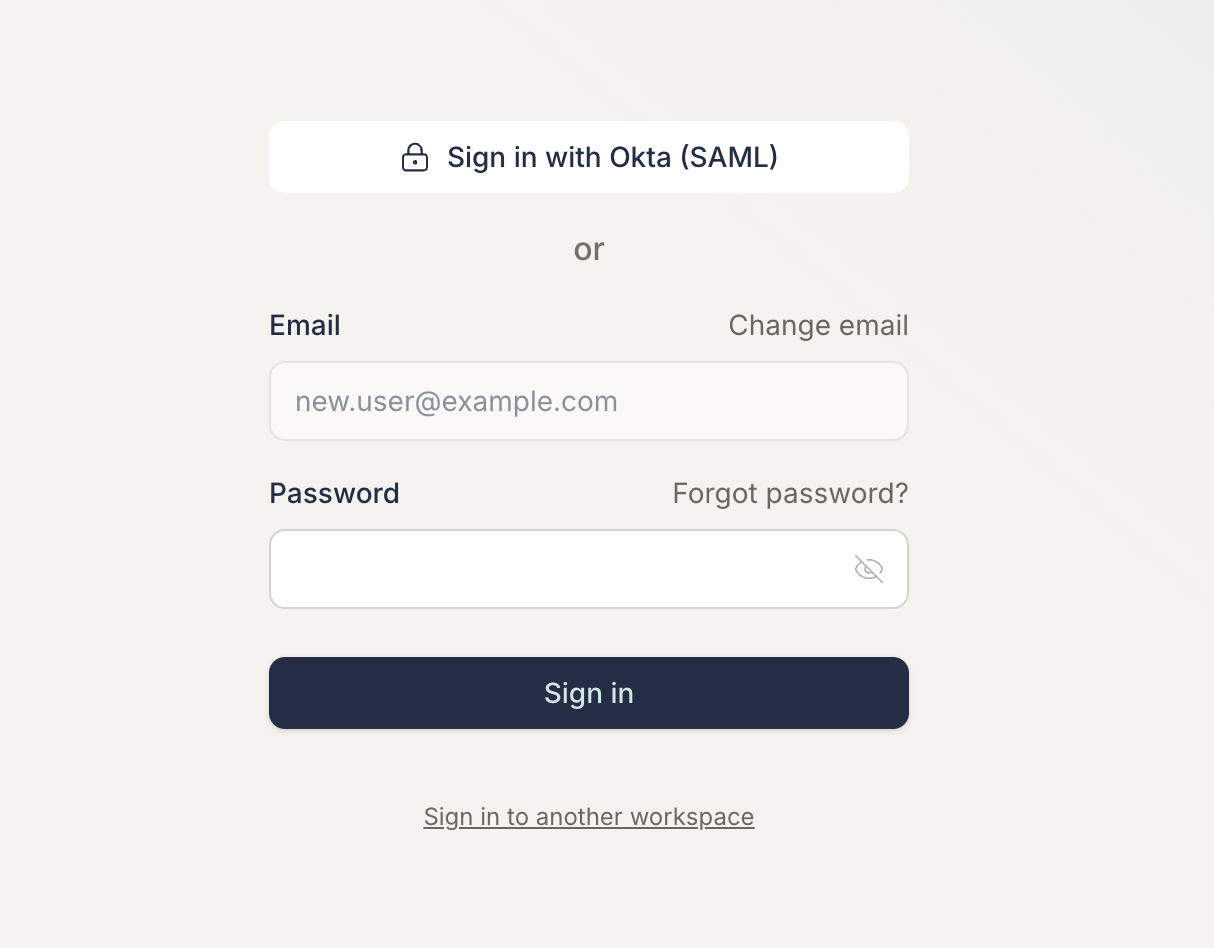
- You should see a SAML sign-in option for your configured provider.
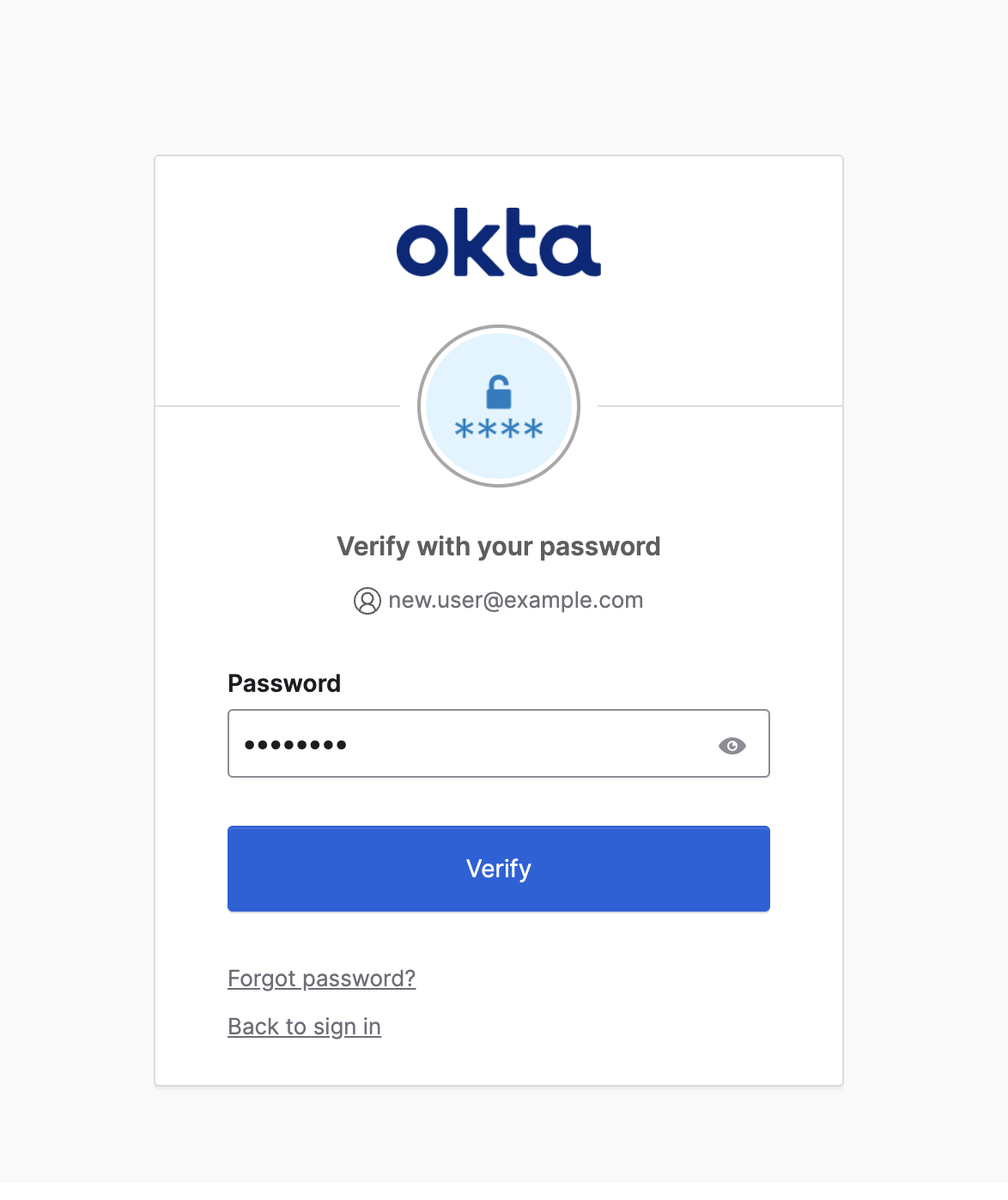
- Click the button, it redirects to your IdP's authentication screen.
- Complete authentication at your IdP.
- Confirm you land in Ask with the correct user profile.
Troubleshooting
- Metadata validation errors: Provide exactly one of metadata URL or metadata XML, not both. Ensure the URL is reachable over HTTPS.
- Attribute mapping failures: Verify claim names match what your IdP sends. Inspect a sample SAML assertion in your IdP's debug tools.
- ACS URL mismatch: Confirm the ACS URL in your IdP exactly matches the URL shown in Ask after configuration.
- Signed request errors: Try a different signature algorithm or disable signed requests if your IdP does not support them.
- Name suffix
(SAML): The product appends(SAML)to provider names. This is expected and helps distinguish SAML providers from other IdP types.