Microsoft Entra ID SSO Configuration
This guide walks you through configuring Microsoft Entra ID (formerly Azure Active Directory) as an identity provider (IdP) for single sign-on (SSO) in Ask. This enables users to authenticate using their existing Microsoft organizational credentials.
Prerequisites
- Organization Admin access to Ask
- Access to a Microsoft Entra ID tenant with administrative privileges
- Ability to register applications in Azure portal
If you don't have an Entra ID tenant, you can create one for free following Microsoft's documentation.
Step 1: Register a New Application in Entra ID
1.1 Create the Application Registration
- Navigate to the Azure portal and sign in with your administrative account.
- Go to Azure Active Directory > App registrations.
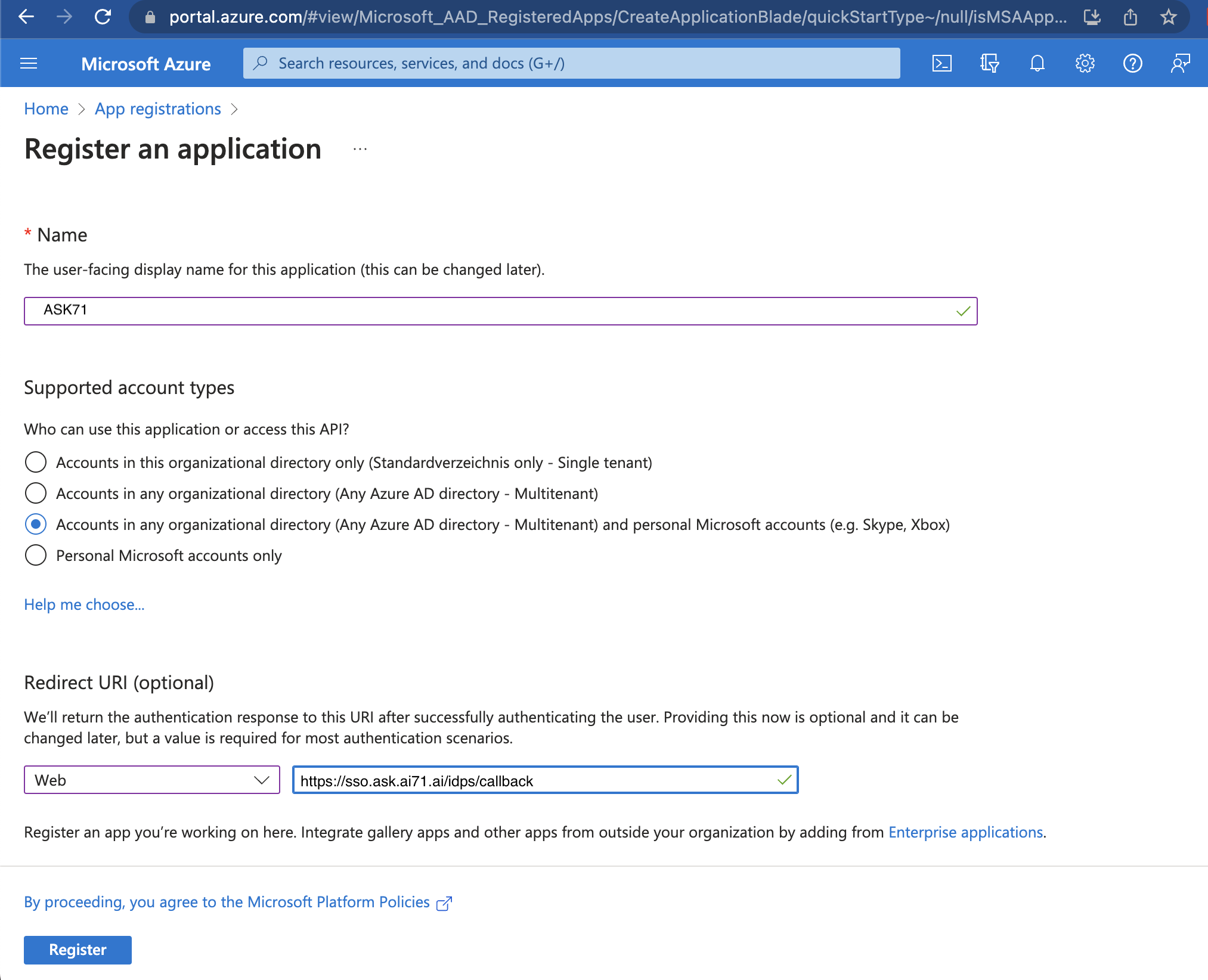
- Click "+ New registration" to create a new application.
- Configure the application settings:
- Name: Enter a descriptive name (e.g., "Ask SSO")
- Supported account types: Choose based on your organization's needs:
- Single tenant: Only users in your organization
- Multi-tenant: Users in any organization
- Personal accounts: Include personal Microsoft accounts
- In the Redirect URI section:
- Select "Web" as the platform
- Enter the Ask callback URL:
https://sso.ask.ai71.ai/idps/callback
- Click "Register" to create the application.
1.2 Save Application Credentials
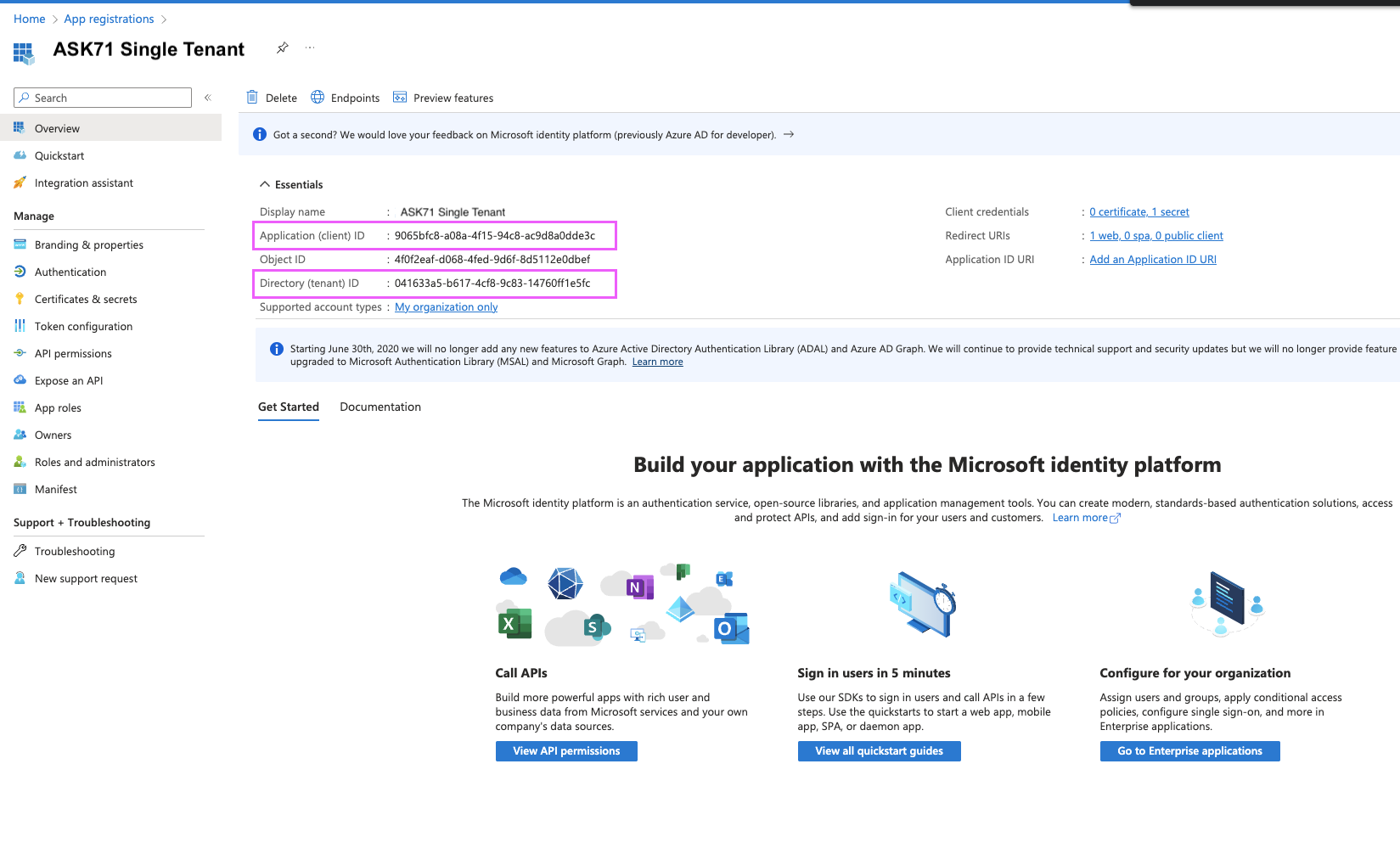
After registration, save the following values from the application overview page:
- Application (client) ID
- Directory (tenant) ID
Step 2: Configure Application Settings
2.1 Generate Client Secret
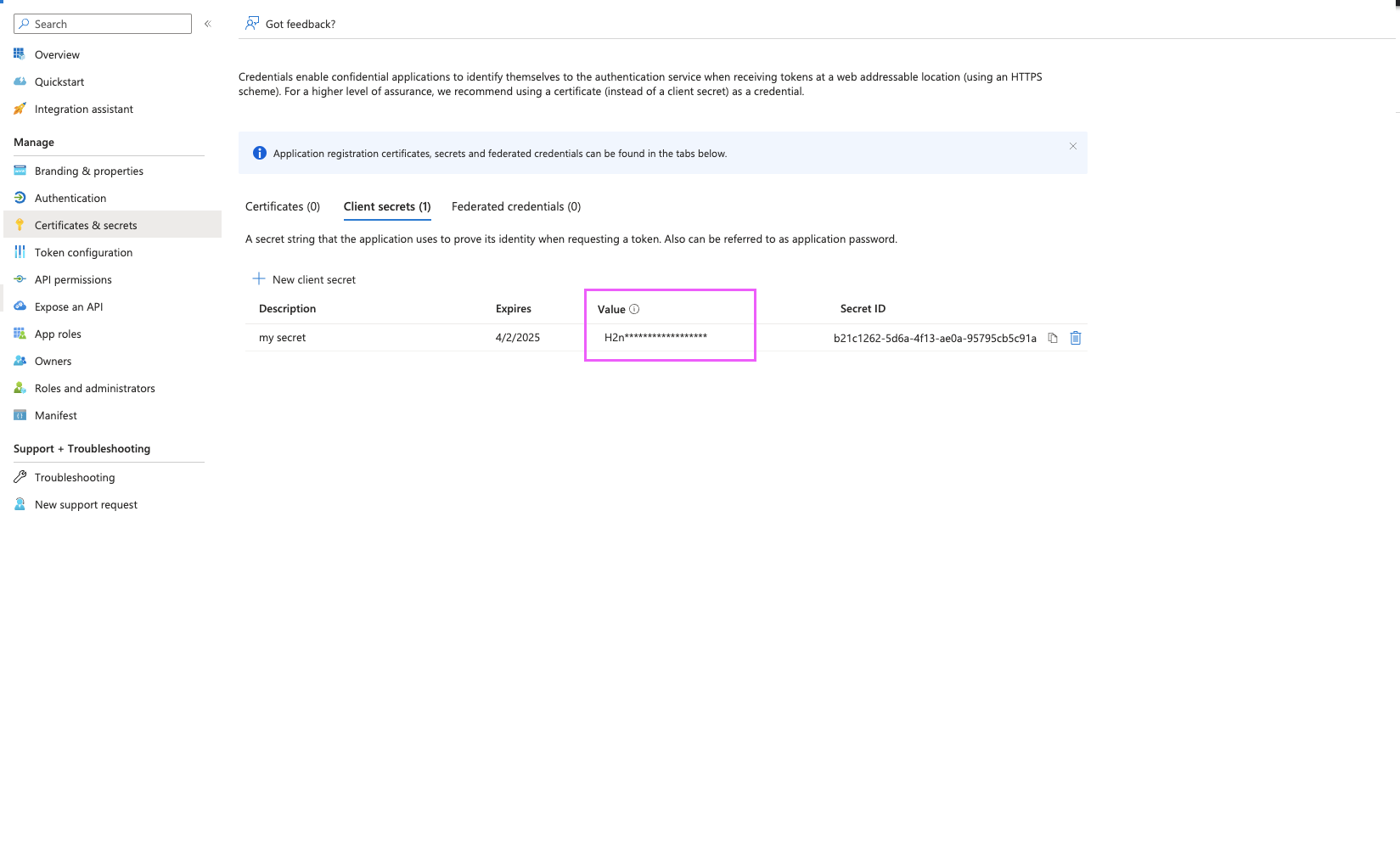
- In your application's detail page, navigate to "Certificates & secrets" in the left menu.
- Click "+ New client secret".
- Provide a description and select an expiry period.
- Click "Add" to generate the secret.
- Important: Copy the secret value immediately, as you won't be able to see it again.
2.2 Configure Token Claims
To ensure Ask receives the necessary user information, configure optional claims:
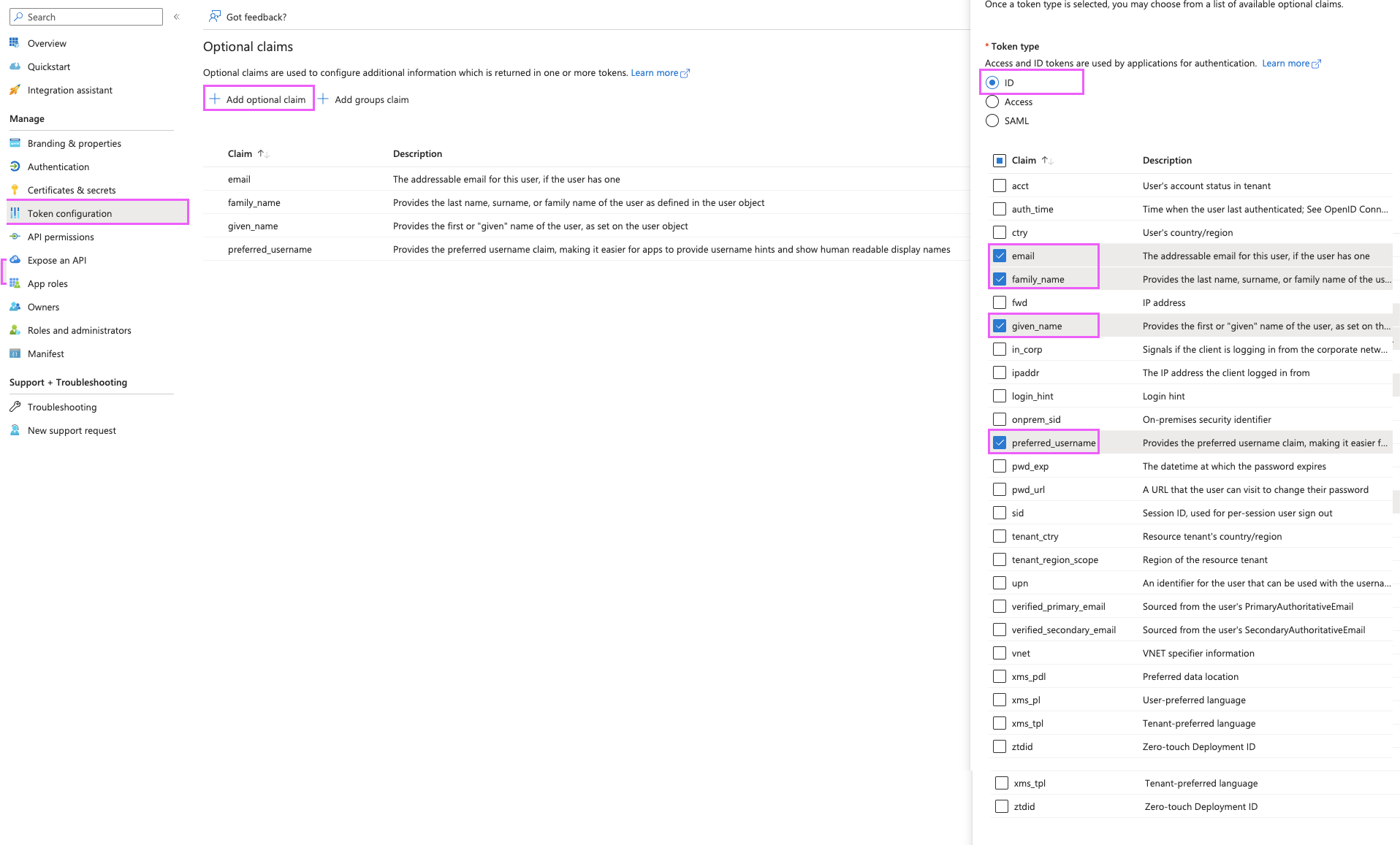
- Navigate to "Token configuration" in the left menu.
- Click "+ Add optional claim".
- Select "ID" token type.
- Add the following claims:
emailfamily_namegiven_namepreferred_username
- Click "Add" to save the configuration.
2.3 Set API Permissions
Configure the required permissions for Ask to access user information:
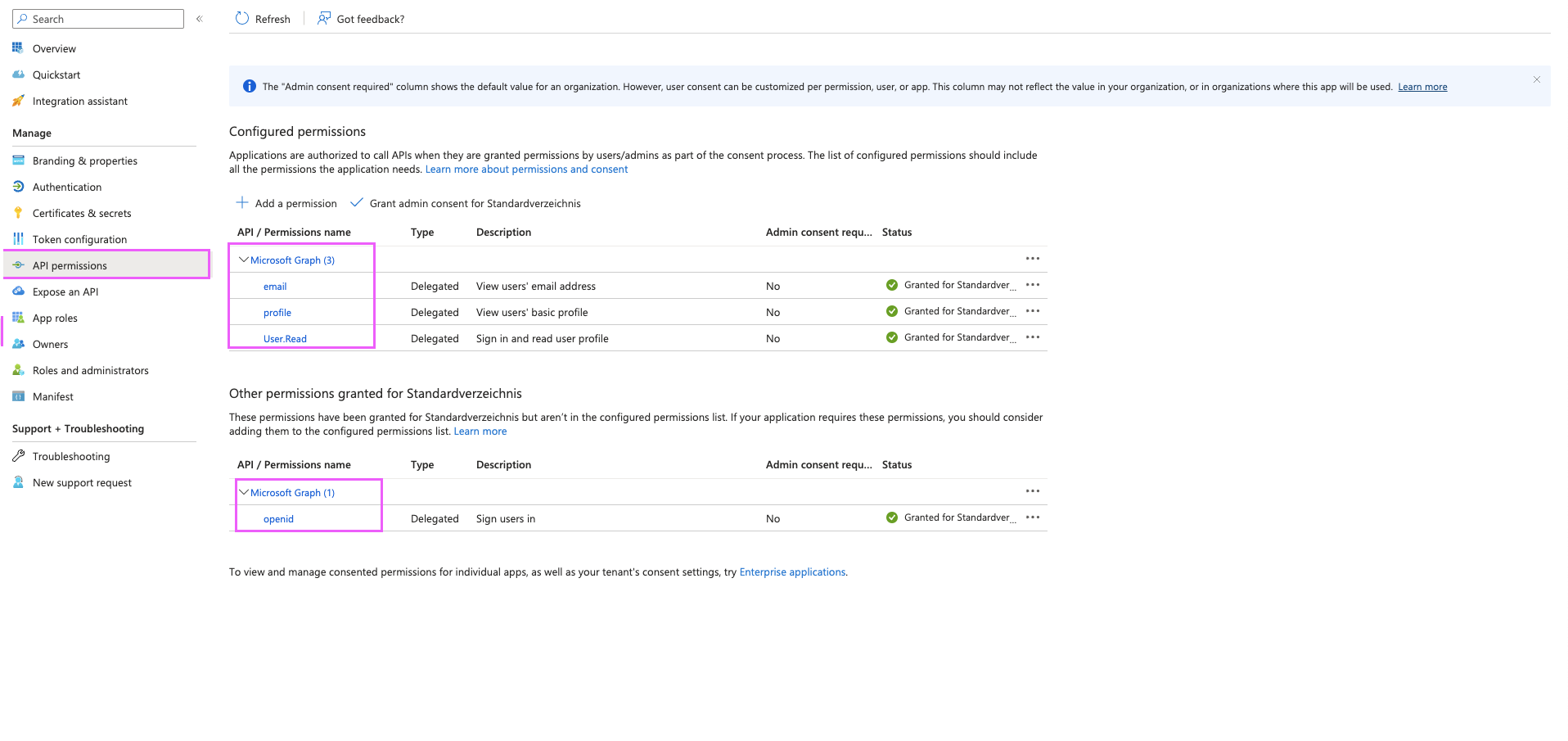
- Navigate to "API permissions" in the left menu.
- Verify the following Microsoft Graph permissions are present:
email(Delegated)profile(Delegated)User.Read(Delegated)openid(Delegated)
- If any permissions are missing, click "+ Add a permission" and add them.
- Click "Grant admin consent" if required by your organization.
Step 3: Configure Entra ID SSO in Ask
3.1 Navigate to Security Settings
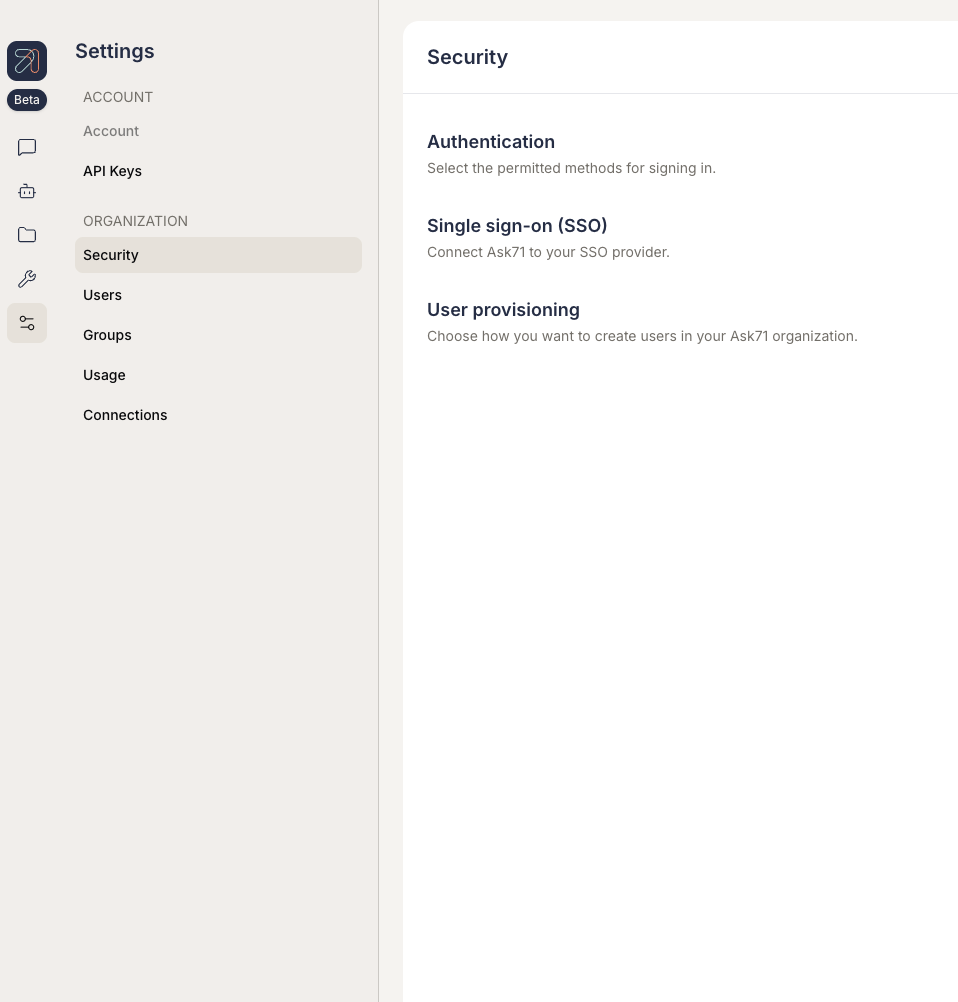
- Log in to Ask as an Organization Admin.
- Navigate to Security in the organization settings.
3.2 Select Microsoft as Identity Provider
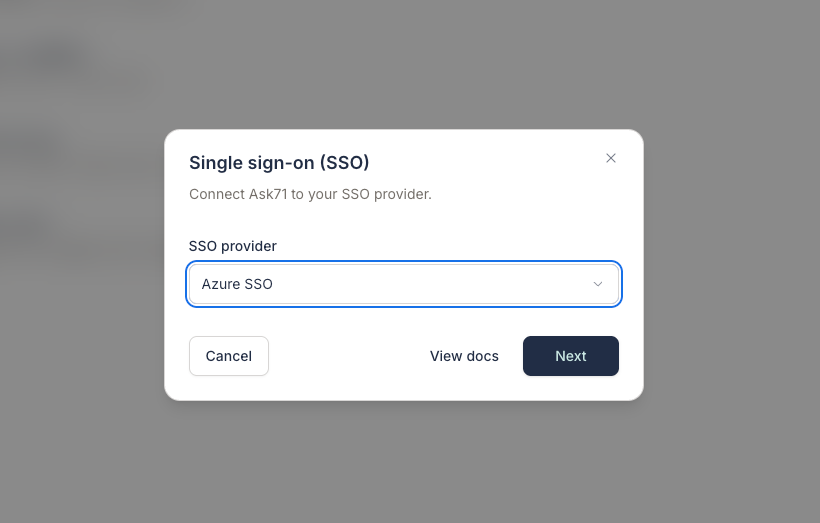
- In the Security settings, locate the Single sign-on section.
- Select Azure SSO from the available identity provider options.
3.3 Enter Application Credentials
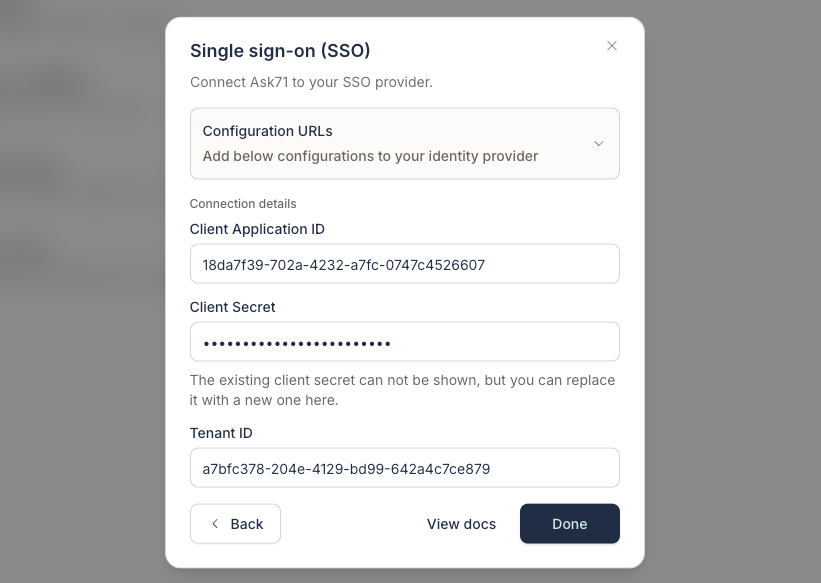
Enter the credentials you saved from the Entra ID application registration:
- Client ID: Enter the Application (client) ID from Step 1.2
- Client Secret: Enter the client secret from Step 2.1
- Tenant ID: Enter the Directory (tenant) ID from Step 1.2
- Click "Done" to save the configuration.
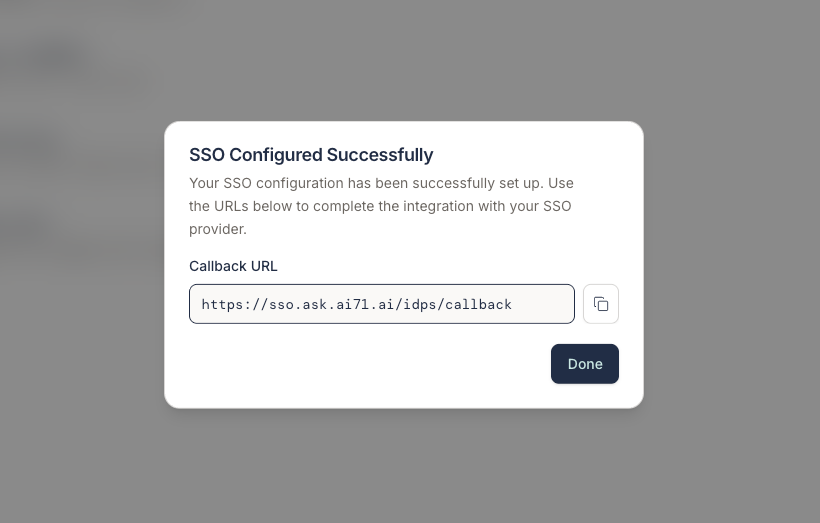
3.4 Fetch the Callback URL
After saving the credentials, Ask will provide a callback URL that you need to use in your Microsoft Entra ID application. Ensure that this URL matches the one you entered during OAuth client registration.
3.5 Enable SSO Authentication
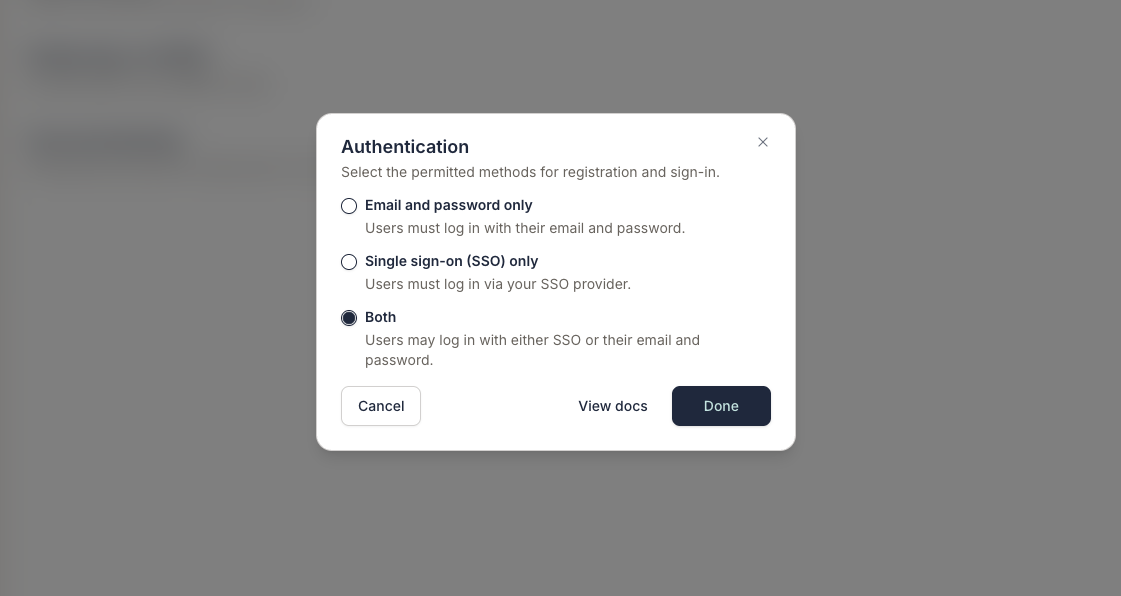
After configuring the Microsoft Entra ID identity provider, enable SSO for your organization:
- Navigate to Security > Authentication.
- Select the appropriate authentication option to enable Microsoft SSO.
Step 4: Verify the Configuration
To verify that Microsoft Entra ID SSO is configured correctly:
- Open an incognito or private browsing window to avoid cached authentication.
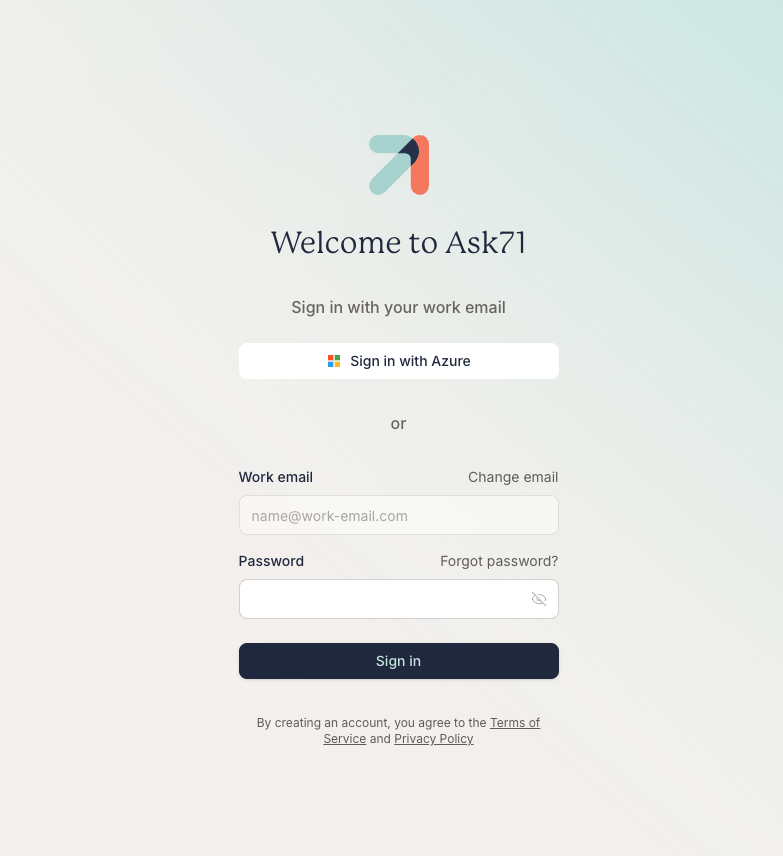
- Navigate to your Ask login page.
- You should see a "Sign in with Azure" button or similar Microsoft authentication option.
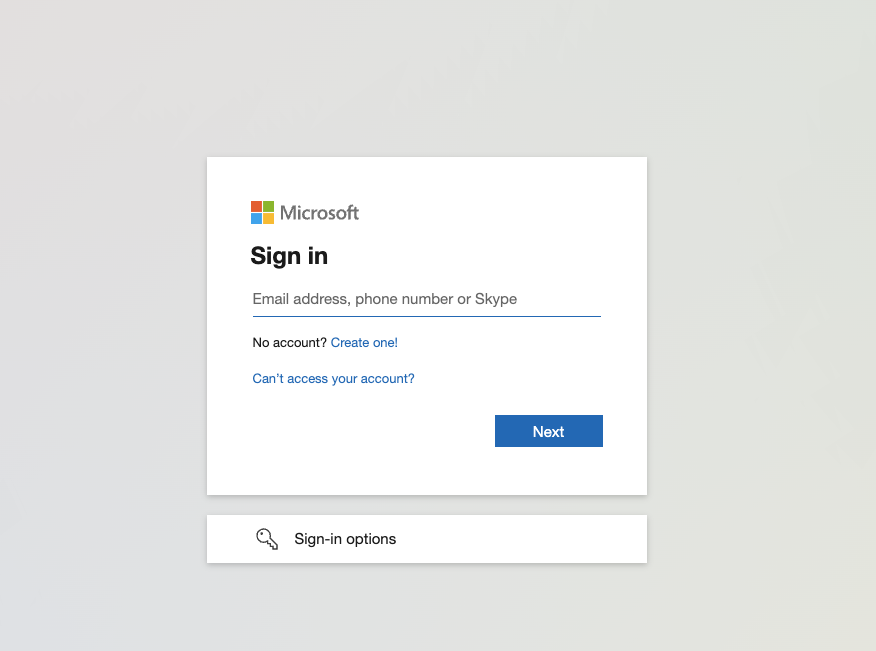
- Click the button to verify it redirects to Microsoft's authentication screen.
- Complete the authentication flow using valid Entra ID credentials.
Troubleshooting
If you encounter issues during setup:
- Verify callback URL: Ensure the redirect URI in Entra ID exactly matches
https://sso.ask.ai71.ai/idps/callback. - Check credentials: Verify that the Client ID, Client Secret, and Tenant ID are entered correctly without extra spaces or line breaks.
- Review permissions: Ensure all required API permissions are granted and admin consent is provided if needed.
- Token claims: Verify that optional claims are properly configured for user information retrieval.
- Test in incognito mode: Use an incognito window to avoid cached authentication interfering with your tests.
- Check expiry: Ensure the client secret hasn't expired and regenerate if necessary.