Create your first agent
Build an agent end-to-end in five minutes. The creator is a three-tab wizard: write instructions, attach what it can use, and configure how it behaves.
Prerequisites
- An Ask account with permission to create agents in your organization.
- A clear, one-sentence description of what the agent should do for you.
- Optional: a knowledge base you want the agent to consult, and any tools it needs.
Open the creator
From the left sidebar, open Agents, then click Create Agent in the top-right. You land at /agents/create. The header shows a tab strip with three steps and a toolbar with an Unsaved badge, a save icon, Test, and Publish Agent (disabled until you've written instructions).
Steps
-
Step 1: Instructions. Write what the agent should do.
The first tab opens with the prompt "Start by giving your agent instructions" and a rich-text input that supports
**bold**,*italic*,# heading, and- list. Stuck? Type a rough draft and click Improve, and Ask rewrites your instructions with clearer structure. Click Next when you're happy.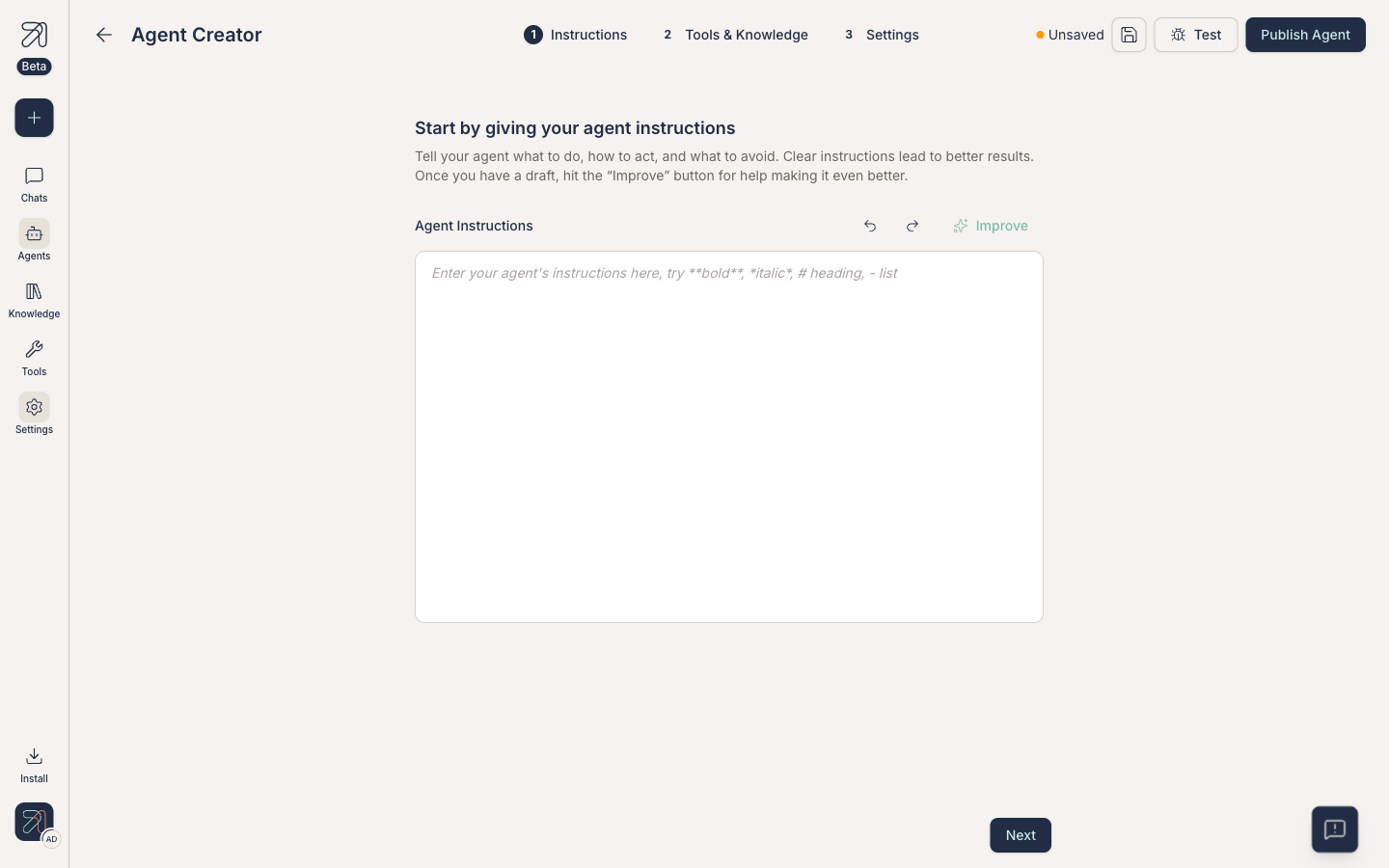
Step 1: Instructions. Use the Improve button to refine a rough draft. -
Step 2: Tools & Knowledge. Decide what the agent can access.
This tab has four sections:
- Built-in capabilities: "First-party tools your agent can call on demand." Toggle the Web Search Tools, Database Navigator, and Data Analysis chips.
- Connect your tools: click + Add tools to attach connected services (Slack, Gmail, GitLab, …). Each added tool appears as a row marked Needs to be activated; click its Add tool button to activate it. See Add tools.
- Add your knowledge: click + Add knowledge to attach collections the agent should search before answering. See Attach knowledge.
- Agent triggers: click + Add trigger to make the agent run on a schedule or event. See Triggers.
Skip whatever you don't need. A chat-only agent works with zero tools and zero knowledge.
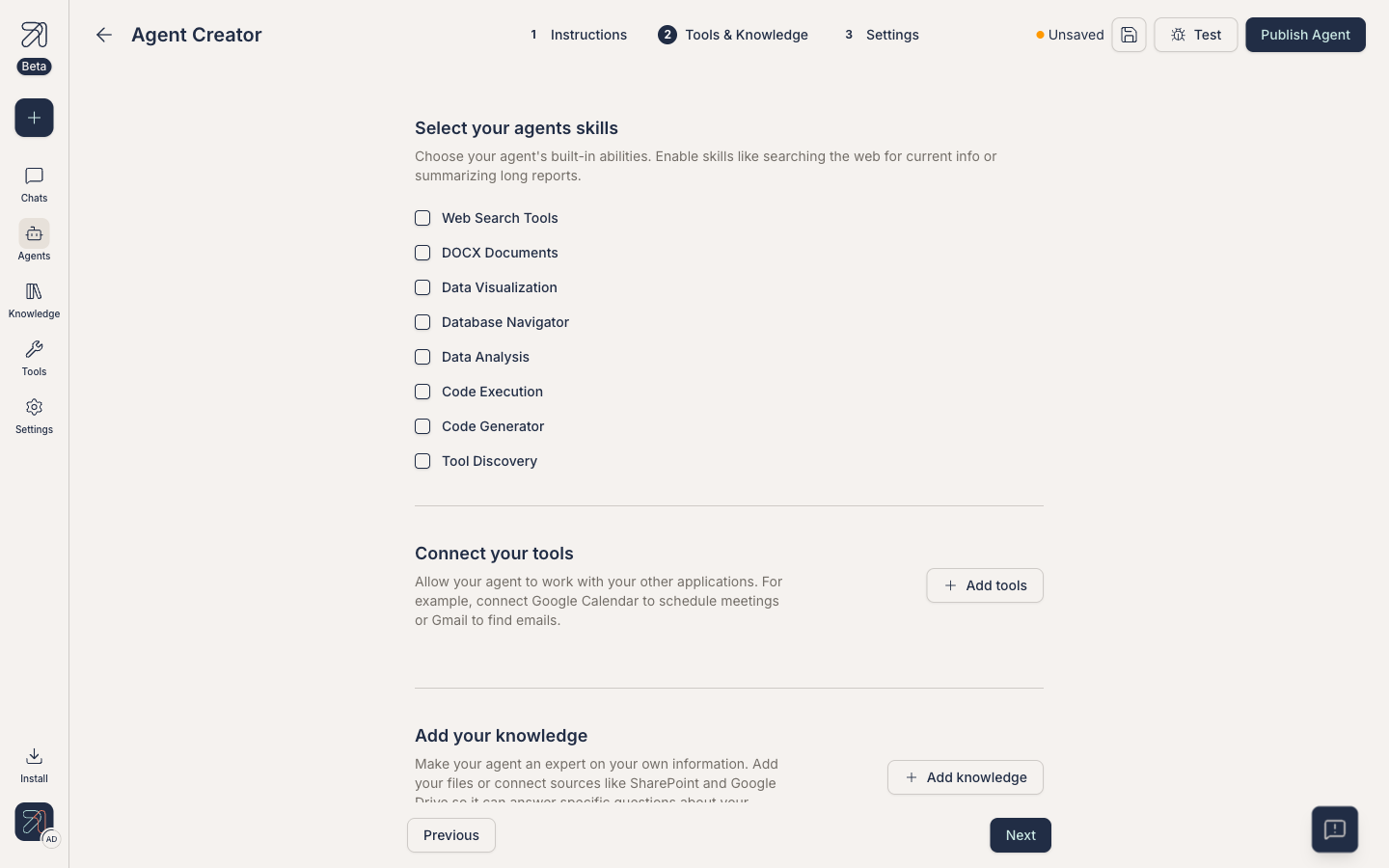
Step 2: attach knowledge bases and tools your agent can use. -
Step 3: Settings. Name it, describe it, and configure the engine.
Ask pre-fills Agent name and Agent description for you, generated from your instructions. Review both before publishing:
- Agent name: max 30 characters, no spaces; anything you type is lower-cased automatically.
- Agent description: max 750 characters. Shown in the agents library so others can pick it. If you leave it blank, Ask generates one at publish.
- Categories: a + Add combobox of business functions (Finance, Legal, HR, …) that appear as filter chips in the library. You can also Create new category from here.
Below those, an Advanced settings (Optional) block exposes further controls, each behind a Configure button or toggle:
- Model configuration: "Fine-tune the agent's core engine and reasoning settings." See Pick a model.
- Context management: "Control how your conversation history is handled as it grows over time."
- Set safeguards: "Restrict keywords, add policies, and enable filters." See Guardrails.
- Structured response format: "Returns responses as structured data in JSON format instead of plain text."
- Tool access mode: "Controls how connector tools are loaded into agent conversations." Choose All tools pre-loaded (the default: every tool available from the start, larger context) or Load tools when needed (smaller context, slight lookup latency).
- Privacy & PII anonymization: "Strip personal data before it reaches the model and restore it in replies. The model only ever sees placeholders; tools and the user see real values."
- Voice mode: toggle. "Allows you to speak to your agent and hear its responses." A Voice type picker lets you preview and choose the voice.
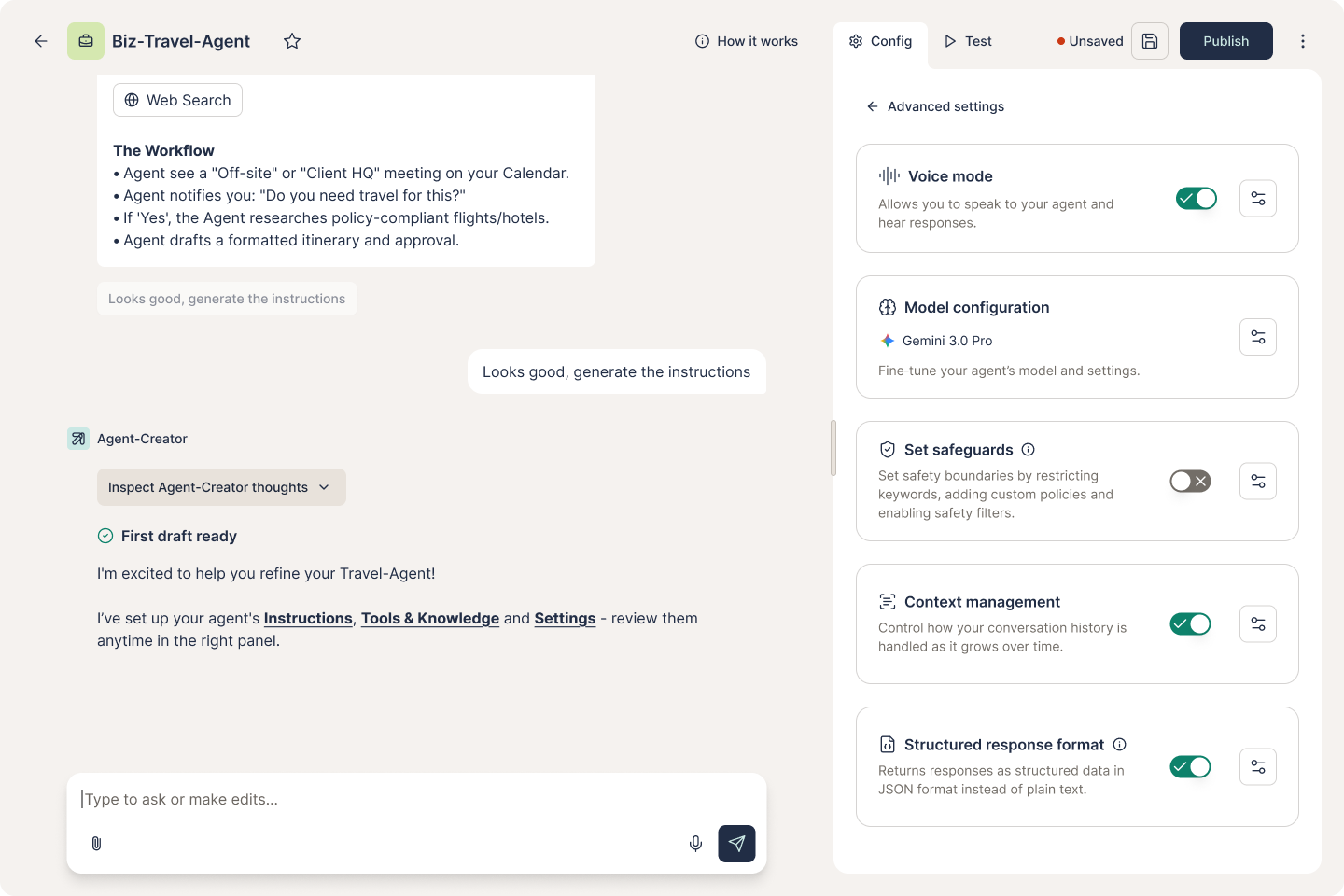
Step 3: Settings, plus collapsible Advanced settings for model, context, safeguards, and voice. -
Test before you publish. Click Test in the top toolbar to chat with the draft. Iterate on the instructions until the answers feel right.
-
Publish. Publish Agent activates as soon as your instructions are non-empty. Click it. Your agent appears in the Agents library and is reachable from New Chat.
Tips & gotchas
Use Test after every change. It's the fastest way to catch instructions that sound good but produce bad answers.
The Unsaved badge means your draft is not published: switching tabs is fine, but leaving the creator without publishing prompts "Discard this new agent?" and discarding loses the draft. Clicking the toolbar's save icon flips the badge to Saved and stores the draft server-side (the URL changes to /agents/<id>/edit), and a saved draft survives reloads. There is no autosave without it.