Connectors
Connectors pull content from Notion, SharePoint, Google Drive, etc. into a knowledge base, so agents can search your source-of-truth systems without you uploading files by hand.
Data Connections vs Connected Tools
Ask has two related Settings pages. They look similar, but they do different jobs:
- Data Connections: sources that feed content into knowledge bases. This is where the knowledge base connectors below live.
- Connected Tools: services that agents can call as tools at runtime (e.g., search a CRM, send an email). See Tools overview.
The two can connect to the same product (e.g., a Google account) for different purposes: once for indexing Drive files, once for letting an agent send Gmail.
Available connectors
A data connection is a window to an external file library (e.g. a specific SharePoint drive), and any available connections will be shown here. You can import files from your connections through the knowledge base page, by selecting it as a source.
Data connectors (e.g. Microsoft SharePoint) are types of external data sources, which can only be activated by admin. Once a connector has been enabled, admins are also able to set up, and share, connections with team members.
Some connectors are still rolling out and may be hidden on your org. Check with your Ask admin if a connector below is not visible in Settings.
Most connectors authenticate via OAuth or a Service Principal. Your organization's IT or Ask admin configures this once, at setup, for the whole org. Until that configuration is in place, regular users will not be able to use connectors.
Notion
- Status: available.
- Use it for: team wikis, runbooks, meeting notes, internal handbooks.
- Note: embedded image processing for Notion inline images is in active development, so image-heavy pages will improve over time.
SharePoint
- Status: available.
- Use it for: Office document libraries, policy sites, departmental shares.
Google Drive
- Status: available.
- Use it for: Docs, Sheets, Slides, and PDFs stored in Drive.
Live database connections
- Status: available.
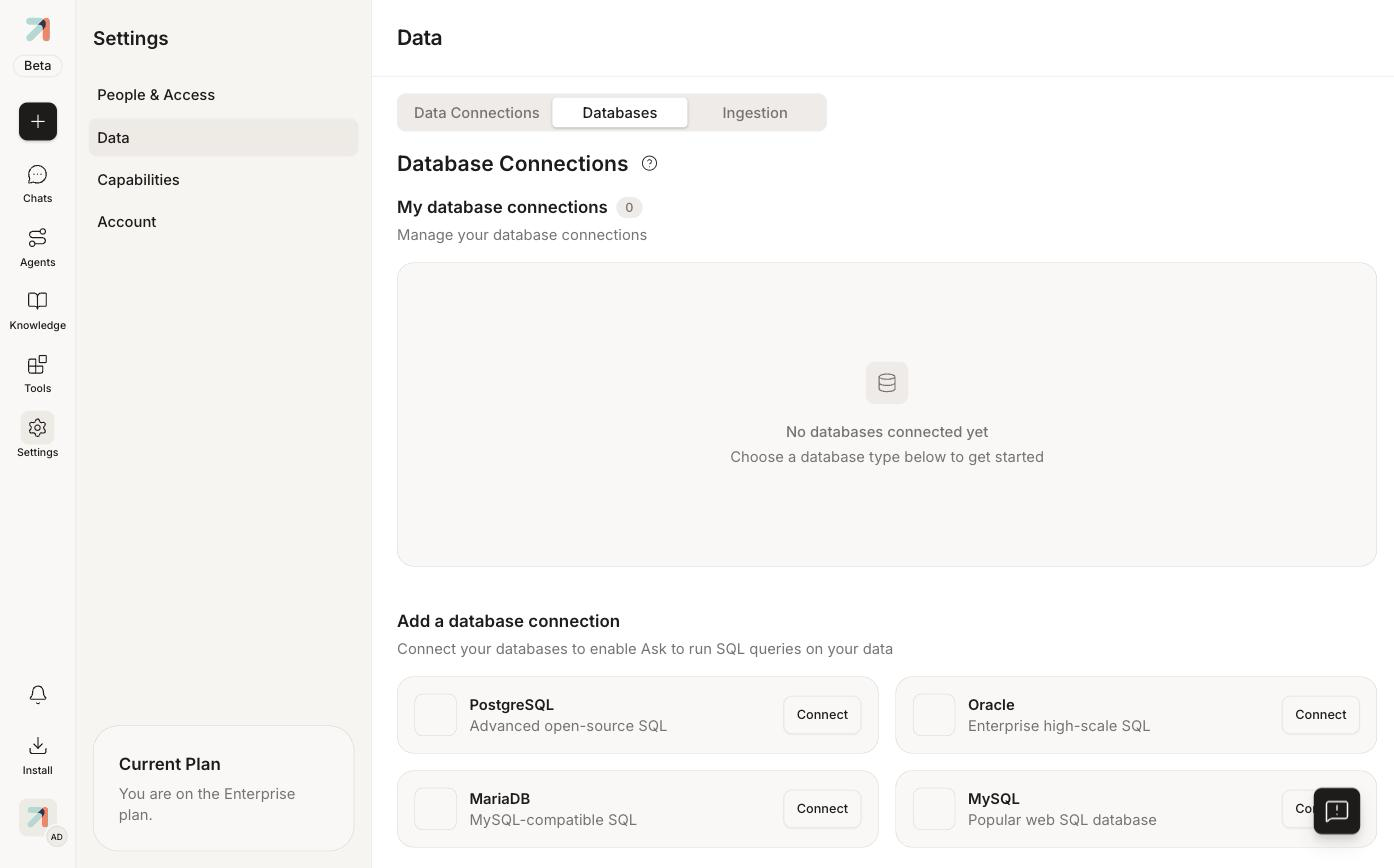
- **Configured under:**Settings → Data → Databases (
/settings/data/databases): PostgreSQL, Oracle, MariaDB, MySQL. - Use it for: querying structured data such as product catalogs, ticket systems, and financial records, through SQL-aware agent tools.
- Heads up: live DB connections behave differently from file-based knowledge bases. The agent issues SQL against your DB rather than embedding it into a vector index. In the agent creator, the matching built-in capability is called Database Navigator.
Prerequisites
-
Admin access to Settings → Data → Data Connections to authorize the source. Access is controlled by the connector role permissions: Build connectors, Manage connectors, View connectors, and Manage/View database connections (see Roles & permissions).
-
An account in the source product with read access to the content you want to import.
-
A knowledge collection in Ask to receive the content (or you can create one as part of the flow).
Set up a connector
If your org admin has enabled OAuth for a specific connector, then as a regular user you will be able to authenticate and attach your own drive. If your org admin has only configured a Service Principal, or has not configured the connector at all, you will not be able to authenticate.
-
Open Settings from the left sidebar, then the Data section, then the Data Connections tab. Click + Add a data connection.
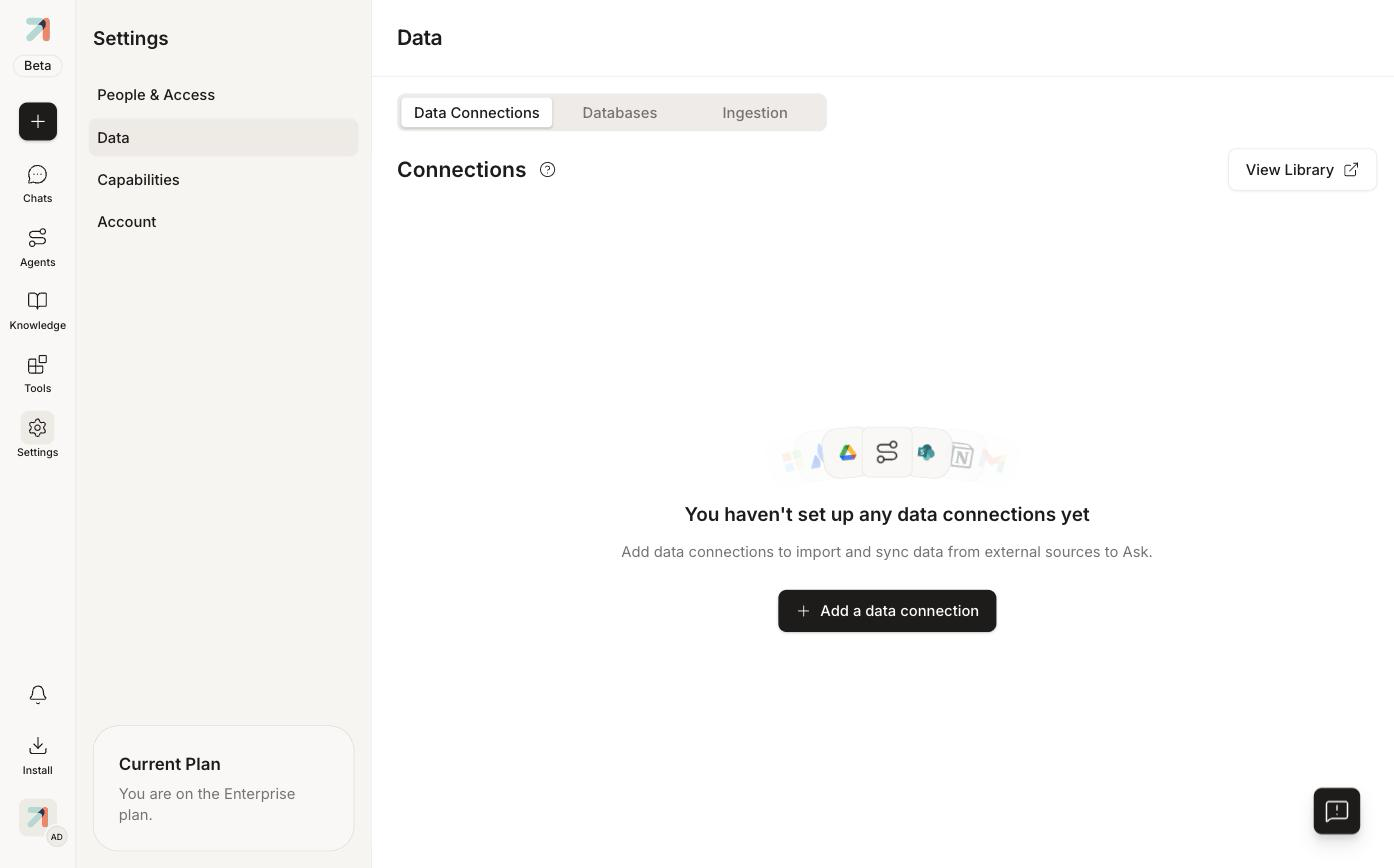
Settings → Data → Data Connections. -
In the Select a data source dialog, pick the source (Microsoft SharePoint, Google Drive, Notion, or a database) and click Continue.
-
In the Choose a connection method step, pick how the connection authenticates:
- Let users connect their own data (OAuth): each user signs in with their own account, and "access follows individual user permissions."
- Ingest organization-wide data in bulk (Service Principal): an admin-configured bulk connection; "no non-admins have access to these files until you share them inside of Ask."
-
Sign in to the source product and authorize Ask. For OAuth-based connectors, this opens the source's login screen in a popup.
-
Choose which workspaces, sites, drives, or folders Ask is allowed to read. Pick narrowly, since you can broaden later.
-
Map the connector to a knowledge collection. Files start ingesting in the background; you can watch progress from the Knowledge page.
-
Attach that collection to your agents. See Attach a knowledge base to an agent.
Refresh & sync
Connectors support automatic sync: when you change a file in the source, say a Google Drive doc, those changes cascade into Ask on their own, no re-upload needed. Deletions reflect too, so a document removed in Notion stops appearing in search after the next sync.
The sync interval is configurable by your org admin and defaults to once an hour. You can also trigger a sync at any time using the manual sync button.
With an OAuth connection, access follows individual user permissions: each user connects their own account and Ask sees what they can see. With a Service Principal connection, files are ingested in bulk under an admin identity, and no non-admins have access to them until an admin shares them inside Ask. Either way, once files land in a collection, the collection's sharing settings determine who can search them, so pick your source scope and collection visibility together.
Tips & gotchas
Map subsets of one source to different collections, for example the HR space in Notion to an "HR" collection and the Engineering space to an "Eng docs" collection. That lets you scope agents precisely.
Squad 1 is actively working on connector throughput and freshness. Initial ingestion of large workspaces can take a while; later syncs are incremental and much faster.