Attach a knowledge base to an agent
Wire a knowledge collection into an agent so it can ground its answers in your documents. You do this in the agent creator, not on the Knowledge page.
Prerequisites
- A knowledge collection with at least one ingested file. See Upload documents or Connectors.
- Permission to create or edit an agent. Most users can author agents in their own space.
- Optional: read Create your first agent if this is your first agent.
Attach knowledge while creating an agent
-
Open Agents in the left sidebar, then click Create Agent. You will land on the three-step creator.
-
Step 1: write the agent's instructions, then click Next.
-
Step 2 is titled Tools & Knowledge. Click Add knowledge.
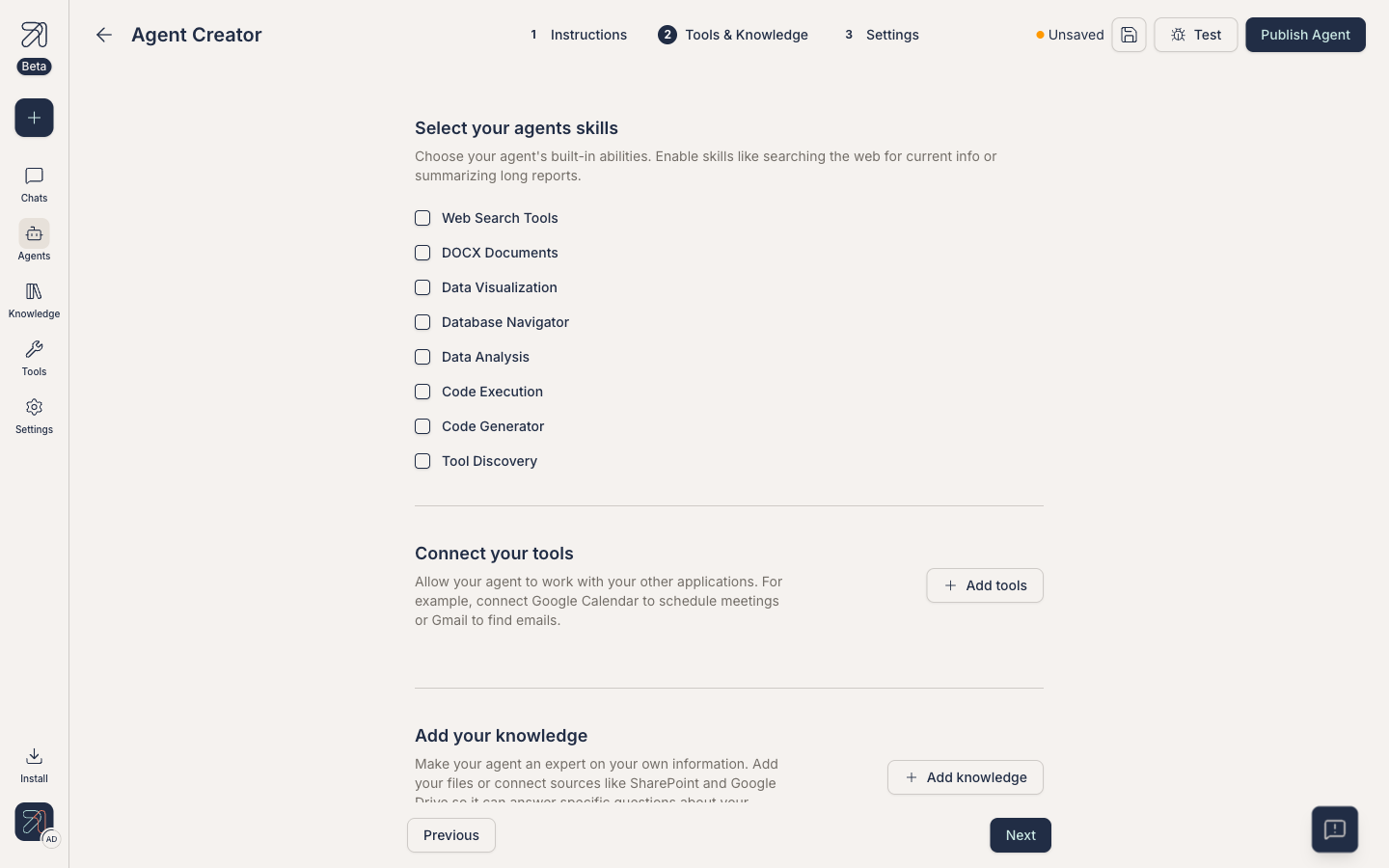
Step 2 of the agent creator. Click Add knowledge to attach collections. -
In the Select collections dialog, tick the collections you want the agent to search. The table lists each collection with its file count and last-modified date, and there's a search box for long lists. You can attach more than one, mixing Private and Shared (the picker doesn't show visibility, so check the Knowledge page if unsure). Confirm with Add knowledge. A Sync all collections toggle attaches everything at once, which is handy for a personal catch-all agent but works against the scoping advice below.
-
Click Next to move on to step 3 (Settings), give the agent a name and description, then Publish Agent.
-
Open a chat with the agent and ask a question. Look for citation chips on the response; they prove the agent retrieved from the attached knowledge bases.
Attach to an agent you already published
Click the agent's card in the Agents list to open its detail drawer, then choose ⋮ → Edit agent. The same three-step creator opens; jump to Tools & Knowledge and use Add knowledge the same way, then click Publish (the button is labeled Publish Agent only when creating). If you leave without publishing, Ask asks "Discard this edited agent?". There is no separate draft or version step.
Scope rules, in plain English
- An agent can only search collections that you can also see at attach time.
- A Shared collection attached to a Shared agent gives every chat user effective read access to that content through the agent, so pick what to attach with that in mind.
- If a collection is later deleted, the agent loses that knowledge silently. See Organize & manage.
- If a collection's contents update, the agent picks up the changes after the next sync, and you do not have to re-attach.
When you share an agent that has a collection attached, Ask makes it easy to share that underlying collection with the same user at the same time. That is convenient, but it grants them access to the collection's contents, so be deliberate, and always check and verify the permissions before you confirm.
Tips & gotchas
Attaching every collection "just in case" hurts answer quality, because the retriever has to discriminate across noisier content. Two or three well-curated collections almost always beats a dozen.
Use the agent creator's Test button (top of the creator) to try the agent live before publishing. Ask it questions whose answers you already know; if it fails on those, fix the knowledge base before you ship it.
You can attach the same collection to many agents. Updating the collection updates every agent that uses it, which is the whole point of having reusable knowledge bases.