Voice mode
Talk to your agent and hear it answer. Voice mode transcribes what you say (Arabic included) and reads the reply back, so you can work hands-free.
Before you start
- An agent with Voice mode enabled. It’s a per-agent setting, not a personal one.
- Microphone permission for your browser or mobile app.
- Speakers or headphones to hear the reply.
When voice is available
There are two voice controls on the input bar, and only one of them is per-agent:
- Record voice message (mic icon): dictation. Available with every agent: speak, and your words become a normal text message.
- Use voice mode (waveform button): a full spoken conversation. Only appears when the agent has Voice mode enabled.
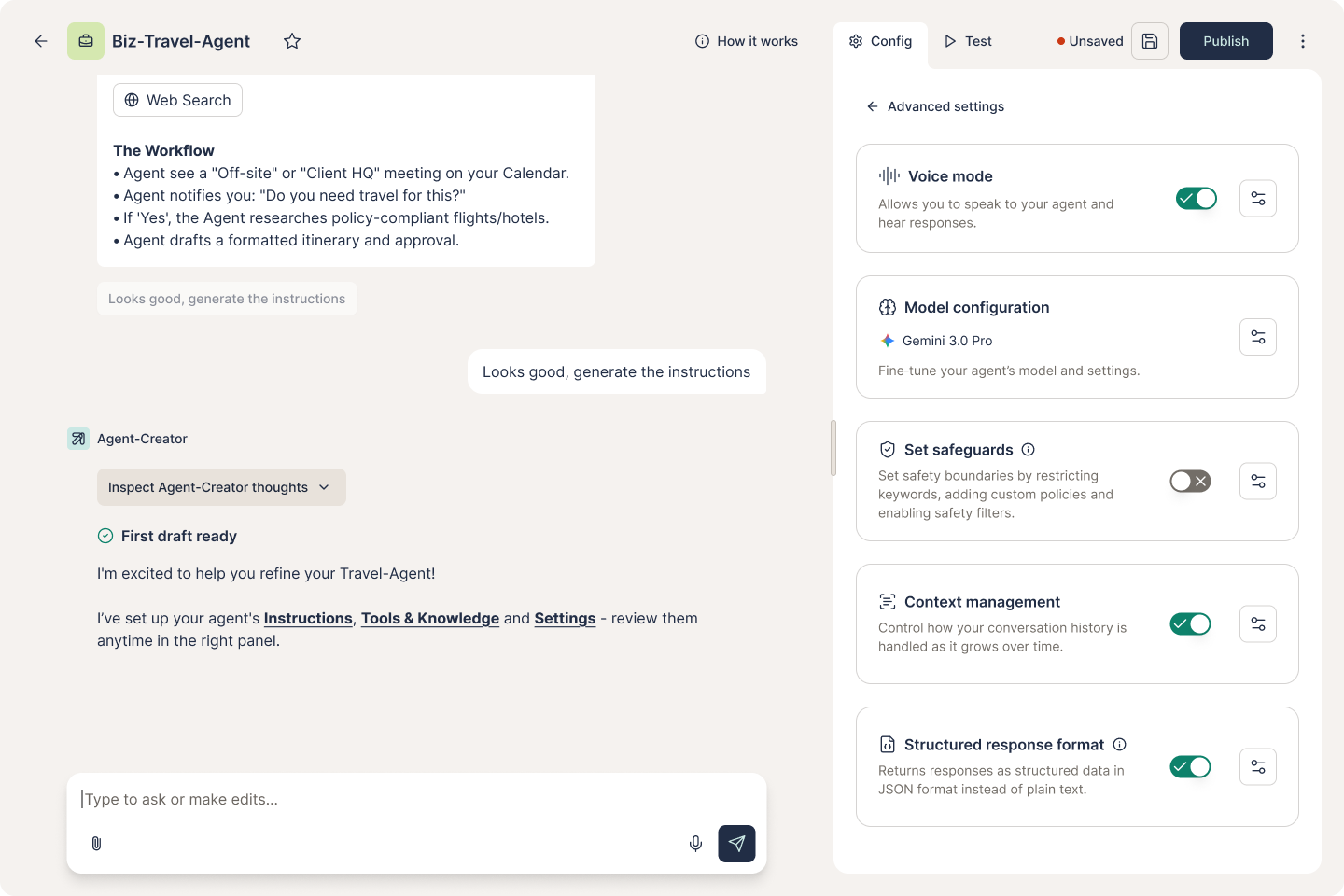
If a conversation shows no waveform button, the agent you're talking to doesn't have voice mode enabled. To turn it on, open the agent in the agent creator (or ask its owner to), go to the advanced settings, switch on Voice mode, and republish.
Use voice in a conversation
-
Open a conversation with a voice-enabled agent.
-
Click Use voice mode (the waveform button) on the input bar. The first time, allow microphone access when your browser or phone asks.
-
Speak naturally. Ask transcribes your words and sends them as your turn.
-
The reply is read aloud. Keep going hands-free, or switch back to typing whenever you like.
Hear the agent as it works
When an answer needs a moment to prepare, voice mode can speak a brief note of what the agent is about to do before it replies, so a longer answer doesn’t feel like dead air while it’s being worked out.
Languages & Arabic
Depending on the voice model selected, Ask voice mode can handle multiple languages including Arabic, English, French, and others.
Tips & gotchas
Voice is handy for hands-busy moments such as driving, walking, or cooking, and for accessibility. If you only want to dictate, mute the spoken reply and read instead.
Voice runs through Ask’s own voice service. In on-premise deployments it stays entirely within your environment, so audio never leaves your infrastructure.