Attach files & images
Drop a document, spreadsheet, or image into a conversation and the agent can read it, summarise it, answer questions about it, or analyse the data inside, right there in the thread.
You don’t have to load a file into a knowledge base first. Attaching it to a message makes it available to the agent for that conversation, which is ideal for one-off work: a report you want summarised, a spreadsheet you want charted, a screenshot you want explained.
Before you start
- An active conversation with an agent.
- The file you want to attach, on your device or already in one of your knowledge bases.
Attach a file
-
Select the + control on the message input bar to open the attach menu.
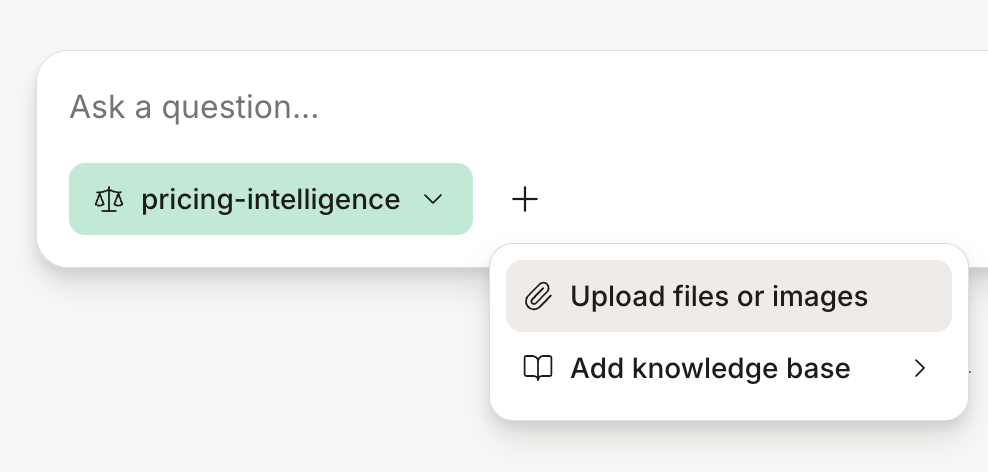
The attach control sits on the message input bar. -
Choose what to attach:
- Upload files or images: opens your system file picker to add files from your device.
- Add knowledge base: attach content you’ve already organised in Ask: a whole knowledge base, or just some of its files (see Attach from a knowledge base below).
-
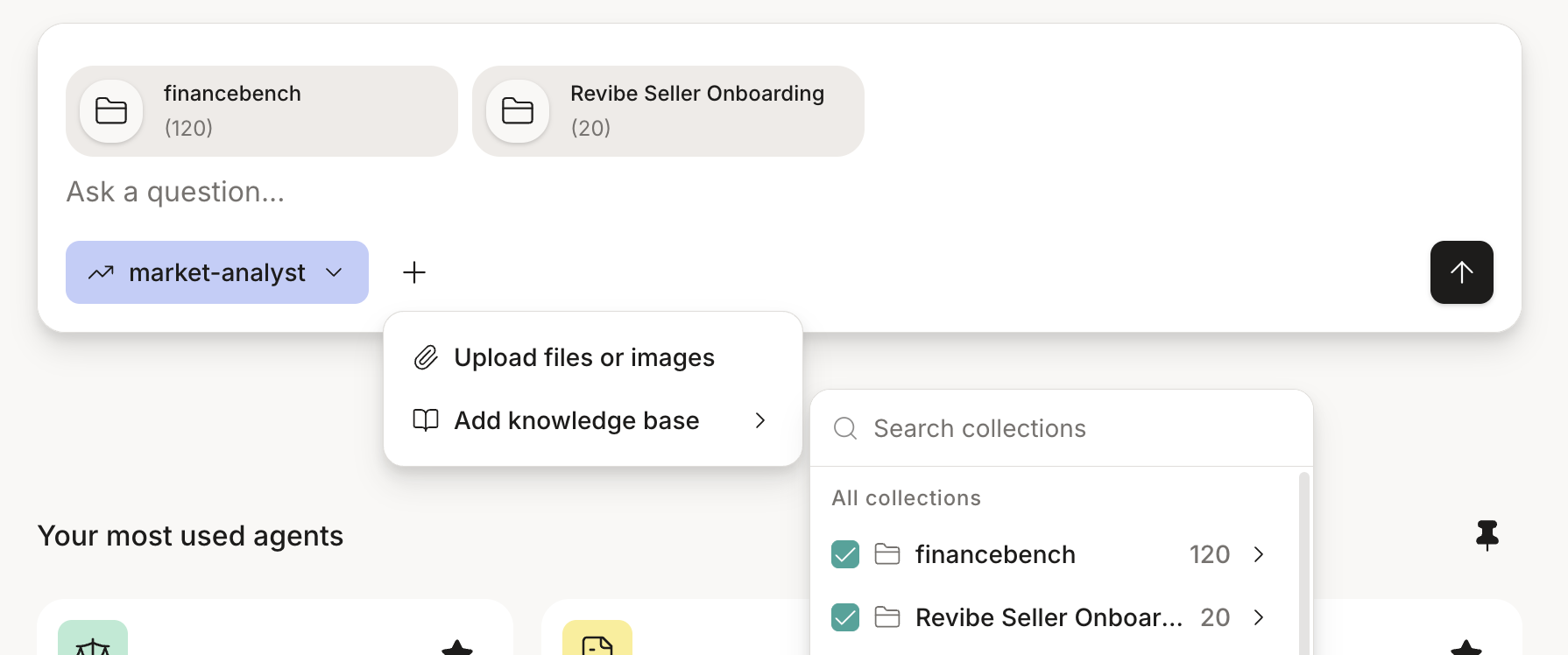
Your selection appears as chips above the input bar. A file shows its name; a knowledge base shows its name and how many documents it holds. Each chip has a remove (×) button if you change your mind.
-
Type your question and send. The agent reads whatever you’ve attached as part of your turn.
-
When the reply comes back, look for citations that point to your attachment. See Citations & sources.
Attach from a knowledge base
Choosing Add knowledge base opens a picker over the knowledge bases you can access. From here you can attach content at two levels of granularity.
A whole knowledge base. Tick a knowledge base to attach every document in it. It appears as a single chip showing its document count, and the agent can search across all of it for that message. This is useful when you want the full context of a project or topic rather than one specific file.
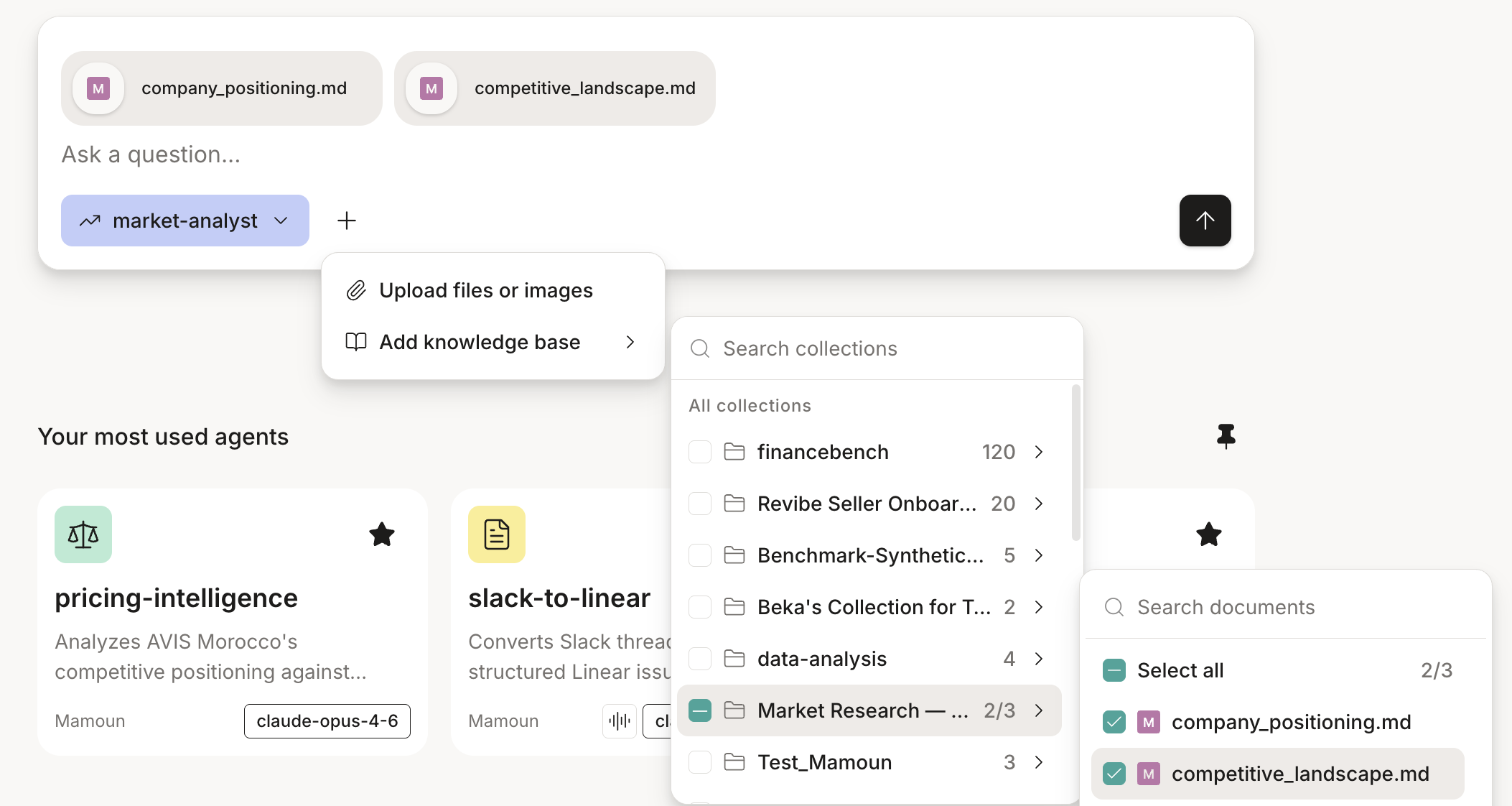
Specific files from a knowledge base. Open a knowledge base instead, and you can search its documents and pick out only the ones you need. Each selected file is attached on its own, so you can pull two files from a knowledge base without dragging in the rest.
See what’s attached
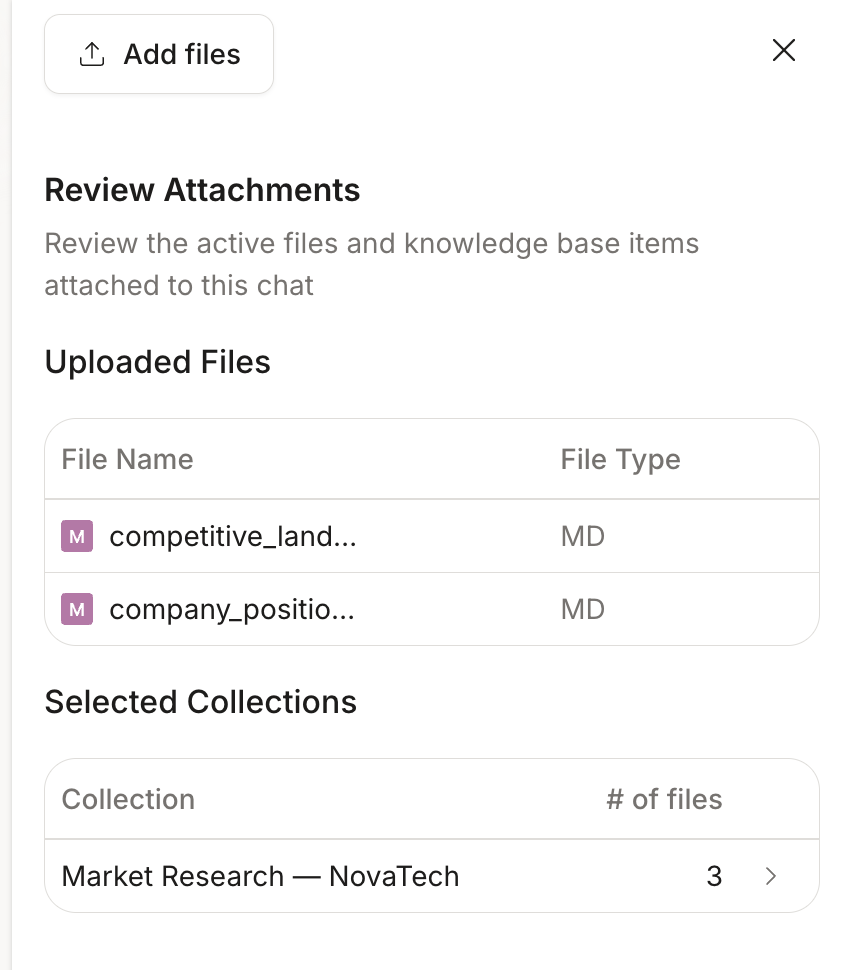
As you add files and knowledge bases, they stack up on the conversation. To review the full set, open the file manager from the toolbar at the top right of the chat. The attachments button (a folder icon) carries a badge showing how many items are attached. The button only appears once something is attached; an empty chat doesn't show it.
The Review Attachments panel lists everything the agent will draw on for this conversation, in two parts: the individual files you’ve uploaded, each with its file type, and the knowledge bases you’ve attached, each showing how many documents it holds and expandable to see them. You can add more without leaving the panel using Add files, or close the panel when you’re done.
What you can attach
Ask handles a broad range of document, data, and image formats. The most common are:
- PDF:
.pdfdocuments. - Word:
.docxdocuments. - Spreadsheets & data:
.csvand Excel files. When the agent has the Data Analysis tool, it can go beyond reading these to run calculations and build charts from them. - Images: JPG, PNG, and similar formats.
Other document types are supported too, and the list keeps growing. If a particular format matters to you, confirm it in your instance or with your admin.
Analyse data from a file
Attaching a spreadsheet is the quickest way to interrogate data. Give the agent a CSV or Excel file and ask a question about it. With the Data Analysis tool, it can surface trends, run the numbers, and produce a chart inline, without the data leaving the conversation. See Built-in tools.
Tips & gotchas
For documents you’ll re-use, add them to a knowledge base instead. Any agent connected to that knowledge base can then search across them, and you can attach them to a message in one click.