Export & share
Take a conversation out of Ask as a PDF, save a single answer on its own, or hand a teammate a read-only link to the whole chat.
There are two ways to get a conversation to someone else. Export produces a PDF file you can save, file, or attach anywhere. Share creates a link that anyone in your organization can open to view the chat in Ask, without changing it. Both live on the toolbar at the top-right of the chat.
Export as PDF
Exporting renders the conversation into a PDF and downloads it to your device. Nothing leaves Ask beyond the file you save.
The whole conversation
Open the chat and click the download button (the down-arrow icon) on the top-right toolbar. Ask builds the PDF and downloads it automatically; you’ll see a brief “Exporting PDF document…” state while it works. The file captures each turn in order: your prompts, the agent’s replies, and the citations that go with them, so the sources travel with the answers.

A single response
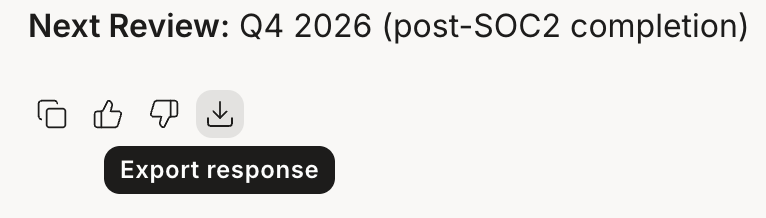
You don’t have to export a whole thread. When you only need one answer, such as a summary, an analysis, or a drafted section, hover over that reply and click the download action in the row beneath it, next to Copy and the feedback buttons. Ask exports just that exchange: the question you asked and the answer it produced.
Share a chat
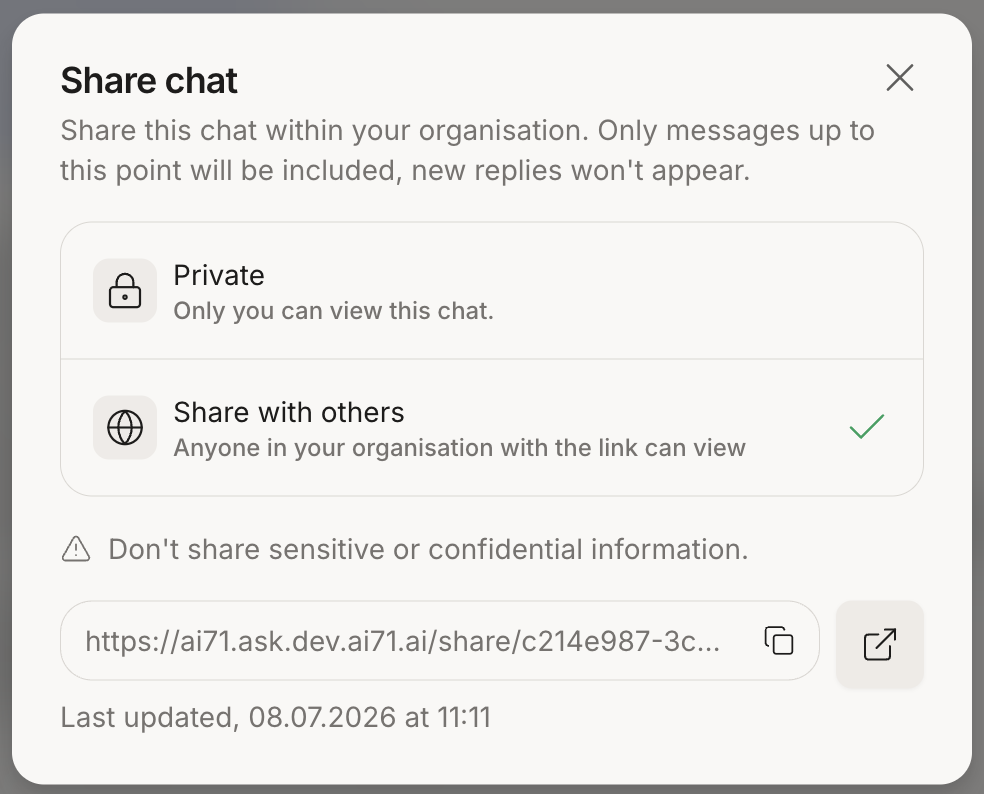
Sharing gives other people in your organization a link to view the conversation inside Ask. Click Share on the top-right toolbar to open the Share chat dialog.

Choose who can see it
The dialog offers two levels of access:
- Private: only you can view the chat. This is the default, and selecting it again revokes any link you’ve already shared.
- Share with others: anyone in your organization who has the link can open and view the chat. It stays inside your organization; the link won’t work for people outside it.
Choose Share with others and Ask generates a link. Use the copy button next to it to put the link on your clipboard, or the button beside that to open the shared view in a new tab.
It’s a snapshot
A shared link is a snapshot of the conversation up to the moment you shared it. Replies you add afterward don’t appear for people viewing the link. If the chat has moved on and you want them to see the newer messages, reopen the dialog and regenerate the link. Ask prompts you when there are new messages to include, and shows when the link was last updated.
What recipients can do
People opening your link see the conversation as read-only, marked as a snapshot shared by you. They can read it and follow its citations, but they can’t change it or add to it. To keep going from where it left off, they can choose Fork & Continue from this chat, which copies the conversation into a new chat of their own: the context carries over, and your original is left untouched.
Files you uploaded into the conversation aren’t included in a shared link. Recipients can see that files were attached, but not the files themselves, so a shared chat won’t leak an uploaded document.
Tips & gotchas
Both the PDF and the shared link reflect the thread as it stands when you export or share, so it’s worth a quick read-through first to make sure it captures what you mean to pass on.
A conversation can carry sensitive material the agent pulled from your knowledge bases. An exported PDF travels wherever you send it, and a shared link is open to anyone in your organization who has it, so don’t share sensitive or confidential information, and hand either one only to people who should see the underlying content.