Create & manage API keys
API keys authenticate your requests to the Ask API. Every user can create their own keys in Personal settings, with no admin needed, and each key gets its own fine-grained permissions, rate limit, and expiry, and can be deactivated independently.
Prerequisites
- An Ask account, any role. Keys are personal: they act on your behalf, with your permissions.
- Somewhere safe to store the key (a password manager or your team's secrets vault). You'll only see the full key once.
Create a key
-
Click your profile icon in the bottom-left corner, then choose Personal settings.
-
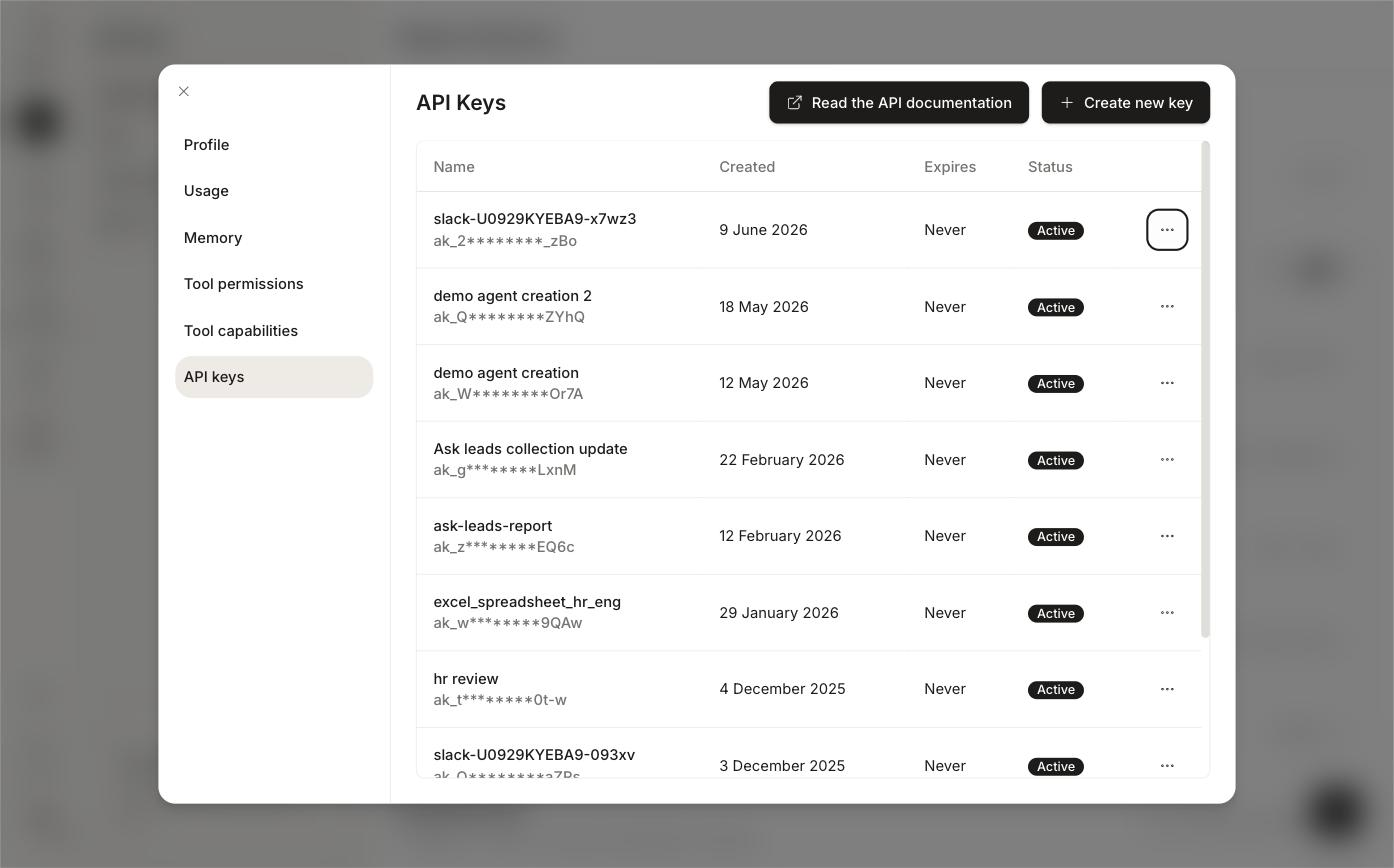
Pick API keys in the left sidebar of the Personal settings panel, then click + Create new key.
-
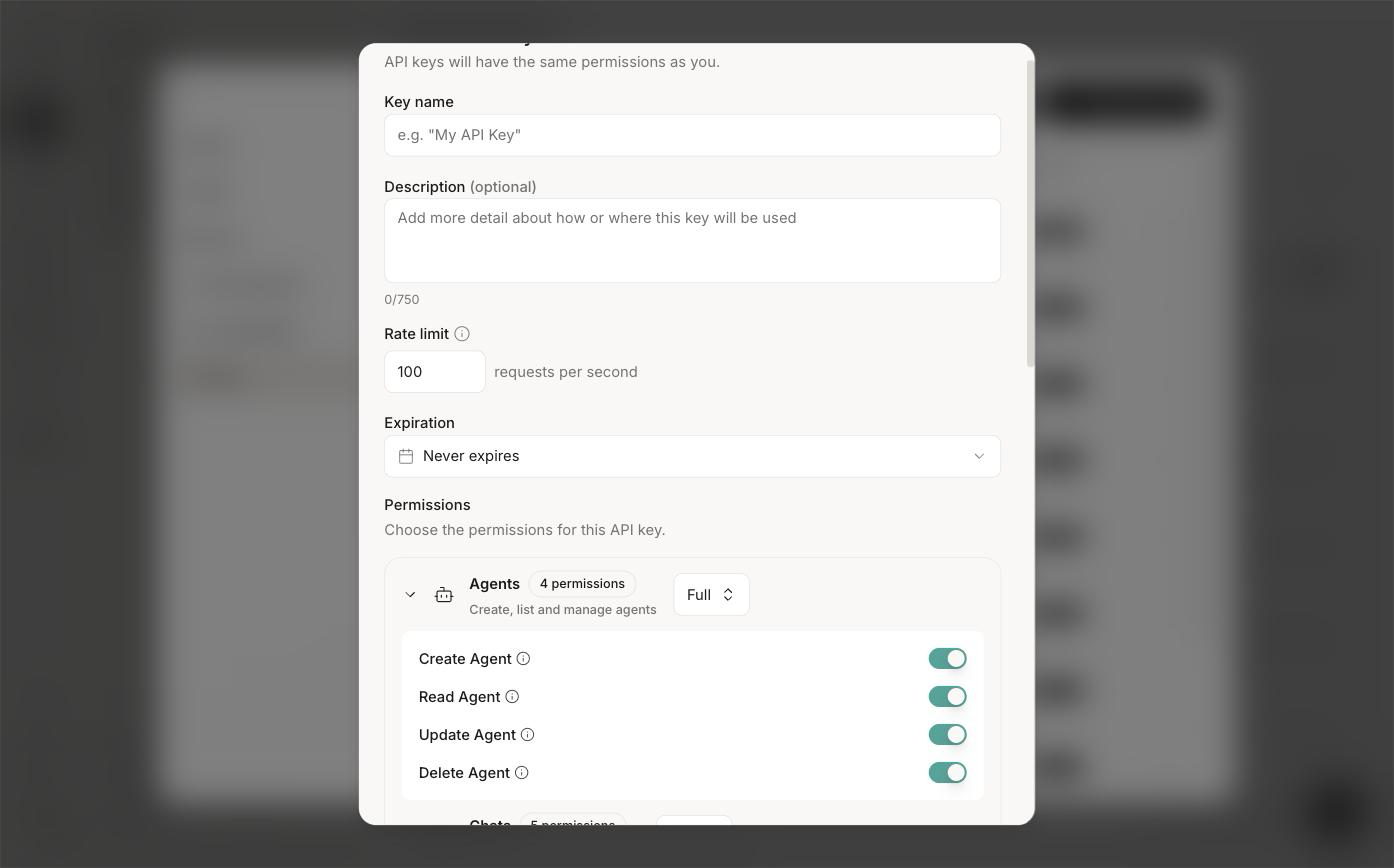
Give the key a descriptive Key name. Name it after the integration it's for (
slack-reporter,hr-review-bot), not after yourself, so it's obvious later what breaks if you revoke it. Use the optional Description to say where the key is deployed. -
Set a Rate limit (default 100 requests per second) and an Expiration: 1 day, 1 week, 1 month, 3 months, 1 year, or Never expires.
-
Under Permissions, choose what the key is allowed to do (see the next section), then click Create key.
-
Copy the generated key (it starts with
ak_) and store it securely.
The full key is shown once, at creation. Afterwards the list only shows a masked version (like ak_Q********ZYhQ). If you lose a key, revoke it and create a new one; there's no reveal.
Scope keys to least privilege
A key can do at most what you can do, and the creation dialog says it plainly: "API keys will have the same permissions as you." But it doesn't have to do everything. Permissions are grouped into five areas, each switchable between None, Full, and Custom, where Custom expands into individual toggles:
| Group | Individual permissions |
|---|---|
| Agents | Create Agent, Read Agent, Update Agent, Delete Agent |
| Chats | Create Chat, Read Chat, Update Chat, Delete Chat, Upload files to chat on-the-fly. Create Chat can additionally be restricted to specific agents (Select agents to message; if none selected, the key can message all agents). |
| Collections | Create Collection, Read Collection, Update Collection, Delete Collection |
| Documents | Upload Document, Read Document, Update Document, Delete Document. Can be limited to specific collections (Assign to collections; if none selected, applies to all collections). |
| Permissions | Search Groups, Search Users, Share Collection |
Grant only what the integration needs. A dashboard that reads conversation history has no business uploading documents or deleting agents:
- One key per integration. Never share a key between two systems, or you lose the ability to revoke one without breaking the other.
- Minimum rights. Set every group to None, then switch on only the permissions the integration calls. A chatbot usually needs just Chats, ideally restricted to the one agent it fronts.
- Set an expiry. The default is Never expires, which is fine for a quick test and wrong for production. Pick a real expiry and rotate.
Use a key
Pass the key in the x-api-key header on every request:
curl -X GET "https://api.ask.dev.ai71services.ai/v1/agents/" \
-H "x-api-key: $ASK_API_KEY"
From there, follow the Getting Started guide. It covers your first conversation, streaming, and Python/Node.js examples.
Review, revoke, rotate
The API Keys list shows every key you've created with its Name, Created date, Expires, and Status. The … menu at the end of each row offers View details, Rename, Deactivate, and Delete. Prefer Deactivate when you might need the key again; Delete is permanent.
To rotate a key without downtime:
-
Create a new key with the same rights.
-
Deploy the new key to the integration and confirm it works.
-
Deactivate the old key. Delete it once you're sure nothing else was using it.
Deactivating a user in Settings → People & Access does not revoke the API keys they created. When someone leaves, audit their keys and rotate anything their integrations depended on.
Keep keys secret
- Never put a key in client-side code, a public repo, or a shared doc. Treat it like a password.
- Load keys from environment variables or a secrets manager, not from source code.
- If a key leaks (or you're not sure), deactivate it immediately and issue a new one. Deactivation is instant.